Key takeaways
- Find the best gaming mouse for iPad with Bluetooth pairing, low-latency options, travel-ready weight and honest notes on iPadOS pointer limits.
An iPad is a bright, portable gaming screen, and a mouse can make strategy titles, games with mouse support, cloud gaming, and desktop-style games far more precise than touch alone. The catch is that an iPad is not a gaming PC. Choosing the best gaming mouse for iPad is less about chasing the highest sensor figure and more about what iPadOS will actually let a mouse do, how it connects, and which compromises are worth accepting.
As an Amazon Associate we earn from qualifying purchases
This guide covers only gaming mice that work with an iPad, directly over Bluetooth or through a USB receiver with a suitable adapter. It explains iPadOS pointer support and its limits, Bluetooth versus a dongle, realistic latency, battery approaches, and size and weight for travel and desk use, then applies those points to four models using manufacturer specifications.
What iPadOS Pointer Support Gives You — and Its Limits
Pair a compatible Bluetooth mouse and a pointer appears on screen, adapting its shape in many apps and snapping to buttons in supported interfaces. Left click, right click, and scrolling are handled by the system, and settings allow pointer speed adjustments and, in accessibility options, pointer appearance changes. For games built or updated for mouse input, the improvement over tapping can be immediate in menus, inventories, and strategy layouts.
Pointer support is an iPadOS feature, not a flagship-only feature. iPads running recent iPadOS versions — across the iPad, iPad mini, iPad Air, and iPad Pro families that support those versions — can pair with a Bluetooth mouse. Newer USB-C models make receiver connections simpler with an adapter or hub. Older Lightning models are usually best served by Bluetooth alone.
The limits matter. iPadOS does not run the configuration software makers build for Windows and, in some cases, macOS, such as Razer Synapse, Logitech G Hub, and SteelSeries GG. Button remapping, macros, per-game profiles, lighting control, and fine sensor tuning must therefore be set on a computer first, if the mouse has onboard storage, or they stay unavailable on iPad. A physical DPI button and onboard memory are genuinely valuable here.
Button mapping needs a clear warning. iPadOS treats a mouse mainly as a pointer. Main buttons and the scroll wheel have system roles, and extra side buttons may not be recognised by a game as they would be on PC. Some games support extra inputs, some only basic clicks, and some touch- or controller-first games offer limited mouse behaviour at all. No mouse can force a game to accept inputs it does not support, so check a favourite title’s input support first.
Bluetooth Versus a USB Receiver
Bluetooth is the simplest route: no dongle to lose, no adapter to buy, and pairing in the iPad Bluetooth settings. For travel, a clean desk, and switching a dual-mode mouse between iPad and laptop, it is hard to beat. Every mouse here offers Bluetooth, and for many iPad players it will be the only connection used.
A 2.4 GHz receiver — sold under names such as HyperSpeed, LIGHTSPEED, and Quantum 2.0 Wireless — is the traditional low-latency gaming link for a computer. On iPad it needs a physical path: a USB-C receiver can plug in directly, a USB-A receiver needs a USB-C adapter or hub on USB-C models, and Lightning models need a Lightning adapter with less predictable results. Treat a receiver setup as a possible bonus, not a guarantee, unless the maker states iPad support for that exact configuration.
Bluetooth also reports at a lower rate than the same mouse over its gaming receiver, which is why makers quote much longer battery life in Bluetooth mode. On iPad, where the game, operating system, and display all sit between mouse and action, the practical gap is often smaller than the specification gap suggests.
Latency, Sensors, Battery, and Fit
Latency on iPad is a chain: wireless link, iPadOS handling, game engine, and display. A fast mouse cannot remove delay from a cloud gaming stream, a slow network, or a game that samples input conservatively, and network latency usually dominates in cloud play. For native games with good mouse support, Bluetooth can still feel responsive in strategy, simulation, adventure, and menu-heavy games and in slower-paced action. Fast competitive play is where the limits show first, and iPad does not offer the high-polling pipeline of a receiver-connected gaming PC.
Sensor figures matter in proportion. A modern gaming optical sensor gives smooth, accurate tracking, but maximum DPI is a headline number — most players use far lower sensitivity. A physical DPI switch matters more on iPad because it works without software. Optical sensors also struggle on glass, so a mouse pad or consistent surface helps every pick here.
Battery design splits into two camps. Replaceable AA or AAA cells can run for hundreds of hours in Bluetooth mode and are swapped in seconds, at the cost of carrying spares and the cell’s weight. Built-in rechargeable batteries remove spares but add charging downtime, partly offset by USB-C fast charging and wired use while charging on some models.
Fit follows the same rules as at a PC desk. Small, light mice suit travel, fingertip and claw grips, and small surfaces. Larger ergonomic shapes with a thumb rest suit longer desk sessions and palm grips, at the cost of portability. Hand size should decide between them.
Each pick below is a gaming mouse with a gaming sensor and switches, offers Bluetooth for direct iPad pairing, and covers a distinct use case. Specifications are manufacturer figures, and battery life varies with mode, lighting, and use.
Razer Orochi V2: The Travel-First Pick
The Orochi V2 is built around portability. Razer describes it as a compact, ultra-lightweight wireless gaming mouse weighing less than 60 grams excluding the battery, at about 108 mm by 60 mm by 38 mm. The small symmetrical shape suits fingertip and claw grips and smaller hands, and it takes little room in an iPad case.
Bluetooth provides direct iPad pairing, while Razer HyperSpeed Wireless over the included USB receiver serves a computer, or an iPad through an adapter where that works. Razer lists a true 18,000 DPI 5G optical sensor, up to 450 inches per second and 40 G acceleration, six programmable buttons, and second-generation Razer Mechanical Mouse Switches rated for up to 60 million clicks. A DPI button cycles default stages of 400, 800, 1600, 3200, and 6400 — onboard control that stays useful where Synapse is unavailable — and onboard storage helps settings travel from a computer.
Power is a single AA battery in a hybrid slot that also accepts AAA, which slightly changes weight and balance. Razer quotes up to 950 hours in Bluetooth mode and up to 425 hours in HyperSpeed mode from the included lithium AA battery. The Bluetooth figure is the relevant one for iPad. The trade-offs are a shell that can feel cramped for a relaxed palm grip on larger hands, no wired mode, and no thumb rest.
Razer Basilisk V3 X HyperSpeed: The Ergonomic All-Rounder
The Basilisk V3 X HyperSpeed is the sculpted opposite: a right-handed ergonomic shape with a thumb rest, aimed at longer sessions and a palm or relaxed claw grip. For an iPad on a desk stand, that shape can keep a long strategy campaign or an evening of cloud gaming comfortable.
Razer lists a 5G Advanced optical sensor with 18,000 DPI, up to 450 inches per second, and 40 G acceleration, plus Razer Mechanical Mouse Switches Gen-2 rated for 60 million clicks. It describes seven programmable buttons and nine programmable controls, including scroll inputs and a multi-function trigger. On iPad, treat the main clicks, wheel, and DPI controls as the dependable inputs and extra buttons as game-dependent.
Bluetooth pairs with the iPad and HyperSpeed Wireless serves a computer over a receiver. Battery life is quoted at up to 285 hours in HyperSpeed mode and up to 535 hours in Bluetooth mode from a single AA battery — shorter than the Orochi V2 in Bluetooth, but still infrequent to change. This is the larger, heavier Razer pick, favouring a desk or a deliberate travel kit. Players with larger hands who find compact mice tiring are its natural audience.
SteelSeries Aerox 3 Wireless: The Lightweight Rechargeable Pick
The Aerox 3 Wireless uses a perforated shell to reach 66 grams in the original version and 68 grams in the 2022 edition, while keeping a full-size shape many players grip more easily than a mini travel mouse. SteelSeries rates it with AquaBarrier protection at IP54 against dust and water splashes, a practical touch for a mouse that travels with a tablet.
Its TrueMove Air sensor is listed at up to 18,000 CPI, 400 inches per second, and 40 G acceleration, with a 1000 Hz polling rate in gaming mode. Quantum 2.0 Wireless combines 2.4 GHz with Bluetooth 5.0. The 2.4 GHz side uses a USB-C dongle, interesting for USB-C iPads because it removes one adapter, although SteelSeries positions it for computers and iPad recognition through that route should be confirmed for a specific setup rather than assumed. Bluetooth remains the dependable path.
Battery life is quoted at up to 80 hours over 2.4 GHz and up to 200 hours over Bluetooth, charged over USB-C. SteelSeries states a 15-minute fast charge can provide more than 40 hours of use, and the mouse can be used wired over USB-C while charging on a device that supports it. The trade-offs are a perforated shell that can collect dust and does not suit every palm, and Bluetooth endurance well short of the AA-powered Razer models. Six buttons keep the layout simple, which suits iPadOS.
Logitech G604 LIGHTSPEED: The Button-Heavy Pick
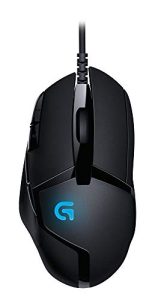
The G604 LIGHTSPEED is the specialist: a larger right-handed mouse listed at 130 mm by 80 mm by 45 mm and 135 grams with battery, carrying 15 programmable controls including six thumb buttons, a layout designed for MMO, MOBA, and other command-heavy PC games. On iPad, extra-button caution applies most strongly here, since iPadOS and each game decide which inputs register. It still suits players whose iPad games use additional buttons, and players splitting time with a computer, where Logitech G Hub can configure the layout and onboard memory can carry a profile.
Logitech lists the HERO sensor at up to 16,000 DPI originally, with later listings describing a HERO 25K version up to 25,600 DPI, so the ceiling depends on revision. Either provides far more range than iPad play requires, with zero smoothing, filtering, or acceleration in the maker’s description. LIGHTSPEED over the receiver gives a 1 ms report rate on a computer, while Bluetooth gives the direct iPad connection at a quoted 88 to 133 Hz — the maker’s own figures illustrate the Bluetooth gap. A button toggles between connections, easing moves between computer and iPad.
One AA battery is quoted at up to 240 hours in LIGHTSPEED mode and up to 5.5 months in Bluetooth mode under standard usage. The dual-mode hyper-fast scroll wheel switches between free spinning and ratcheted scrolling, useful in long menus and inventories. At 135 grams, in a tall, wide shell, this is a desk mouse first and a travel mouse second, suiting medium to larger hands.
Comparison and Setup
For travel, the Orochi V2 combines the smallest shell, lowest weight, and longest Bluetooth battery life. For desk comfort, the Basilisk V3 X HyperSpeed offers the sculpted shape and thumb rest. For a light rechargeable option, the Aerox 3 Wireless adds USB-C fast charging, a wired fallback, and dust and water resistance. For maximum controls shared between iPad and computer, the G604 LIGHTSPEED offers the deepest layout in the biggest body. Sensor figures are close enough that fit and connection should decide.
To set up over Bluetooth, put the mouse in Bluetooth mode, start pairing mode following the maker’s instructions, then select it in the iPad Bluetooth settings. Adjust pointer speed in settings and use the DPI button to match sensitivity to screen size — lower stages give finer control, higher stages move faster across a large display. For a receiver on a USB-C iPad, connect it directly if USB-C or through a reputable adapter or hub if USB-A, switch the mouse to 2.4 GHz mode, and fall back to Bluetooth if no pointer appears. Keep iPadOS updated, check each game for its own mouse settings, and play on a flat, consistent surface or a mouse pad, where optical sensors track as intended and feet and desks are protected.
Frequently Asked Questions
Can any Bluetooth mouse work with iPad, or does it need to be a gaming mouse?
Any compatible Bluetooth mouse can pair and move the pointer. A gaming mouse adds a more accurate sensor, durable gaming switches, a physical DPI control, and shapes and weights designed for play — real advantages on iPad, even though iPadOS cannot use every gaming feature.
Will extra side buttons work in iPad games?
Sometimes, depending on the game. iPadOS gives the main buttons and scroll wheel system roles, and support for additional buttons varies by title. Treat side buttons as a possible bonus, and check a specific game’s input support before choosing mainly for button count.
Is Bluetooth responsive enough for gaming on iPad?
For many styles, yes. Bluetooth adds latency compared with a gaming receiver on a computer, and cloud gaming adds network latency on top, so competitive play shows the limits first. Strategy, simulation, adventure, and casual action games are where Bluetooth feels most at home.
Can a USB receiver mouse work without Bluetooth?
Through an adapter on a USB-C iPad, a receiver may work, and a USB-C receiver removes one step. Recognition depends on the adapter, receiver, and iPad, so it should not be the only plan. A dual-mode mouse gives a dependable Bluetooth fallback.
Which iPad models work with these mice?
iPads running recent iPadOS versions with Bluetooth can pair with these mice, across the iPad, iPad mini, iPad Air, and iPad Pro families supporting those versions. USB-C models offer the simplest adapter path for receiver and wired use; Lightning models are best used over Bluetooth.
Verdict
The best gaming mouse for iPad is the one whose strengths survive iPadOS: clean Bluetooth pairing, onboard DPI control that needs no software, a shape that fits how the iPad is actually used, and a battery pattern that suits the routine around it. The Orochi V2 fits the travel player, the Basilisk V3 X HyperSpeed fits the desk player wanting ergonomic comfort, the Aerox 3 Wireless fits the player wanting a light rechargeable mouse with fast charging, and the G604 LIGHTSPEED fits the player wanting one button-heavy mouse shared between iPad and computer. The platform limits — no driver software, game-dependent extra buttons, and Bluetooth responsiveness below a desktop receiver setup — are facts to choose around, not flaws in the mice. Chosen with them in mind, a gaming mouse can turn a touch-first tablet into a precise, comfortable gaming setup at a desk or on the move.
FAQ
Can any Bluetooth mouse work with iPad, or does it need to be a gaming mouse?
Will extra side buttons work in iPad games?
Is Bluetooth responsive enough for gaming on iPad?
Can a USB receiver mouse work without Bluetooth?
Which iPad models work with these mice?
More from Amazon
Programs that pair well with the guide above. Offers and eligibility are set by Amazon and may change.
Free shipping on eligible items, Prime Video and more. Eligible new members can start with a free trial.
Start a Prime free trialAd-free music streaming. Eligible new subscribers can start with a free trial.
Try Music Unlimited freeA Prime membership for ages 18-24 with a trial period. Eligibility is set by Amazon.
See Prime for Young AdultsAudiobooks and podcasts to listen to on the go. Eligible new members can start with a free trial.
Try Audible freeAs an Amazon Associate we earn from qualifying purchases.