Our Top Picks
 BlueAVS 4K60 HDMI Video Capture Card for PS5Small & Portable4.33 x 2.36 x 0.9 inches0.3 poundsCheck on Amazon
The best overall fit for a dual PC streaming setup on this list is the BlueAVS 4K60 USB-C capture card, because it pairs 4K60 capture with high-frame-rate handling up to 1440p144 and 1080p240 and runs from a single external USB connection, with nothing to install inside your streaming PC. In a dual PC setup, a capture card is the bridge that carries your gameplay video from the gaming computer to a second computer that runs OBS and does the encoding. If you would rather build the card into a desktop, the internal PCIe model is the alternative, and the two XIIXMASK units suit anyone who wants pass-through to a gaming monitor.
Quick List
- Generic 4K HDMI USB 3.0 Capture Card – best for a simple, no-fuss 1080p60 relay
- BlueAVS 4K60 USB-C Capture Card – best for high-refresh gaming PCs and console sources
- XIIXMASK USB 3.0 Capture Card (4K60) – best for 4K60 capture with pass-through to a monitor
- 4K Internal PCIe Capture Card – best for a streaming PC with a free slot and a clean desk
- 4K HDMI Loop-Out USB 3.0 Capture Card – best for 1080p60 streams with a loop-out to the display
- XIIXMASK Dual-Port USB-A/USB-C Capture Card – best for 4K60 plus 1080p120 capture with flexible cabling
Which One Is Right for You?
| If you… | Choose |
|---|---|
| Run a high-refresh gaming monitor and want capture that keeps up | BlueAVS 4K60 USB-C Capture Card |
| Have a free PCIe slot in the streaming PC and prefer no external box | 4K Internal PCIe Capture Card |
| Need to see 4K output on the gaming display while you stream | XIIXMASK USB 3.0 Capture Card (4K60) |
| Own a streaming PC with both USB-A and USB-C ports | XIIXMASK Dual-Port Capture Card |
| Only stream at 1080p60 and want the simplest setup | Generic 4K HDMI Capture Card or the loop-out card |
| Capture a console or camera as well as a PC | 4K HDMI Loop-Out USB 3.0 Capture Card |
The first question is how much video you need to move. If your stream is 1080p60, almost any card here will do the job. If you play at 1440p144 or 4K, look at the cards that advertise high-frame-rate input or 4K60 capture. The second question is whether you can use an internal card, because that choice decides whether you plug in over USB or install hardware in the streaming PC.

Capture Card, 4K HDMI Video Capture Card, Game Capture Card, 1080P 60FPS Video Capture Device, HDMI to USB 3.0 Capture Card for Streaming, Work with Camera/Xbox/PS4/PS5/PC/OBS
Chosen because it specifies 4K HDMI Video Capture Card and Game Capture Card.
View on AmazonBlueAVS 4K60 HDMI Video Capture Card for PS5 Game Streaming | Multi-Capture up to 4K60 1440P144 1080P240, USB-C External Card, Work with PS5, Xbox Series X/S, Switch
Chosen because it specifies Multi-Capture up to 4K60 1440P144 1080P240 and USB-C External Card.
View on Amazon
XIIXMASK USB 3.0 HDMI Capture Card, 4K60FPS Capture with Pass-Through
Chosen because it specifies 4K60FPS Capture with Pass-Through.
View on Amazon
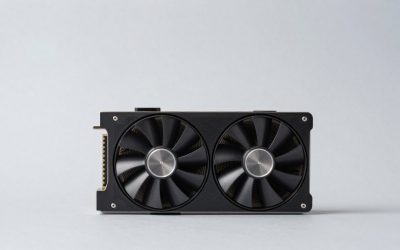
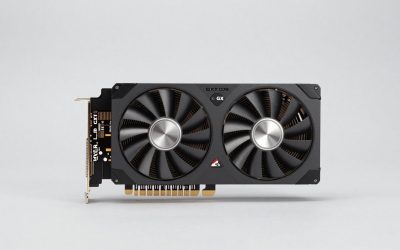
4K Internal Capture Card, PCIe Capture Card, HDMI, 4K60 Passthrough, Ultra-Low Latency for Streaming & Recording, for PS4,PS5, Xbox, in OBS, YouTube, Single & Dual PC Setups, Black
Chosen because it specifies PCIe Capture Card and HDMI.
View on Amazon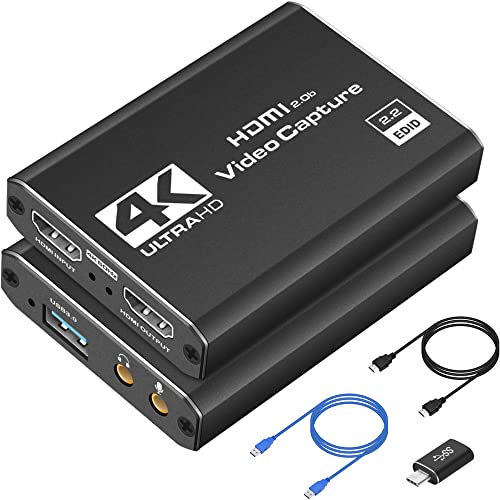
Capture Card 4K HDMI Video Streaming to USB 3.0 1080P 60FPS Capture Device | Audio Video Capture, 4K HDMI Loop-Out, Work for PS5/PS4/Switch/Xbox/PC/Camera/OBS, Game Screen Recorder Streaming Equipment
Chosen because it specifies Audio Video Capture and 4K HDMI Loop-Out.
View on Amazon
XIIXMASK USB 3.0 HDMI Capture Card, 4K60FPS Capture with Pass-Through | Dual-Port USB-A/USB-C for 4K60FPS & 1080P 120FPS Game Capture & Streaming. For PS4/5, Xbox, Switch 1/2, PC, Mac & Camera
Chosen because it specifies 4K60FPS Capture with Pass-Through and Xbox.
View on AmazonAll 6 Picks in Detail
1. Generic 4K HDMI USB 3.0 Capture Card – Best for a Simple 1080p60 Relay
As an Amazon Associate we earn from qualifying purchases at no extra cost to you.

This unbranded card is listed as a 4K HDMI video capture card that records and streams at 1080p and 60 frames per second over USB 3.0, and it names Xbox, PS4, PS5, PC, cameras and OBS as sources. That is a perfectly sensible feature set for the most common dual PC arrangement: a gaming PC sending a 1080p60 signal to a streaming PC. The 4K wording in the title most plausibly refers to the HDMI input or loop-through capability rather than to 4K capture, so confirm the exact capture and pass-through resolutions on the product page before assuming anything beyond 1080p60.
- HDMI to USB 3.0 connection
- 1080p at 60 fps capture named in the title
- Marketed for streaming and recording from consoles, PCs and cameras
- Works with OBS according to the listing
- Brand and chipset not stated in the title; confirm on the product page
In practice, this is the card to consider when your stream is a straightforward 1080p60 broadcast and your priority is getting a working relay without learning a new ecosystem. Set the gaming PC to duplicate its display, add the card as a video capture device in OBS on the streaming PC, and match the resolution and frame rate to your game output. Because the title gives no chipset or format list, plan to read the product page for supported pixel formats and operating systems before you rely on it for a long broadcast.
Pros
- Plug-and-play style USB design with no internal installation
- Broad source compatibility
Cons
- Capture tops out at 1080p60 according to the title
- Little manufacturer detail in the listing name
Compared with the loop-out card later in the list, this one is a close cousin; choose whichever has the pass-through behavior you need confirmed on its page.
2. BlueAVS 4K60 USB-C Capture Card – Best for High-Refresh Gaming PCs

BlueAVS describes this external card as handling multi-capture up to 4K60, 1440p144 and 1080p240 through a USB-C connection, and the listing says it works with PS5 and other consoles and with PC. The standout is the high-frame-rate range. A competitive player on a 144 Hz or 240 Hz monitor can send that signal through without being dropped to 60 Hz, and the streaming PC can still capture a clean feed for OBS. The company materials also mention HDR, VRR and ALLM support and a 3.5 mm audio port, though you should confirm those on the exact model you open.
- 4K60, 1440p144 and 1080p240 input handling per the listing
- USB-C external design that needs a USB 5 Gbps port
- Works with PS5, Xbox and Switch consoles and with PC according to the maker
- OBS compatibility stated
- Small, light body suited to a desk shelf
The practical benefit of a wide input range is future-proofing. If you upgrade from a 144 Hz to a 240 Hz monitor, or move between a PC and a console on the same desk, you will not need to replace the card. A good habit is to keep the stream itself at 1080p60 in OBS and let the card handle the higher refresh rates only on the pass-through side, which keeps the encode load on the streaming PC modest. Also remember that a 5 Gbps USB link is the limit, so use a port that does not share bandwidth with a webcam.
Pros
- High-frame-rate range is the broadest in this list
- No installation inside the PC
Cons
- Variants exist, so confirm which capture format the listing covers
- Needs a free USB 3.0 port that is not shared with busy devices
Next to the XIIXMASK 4K60 card, the BlueAVS leans toward higher refresh rates, while the XIIXMASK leans toward simple pass-through at 4K.
3. XIIXMASK USB 3.0 Capture Card (4K60 with Pass-Through) – Best for 4K Pass-Through

This listing advertises 4K60 capture with pass-through over USB 3.0. Pass-through is the feature that makes a dual PC setup comfortable: the card sits between the gaming PC and its monitor, so the signal continues to your display with no added delay while a copy goes to the streaming PC. The title is short, so the details of the second USB port, the 1080p120 mode and the supported video formats should be checked on the page. XIIXMASK sells related cards with similar names, so make sure you are viewing the 4K60 one.
- 4K60 capture named in the title
- HDMI pass-through to a monitor
- USB 3.0 connection
- Marketed for game capture and streaming
- Other XIIXMASK models capture only 1080p60 with 4K pass-through, so verify the model
Think of this model as the straightforward way to keep your 4K gaming display fully sharp while the streaming PC receives its own copy. The signal splits at the card, so the monitor path is unaffected by what OBS is doing on the other machine. Streamers who record highlight clips for editing may also like having a 4K60 option, even if the live broadcast stays at 1080p. As always with USB capture at this resolution, check which compressed formats the card outputs and whether OBS lists them without extra drivers.
Pros
- Pass-through keeps your gaming monitor in the loop
- Strong 4K60 headline spec
Cons
- Family of similar models can cause mix-ups
- 4K60 over USB 3.0 normally relies on compressed video, so check the format list
Compared with the dual-port XIIXMASK below, this listing gives you the same family but fewer stated details; the dual-port version spells out more.
4. 4K Internal PCIe Capture Card – Best for a Streaming PC with a Free Slot

The only internal card on the list slots into a PCIe socket on the streaming PC’s motherboard, which removes a cable run, a USB port and an external box from your desk. The listing advertises 4K60 pass-through, ultra-low latency, HDMI input and support for PS4, PS5, Xbox and OBS. Because it connects over PCIe instead of USB, it has more bandwidth to work with than a USB 3.0 card, and it does not compete with your webcam or microphone for USB resources. It suits a desktop streaming PC, not a laptop.
- PCIe internal form factor
- 4K60 pass-through named in the title
- HDMI input, low-latency design
- Works with consoles and with OBS per the listing
- Check slot size (x1, x4 or x8) and low-profile bracket availability on the product page
Installation is the main trade-off. You power down the streaming PC, seat the card in a free slot, connect the HDMI cables, and then pick the device in OBS after boot. In return, you get a clean desk, no dangling external box, and a link that does not depend on a free USB controller. Check that your case has room for the bracket and that the slot lanes match the card’s requirement, since small-form-factor builds often run out of both. Consoles and a second PC can feed it through the HDMI input just like a gaming PC.
Pros
- No external box or USB port required
- Stable connection once installed
Cons
- Requires opening the PC and a free slot
- Not portable between machines
Compared with the BlueAVS external card, this is the neater permanent install, but the BlueAVS wins on flexibility.
5. 4K HDMI Loop-Out USB 3.0 Capture Card – Best for 1080p60 Streams with a Display Loop-Out

This card pairs 1080p60 USB 3.0 capture with a 4K HDMI loop-out, meaning the signal passes through to a display at up to 4K while the capture stream is 1080p. Sources named in the listing include PS5, PS4 and Switch. It is a practical choice for streamers who want to see their game at full sharpness on the gaming monitor but only need a 1080p60 broadcast, which is the most common stream quality. It also suits shared setups where the same card moves between a console and a PC.
- HDMI to USB 3.0 capture at 1080p60
- 4K HDMI loop-out to a display
- Audio and video capture named in the listing
- Works with PS5, PS4 and Switch per the title
- Brand and driver details not stated in the title; confirm on the page
This card makes sense when your stream is a conventional 1080p60 broadcast but you still want the best possible picture on your own screen. The loop-out runs at the higher resolution, so a 4K monitor or TV stays sharp while OBS receives a 1080p feed. It is also handy for a living-room console, where the card sits beside the TV and a laptop acts as the streaming PC. Because the title does not name a chipset, confirm operating system support and OBS recognition on the product page.
Pros
- Loop-out sends a sharper picture to your monitor than the stream gets
- Straightforward USB design
Cons
- Capture is capped at 1080p60
- Does not cover high-refresh sources
Against the generic card above, this one adds an explicit loop-out, which matters if you need to keep a 4K display running during the stream.
6. XIIXMASK Dual-Port USB-A/USB-C Capture Card – Best for Flexible Cabling and 1080p120

This XIIXMASK listing spells out more than its sibling: a USB 3.0 card with a dual-port USB-A and USB-C connection, 4K60 capture, pass-through and 1080p120 game capture. Having both connector types removes a common headache when your streaming PC has only one kind of port free or when you want to use a short cable direct to the motherboard. The 1080p120 mode is useful for 120 Hz console modes and fast shooters, giving smoother motion on the stream than 60 fps alone.
- Dual-port USB-A and USB-C connection
- 4K60 capture and 1080p120 game capture named in the title
- HDMI pass-through to a monitor
- USB 3.0 interface
- Check the format list and audio ports on the product page
The dual connectors are the real convenience here. Many streaming PCs have an unused USB-A port on the back panel and a USB-C port on the front, and being able to choose either lets you pick the one with the shorter, cleaner cable path. The 1080p120 mode pairs naturally with consoles that offer a 120 Hz performance mode, and with PC shooters tuned for fast motion. Because 1080p120 uncompressed would need around 4 Gbps, confirm that your port and the card’s output format can sustain it.
Pros
- Flexible connection options
- 120 fps capture for smoother motion
Cons
- Format and audio details should be confirmed on the page
- Close in name to another XIIXMASK card
Compared with the BlueAVS card, this one covers 1080p120 but not the 1440p144 and 1080p240 range, so it suits console-heavy streamers better than ultra-high-refresh PC players.
Specs Compared
| Card | Interface | Stated capture | Pass-through / loop-out | Notes |
|---|---|---|---|---|
| Generic 4K HDMI USB 3.0 | USB 3.0 external | 1080p60 | Confirm on listing | Works with consoles, PC, cameras, OBS |
| BlueAVS 4K60 USB-C | USB-C external (5 Gbps port) | 4K60, 1440p144, 1080p240 | Pass-through named | Works with PS5 and OBS |
| XIIXMASK 4K60 | USB 3.0 external | 4K60 | Pass-through | Confirm formats on listing |
| 4K Internal PCIe | PCIe internal | Confirm on listing | 4K60 pass-through | Needs free slot |
| 4K HDMI Loop-Out USB 3.0 | USB 3.0 external | 1080p60 | 4K HDMI loop-out | PS5, PS4, Switch named |
| XIIXMASK Dual-Port | USB 3.0, USB-A and USB-C | 4K60, 1080p120 | Pass-through | Dual connector options |
How We Chose These
This guide is built from desk research. We began with the six capture cards in the current catalog and read each listing title alongside manufacturer and retailer specification pages. We then judged each card on what it states about capture resolution and frame rate, how it connects to the streaming PC, whether it offers pass-through or loop-out to a monitor, and which sources and software it names. Where a title does not state a value, the specs table says to confirm it on the listing. Because several cards come from sellers with near-identical names, we flagged those risks and avoided claiming differences we could not verify.
What to Look For
How a Dual PC Capture Path Works
In a dual PC setup, your gaming PC sends its video out over HDMI to the capture card, the card passes the signal on to your gaming monitor, and a USB or PCIe link carries a copy to the streaming PC. The streaming PC runs OBS, adds your webcam, microphone and overlays, encodes the stream and uploads it, so your gaming PC only has to render the game. Most guides suggest setting the gaming PC to duplicate its display to the capture device, so the card behaves like a second monitor.
Capture Resolution Versus Pass-Through Resolution
These two numbers are not the same. A card might capture at 1080p60 yet pass 4K through to your monitor, which is common and perfectly fine for a 1080p stream. For capture, think about bandwidth. Uncompressed 1080p60 video at 16 bits per pixel needs roughly 2 Gbps, which fits comfortably in a 5 Gbps USB 3.0 link. Uncompressed 4K60 needs well over 10 Gbps, so USB 3.0 cards normally capture 4K60 in a compressed format such as MJPEG. That is why you should check the list of supported formats, not only the headline resolution.
USB, USB-C or PCIe
USB 3.0 cards are portable and need no installation, but they want a port on their own controller, away from webcams and audio interfaces, or you may see dropped frames. USB-C is simply a different connector on the same 5 Gbps class; check that your streaming PC offers a matching port. PCIe cards are best for a permanent desktop streaming PC with a free slot. Match the slot type to the card, and confirm the bracket height if your case is compact.
Audio and Latency
Audio is where many dual PC setups stumble. If game audio travels over HDMI, the capture card delivers it to OBS as part of the video device. Otherwise, you can route audio with a mixer or a virtual audio tool and add your microphone separately on the streaming PC. Pass-through latency is generally negligible because the signal splits before the capture stage, but always play on the pass-through output, not on a window of the captured feed, which carries encode delay.
Rule of Thumb for Choosing
Match the card to your stream, not your monitor. If you broadcast at 1080p60, any card here handles it. If you want 1080p120 for smooth motion or play at 1440p144, choose a card whose listing names those modes. Spend extra only for features you will use, such as a PCIe slot you already have free or a dual-connector card that fits your ports. A worked example: a 1440p144 gaming PC streaming at 1080p60 needs pass-through at 1440p144 and capture at 1080p60, so check the pass-through spec first.
Questions
Do I need a capture card for dual PC streaming?
Yes, unless you use a network-based method such as NDI. A capture card is the simplest way to move gameplay video from the gaming PC to the streaming PC.
Is 4K60 capture necessary for streaming?
Most streams run at 1080p60, so 4K capture is not required. It matters mainly if you also record high-quality footage for editing.
What is pass-through and why does it matter?
Pass-through sends your game signal on to a monitor while the card captures a copy. It lets you play without added delay on the display.
Should I choose an internal or external card?
An internal PCIe card is tidy and stable for a desktop with a free slot. An external USB card is easier to install and move between computers.
Which USB port should I use on the streaming PC?
Use a USB 3.0 or faster port, ideally one connected directly to the motherboard. Avoid sharing it with other busy USB devices.
Can one capture card work with consoles too?
Yes, the cards here name consoles such as PS5, PS4, Xbox or Switch in their listings. Confirm the specific model’s supported sources on its page.
Update History
- October 20, 2026 – Initial publication; product set drawn from current catalog listings.
- Check the product page for current specifications and availability before buying.
Sources
- Manufacturer and seller product pages for BlueAVS and XIIXMASK
- Retailer listing titles and specification fields for each card
- Dual PC streaming setup guides from hardware and streaming-equipment publishers, used for the signal path and audio routing