Key takeaways
- Guessing the offset: Use a recording with a clear visual and audio event instead of adjusting by feel.
- Monitoring twice: Disable one listening path to prevent echo and apparent delay.
- Using a USB 2.0 path: A low-bandwidth port or hub can cause instability, dropped frames, and inconsistent timing.
- Delaying every source: Offset only the source that is out of sync.
- Ignoring audio drift: A fixed offset cannot correct a sample-rate mismatch that grows over time.
- Changing resolution during our research: Keep the console, capture card, OBS canvas, and output settings consistent while measuring.
- Testing only with live monitoring: Monitoring latency and recorded-output latency are not always identical.
When game video arrives a fraction of a second after its sound, even a polished stream can feel noticeably wrong. Lip movements miss dialogue, button presses sound late, and viewers may assume your microphone or console is broken. The good news is that learning how to fix capture card audio sync delay in OBS usually requires only a short test recording, a few timing adjustments, and the right monitoring settings.
The most common causes are USB processing, HDMI conversion, wireless headset latency, mismatched sample rates, and monitoring audio through two devices at once. Fix the signal path methodically rather than adding random filters. A small offset can solve the problem; a large offset often points to a connection or hardware issue. The steps below apply to most OBS setups in 2026, including PS5, Xbox, Switch, PC, and camera sources.
Our top picks
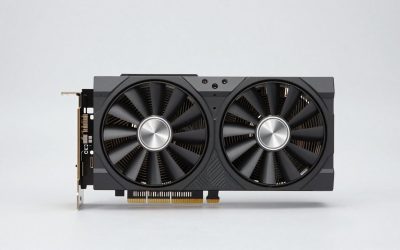
 Elgato 4K S Capture Card for PS5
- 4K60 Capture: Record in cinematic quality with crisp…
- HFR Support: Play and capture in 1440p120 or…
- HDR10 Support: Capture brilliant HDR content with tone…
 4K HDMI Capture Card for Streaming
- 【1080P HD High Quality】Capture resolution up to 1080p…
- 【Plug and Play】No driver or external power supply…
- 【Compatible with Multiple Systems】suitable for Windows and Mac…
As an Amazon Associate we earn from qualifying purchases at no extra cost to you.
What You Need
| Item | Why | Optional? |
|---|---|---|
| Capture card | Passes HDMI video and game audio into OBS. A current Elgato 4K S Capture Card is a higher-end option for PS5, Xbox Series X/S, and Switch 2, while a basic 1080p USB 3.0 card can handle simple 60 fps streaming. | No |
| Two HDMI cables | One connects the console to the capture card and one connects the card to a display when passthrough is available. Use cables rated for your console’s resolution and refresh rate. | No for passthrough setups |
| USB 3.0 cable and port | Provides adequate data bandwidth and power. Avoid an unpowered hub while troubleshooting. | No |
| Headphones or speakers | Help you compare direct console sound with OBS’s monitored sound and identify duplicate audio. | No |
| OBS Studio and a short test recording | Lets you measure the offset without relying on memory or live viewers. | No |
| Separate microphone | Makes it easier to keep voice audio independent from delayed capture-card audio. | Optional |
For budgeting, basic USB capture cards commonly cost about $20 to $40, while better-known 4K-capable models commonly range from roughly $130 to $200. For example, the listed Elgato 4K S is $146.99, and a basic 1080p 60 fps USB 3.0 model is $20.99. Price alone does not guarantee perfect synchronization, so prioritize stable drivers, a reliable USB connection, and the video resolution you actually need.
Step-by-Step
-
Confirm whether the delay is in OBS (5 minutes)
Make a 20- to 30-second recording in OBS while performing an obvious action, such as pressing a controller button that creates a sound. Watch the recording with headphones. If the sound is late relative to the picture, the issue is in the captured or monitored signal. If the recording is synchronized but your live headphones sound late, the problem is monitoring latency instead.
Also check whether the sound is early rather than late. OBS audio sync offsets add delay; they do not remove it. An early audio signal generally requires delaying the video source or correcting the hardware path.
-
Remove duplicate monitoring (3 minutes)
In OBS, open the Audio Mixer, select the three-dot menu for the capture-card source, and choose Advanced Audio Properties. Set the capture card to Monitor Off temporarily. Listen through the display, console headset, or another single source and make a test recording.
Duplicate monitoring happens when the same audio is heard through the capture card and directly through the console or television. The two paths have different delays, creating an echo or making the timing seem worse. For streaming, a typical setting is Monitor Off when you only need the audience to hear game audio. Use Monitor and Output only when you intentionally need to hear the source through OBS.
-
Check the physical connection (5 minutes)
Connect the capture card directly to a computer USB 3.0 port rather than a keyboard, monitor, or low-power hub. If the card has a blue USB port, that is often a useful visual clue, although the port label and computer documentation are more reliable. Disconnect other high-bandwidth USB devices temporarily.
Reseat both HDMI cables and confirm the console is connected to the capture card’s HDMI input, not its output. If you use passthrough, connect the card’s HDMI output to the display. Test another cable if the video stutters, freezes, or drops frames. Audio timing cannot be fixed reliably while the video signal is unstable.
-
Match sample rates (5 minutes)
In OBS, open Settings > Audio and note the sample rate, commonly 48 kHz. Open your computer’s sound settings and set the capture card, microphone, and monitoring device to the same rate when those options are available. A mismatch between 44.1 kHz and 48 kHz can produce drift over time rather than one constant delay.
Close and reopen OBS after changing the rate. Record at least one minute and check the beginning and end of the file. If synchronization starts correctly but gradually slips, sample-rate mismatch, overloaded USB transfer, or a driver problem is more likely than a simple offset.
-
Apply a capture-card sync offset (5 minutes)
Return to Advanced Audio Properties and find the capture-card source’s Sync Offset (ms) field. If audio is late, first verify that your source is not already delayed by another filter or device. If the audio is early and needs to be held back, enter a starting value such as 100 ms.
Record another short clip. Increase or decrease the offset in small steps—25 to 50 ms at a time—until a button press and its sound line up. Many setups need somewhere around 50 to 200 ms, but there is no universal correct number. Your capture card, console settings, display path, and USB controller all affect the result.
Do not change every audio source by the same amount automatically. Your microphone may already match your camera and should remain at zero. Apply the offset only to the delayed source, usually the capture-card audio.
-
Account for microphone and camera timing (5 minutes)
If your voice is early compared with the game, select your microphone in Advanced Audio Properties and add a smaller offset to the microphone instead of making the game audio excessively late. If a webcam is involved, open its source properties and check whether it has a video delay or buffering setting.
Compare voice, game sound, and visible mouth movement in one recording. The goal is for all three to agree. Keep a note of the final offsets so you can restore them after replacing a capture card or reinstalling OBS.
-
Test under normal streaming conditions (10 minutes)
Start a longer local recording at your intended output resolution and frame rate. Play for five minutes, including menus, gameplay, and a scene transition. Watch the file from beginning to end rather than checking only the first few seconds.
Monitor dropped frames and rendering warnings in OBS. If the delay returns during busy scenes, lower the preview load, move the card to another USB 3.0 port, or reduce capture settings temporarily. Save a scene collection backup once the timing is stable.
Mistakes to Avoid
- Guessing the offset: Use a recording with a clear visual and audio event instead of adjusting by feel.
- Monitoring twice: Disable one listening path to prevent echo and apparent delay.
- Using a USB 2.0 path: A low-bandwidth port or hub can cause instability, dropped frames, and inconsistent timing.
- Delaying every source: Offset only the source that is out of sync.
- Ignoring audio drift: A fixed offset cannot correct a sample-rate mismatch that grows over time.
- Changing resolution during our research: Keep the console, capture card, OBS canvas, and output settings consistent while measuring.
- Testing only with live monitoring: Monitoring latency and recorded-output latency are not always identical.
How Often
Check synchronization whenever you change the capture card, console, USB port, HDMI cable, computer audio device, OBS audio settings, or microphone. A quick 30-second test is worthwhile before an important stream. If your setup is stable, a monthly test and a test after major software or operating-system updates are generally sufficient.
When to Call a Pro or Replace
Replace or seek support if the delay changes dramatically from one recording to the next, audio cuts out, the card repeatedly disconnects, or synchronization cannot remain stable after matching sample rates and testing a direct USB connection. Persistent problems may indicate failing hardware, an incompatible driver, insufficient USB power, or a defective cable.
Consider a better capture card if you need 4K passthrough, high-refresh gaming, HDR compatibility, or dependable long sessions but are using a very inexpensive 1080p model. Before buying, confirm the card supports your console’s resolution, refresh rate, copy-protection requirements, and computer operating system. A new card will not fix duplicate monitoring or incorrect OBS settings, so complete the basic tests first.
FAQ
What sync offset should I use in OBS?
There is no universal number. Start at 100 ms and adjust in 25- to 50-ms steps using a recording. Many systems fall between 50 and 200 ms, but the correct value depends on the entire signal chain.
Should I delay my microphone or the capture-card audio?
Delay the source that is early. If the game audio arrives late, do not add more delay to it; first check the hardware and monitoring path. If your microphone is early compared with the game, a microphone offset may be appropriate.
Why is my stream synchronized at first but drifts later?
Gradual drift usually suggests mismatched sample rates, unstable USB transfer, overloaded hardware, or a driver issue. Match all devices at 48 kHz, use a direct USB 3.0 connection, and test a longer recording.
Can passthrough eliminate capture-card audio delay?
Passthrough can reduce the delay you feel while playing because the display receives the signal directly, but it does not guarantee that the OBS recording will be synchronized. Test the recorded output and adjust the capture-card source independently.