Key takeaways
- Confusing 4K input with 4K capture. A compact, low-cost card may accept 3840 × 2160 HDMI but send only 1920 × 1080 at 60 fps to the computer.
- Measuring only the card body. HDMI, USB, power, and passthrough cables can double the required footprint.
- Using a USB 2.0 hub. Even if the capture card has a USB 3.0 connector, the whole connection drops to the hub’s slower capability.
- Assuming every USB-C port is high speed. USB-C describes the connector shape, not the bandwidth. Some USB-C ports carry only USB 2.0 data.
- Ignoring heat clearance. A card wedged behind a hot television or buried under cables may become unstable during long sessions.
- Buying a cable by length alone. A USB-C cable can be charging-only or limited to slow data. Match it to the capture card’s required data rate.
The Short Answer
For a typical “4K” USB capture card that captures video at 1080p60 while accepting a 4K HDMI input, USB 3.0 or USB 3.2 Gen 1 is the practical minimum. That connection provides a theoretical 5 Gbps, which is enough for most compressed 1080p60 capture devices when plugged directly into a computer.
A true 4K60 capture card needs substantially more bandwidth. Uncompressed 4K60 video can require roughly 12 Gbps for 4:2:0 color, about 18 Gbps for 4:2:2, and far more for higher-quality formats. In practice, look for USB 3.2 Gen 2 (10 Gbps), USB4, Thunderbolt, or an internal PCIe card if you need to capture 4K at 60 frames per second rather than simply pass it through to a display.
Our top picks
 Capture Card
- 【1080P HD High Quality】Capture resolution up to 1080p…
- 【Plug and Play】No driver or external power supply…
- 【Compatible with Multiple Systems】suitable for Windows and Mac…
 Video Capture Card
- 【4K HDMI Input, 2K@30Hz Recording】Powered by a true…
- 【Ultra Low Latency Screen Sharing】Built with a premium…
- 【Easy Plug and Play, Compact & Portable】No driver…
 Guermok Video Capture Card
- 【1080P 60FPS Video Capture Card】 This HDMI game…
- 【Ultra Low Latency Screen Sharing】 HDMI capture card…
- 【Plug and Play, Easy to Carry】 This HDMI…
| Product | Key specs | |
|---|---|---|
| Capture Card | 【1080P HD High Quality】Capture resolution up to 1080p… 【Plug and Play】No driver or external power supply… 【Compatible with Multiple Systems】suitable for Windows and Mac… | Check price |
| Video Capture Card | 【4K HDMI Input, 2K@30Hz Recording】Powered by a true… 【Ultra Low Latency Screen Sharing】Built with a premium… 【Easy Plug and Play, Compact & Portable】No driver… | Check price |
| Guermok Video Capture Card | 【1080P 60FPS Video Capture Card】 This HDMI game… 【Ultra Low Latency Screen Sharing】 HDMI capture card… 【Plug and Play, Easy to Carry】 This HDMI… | Check price |
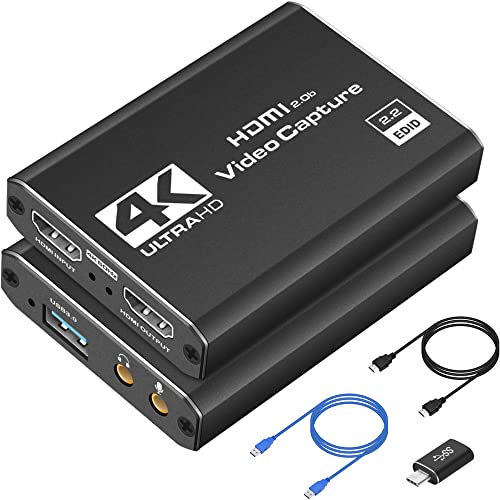 Capture Card 4K HDMI Video Streaming to Capture Card 4K HDMI Video Streaming to | High-Quality Video Capture, 4K HDMI Capture Card Ready:… Plug-and-Play USB Capture Card, No Drivers Needed: Designed… Universal Compatibility PS5, Xbox, Switch & More: Stream… | Check price |
As an Amazon Associate we earn from qualifying purchases at no extra cost to you.
USB bandwidth and physical size are related only indirectly: faster capture cards often have larger metal housings for heat control and may need a short USB-C cable rather than a built-in USB plug. Most affordable HDMI-to-USB 3.0 models are compact dongles, usually about 2.5 to 4.5 inches long. In 2026, buyers should also confirm whether a product’s “4K” label means 4K input, 4K passthrough, or actual 4K recording.
Standard Sizes
Capture cards do not follow one mandatory enclosure size, but USB models generally fall into a few useful physical categories. The measurements below are common shopping ranges for external HDMI capture cards, not guarantees for every model.
| Capture-card style | Typical dimensions (inches) | Typical dimensions (cm) | Typical weight | Usual USB connection | Best fit |
|---|---|---|---|---|---|
| Mini HDMI-to-USB dongle | 2.2–3.1 L × 1.0–1.3 W × 0.4–0.6 H | 5.6–7.9 L × 2.5–3.3 W × 1.0–1.5 H | 0.7–1.4 oz (20–40 g) | USB-A 3.0 or USB-C | Portable 1080p streaming |
| Standard external capture card | 3.5–4.8 L × 1.8–2.8 W × 0.5–0.9 H | 8.9–12.2 L × 4.6–7.1 W × 1.3–2.3 H | 2.1–4.6 oz (60–130 g) | USB 3.0 / USB 3.2 Gen 1 | 1080p60 capture with 4K input or passthrough |
| Metal 4K60 external unit | 4.5–6.5 L × 2.8–4.3 W × 0.7–1.2 H | 11.4–16.5 L × 7.1–10.9 W × 1.8–3.0 H | 5.3–10.6 oz (150–300 g) | USB-C 10 Gbps, USB4, or Thunderbolt | Higher-bandwidth 4K workflows |
| PCIe internal capture card | 4.7–6.7 L × 2.7–4.4 H × 0.7–0.9 thick | 11.9–17.0 L × 6.9–11.2 H × 1.8–2.3 thick | 3.5–7.1 oz (100–200 g) | PCIe x1, x4, or higher | Desktop streaming and dependable 4K60 capture |
Budget products in the roughly $16 to $26 range are commonly small USB 3.0 devices. Many accept a 4K HDMI signal but capture at 1080p60, with some supporting 2K30. They are a sensible choice for a console, camera, or laptop-based setup when 1080p output is the goal.
How to Measure Your Space
- Measure the flat surface, shelf, or cable tray. Use a tape measure to find the available length, width, and height. For a standard external card, reserve at least 5 × 3 inches (12.7 × 7.6 cm), even if the device itself is smaller.
- Add room for cable ends. HDMI plugs are bulky. Allow at least 1.5 inches (3.8 cm) beyond each HDMI port for a normal straight connector. A USB-C or USB-A plug can need another 1 to 2 inches (2.5 to 5.1 cm) of clearance.
- Check cable routing. Measure from the console, camera, or receiver to the capture card, then from the card to the computer and monitor. Add 6 to 12 inches (15 to 30 cm) of slack so cables are not under tension.
- Confirm computer-port speed. A blue USB-A port often indicates USB 3.0, but color alone is not definitive. Check the computer manual or port label for 5 Gbps, 10 Gbps, USB4, or Thunderbolt capability.
- Reserve ventilation space. Leave at least 1 inch (2.5 cm) around a metal capture unit and avoid stacking it under a console, router, or power brick. Small cards can become warm during extended streaming.
- Plan for adapters only when necessary. A USB-C-to-USB-A adapter may fit physically but does not create more bandwidth. The computer port, cable, hub, and capture card all need to support the speed required.
By Room or Use Case
Living Room Console Setup
For a PlayStation, Xbox, or Switch setup beside a television, a compact 3 to 5 inch (7.6 to 12.7 cm) external card is usually easiest to hide in a media console. Reserve a 6-inch-wide by 4-inch-deep (15.2 × 10.2 cm) space once HDMI and USB cables are included.
If you play in 4K on the TV but stream at 1080p60, a USB 3.0 capture card with 4K input or passthrough can be enough. Verify the exact passthrough limit: 4K30, 4K60, HDR, and high-refresh-rate support are separate specifications. Do not assume a card labeled “4K HDMI” records gameplay in 4K.
Desk Streaming Station
A desk setup benefits from a heavier external card or an internal PCIe option because cables stay connected permanently. Place the card within 3 to 6 feet (0.9 to 1.8 m) of the computer when possible, using a certified USB cable appropriate for the device’s rated speed.
For 1080p60 streaming, a 5 Gbps USB 3.0 connection is normally the right target. Avoid sharing that connection with a high-speed external SSD, webcam, or USB hub when reliability matters. A single USB controller has finite bandwidth, even if several ports are available.
Camera, Teaching, and Video Calls
For a mirrorless camera or camcorder used as a webcam, the smallest USB capture dongle is often sufficient. A 2.5 to 3.5 inch-long (6.4 to 8.9 cm) unit can sit behind a monitor or attach to a laptop stand. Most video-call platforms do not need 4K60 capture, and 1080p30 or 1080p60 is generally more practical.
Choose a card that uses UVC, meaning the computer recognizes it as a standard USB video device without specialized drivers. Keep the capture card close to the laptop and use a quality HDMI cable from the camera. Long HDMI runs are more likely to create signal issues than the card’s small physical footprint.
Travel or Laptop Recording
For travel, prioritize a card under 4 inches (10.2 cm) long and under 3 ounces (85 g). A direct-plug USB-A dongle is convenient, but it can put stress on a laptop port if the HDMI cable hangs downward. A short, flexible USB-C cable is usually safer for frequent setup and packing.
Make sure the laptop has a true USB 3.x port. A USB 2.0 port has a theoretical ceiling of 480 Mbps and is not a good match for dependable 1080p60 capture. It may function at reduced settings, but dropped frames, compression artifacts, or device detection problems are more likely.
Common Sizing Mistakes
- Confusing 4K input with 4K capture. A compact, low-cost card may accept 3840 × 2160 HDMI but send only 1920 × 1080 at 60 fps to the computer.
- Measuring only the card body. HDMI, USB, power, and passthrough cables can double the required footprint.
- Using a USB 2.0 hub. Even if the capture card has a USB 3.0 connector, the whole connection drops to the hub’s slower capability.
- Assuming every USB-C port is high speed. USB-C describes the connector shape, not the bandwidth. Some USB-C ports carry only USB 2.0 data.
- Ignoring heat clearance. A card wedged behind a hot television or buried under cables may become unstable during long sessions.
- Buying a cable by length alone. A USB-C cable can be charging-only or limited to slow data. Match it to the capture card’s required data rate.
FAQ
Is USB 3.0 enough for a 4K capture card?
USB 3.0, also called USB 3.2 Gen 1, is usually enough for a card that takes a 4K input but captures 1080p60. It is not automatically enough for uncompressed or high-quality 4K60 capture. For actual 4K60 recording, look for a clearly specified 10 Gbps or faster connection and confirm the capture format.
How much bandwidth does 1080p60 capture need?
It depends on compression and color format. Uncompressed 1080p60 can require several gigabits per second, while compressed output needs less. That is why 5 Gbps USB 3.0 is the common baseline for reliable 1080p60 USB capture cards, whereas USB 2.0 is generally better suited to lower-demand modes.
Do I need a larger capture card for 4K?
Not always. Physical size does not guarantee video quality. However, cards designed for genuine 4K60 capture are often larger—commonly 4.5 to 6.5 inches long—because they may use faster ports, additional HDMI connections, and metal cases for heat management.
Can I use a capture card through a USB hub?
You can, but a direct computer connection is preferable. Use a powered USB 3.x hub rated for the same speed as the card, and avoid connecting high-bandwidth storage or multiple cameras to the same hub. If the capture signal stutters or disconnects, connect the card directly to the computer first.