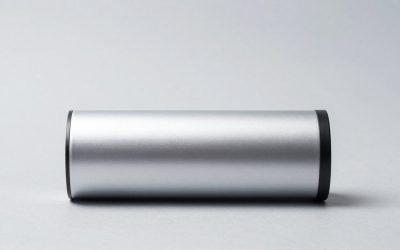
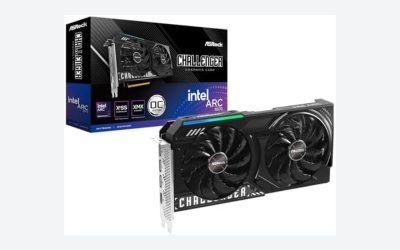
Choosing between an internal PCIe capture card vs external USB capture card is less about which technology is universally better and more about how your home is set up. An internal card installs inside a desktop computer, while an external card sits between your source device and computer and connects by USB. That difference affects convenience, cable management, portability, upgrade planning, and the total cost of ownership.
For a permanent gaming or streaming station, PCIe hardware can deliver a cleaner, more integrated setup. For a laptop, shared family room, rental home, or occasional camera use, USB is usually easier to live with. The right choice in 2026 depends on whether your priority is maximum stability or minimum commitment.
Our top picks
 Elgato 4K Pro Internal Capture Card
- Seamless Broadcasting and Versatile Streaming: Connect effortlessly to…
- Unrivaled Gaming Experience: Immerse yourself in pure gameplay…
- Cutting-Edge Connectivity: Harness the power of HDMI 2.1…
 Capture Card
- 【1080P HD High Quality】Capture resolution up to 1080p…
- 【Plug and Play】No driver or external power supply…
- 【Compatible with Multiple Systems】suitable for Windows and Mac…
 Guermok Video Capture Card
- 【1080P 60FPS Video Capture Card】 This HDMI game…
- 【Ultra Low Latency Screen Sharing】 HDMI capture card…
- 【Plug and Play, Easy to Carry】 This HDMI…
| Product | Key specs | |
|---|---|---|
| Elgato 4K Pro Internal Capture Card | Seamless Broadcasting and Versatile Streaming: Connect effortlessly to… Unrivaled Gaming Experience: Immerse yourself in pure gameplay… Cutting-Edge Connectivity: Harness the power of HDMI 2.1… | Check price |
| Capture Card | 【1080P HD High Quality】Capture resolution up to 1080p… 【Plug and Play】No driver or external power supply… 【Compatible with Multiple Systems】suitable for Windows and Mac… | Check price |
| Guermok Video Capture Card | 【1080P 60FPS Video Capture Card】 This HDMI game… 【Ultra Low Latency Screen Sharing】 HDMI capture card… 【Plug and Play, Easy to Carry】 This HDMI… | Check price |
 Audio Express AXHDCAP 4K HDMI Video Capture Audio Express AXHDCAP 4K HDMI Video Capture | [Enhanced 4K-1080P Video Capture Experience] Capture the Magic:… [Seamless Real-Time Preview] Stay in the Moment: Our… [Versatility and Broad Compatibility] Your Creative Hub: Connect… | Check price |
As an Amazon Associate we earn from qualifying purchases at no extra cost to you.
Quick Verdict
Choose an internal PCIe capture card if you have a compatible desktop with an open PCIe slot and expect to stream, record, or route video regularly. It keeps the capture hardware inside the PC, reduces external clutter, and is a strong match for a dedicated gaming or production room. Higher-end models can also offer advanced passthrough features, multiple inputs, and support for high-resolution signals.
Choose an external USB capture card if you use a laptop, move between rooms, share equipment, or want a setup that can be unplugged in minutes. USB models cover a wide price range, from approximately $10 for basic hardware to $300 or more for specialized professional devices. However, inexpensive models may use USB 2.0, have limited resolutions, or require more attention to drivers, cables, and signal compatibility.
Side by Side
| Consideration | Internal PCIe capture card | External USB capture card |
|---|---|---|
| Comfort | Set-and-forget once installed; no box on the desk | Simple to reach, move, and reconnect |
| Durability | Protected inside the PC; fewer exposed connectors | Portable, but cables and the enclosure face more handling |
| Price range | About $100–$400, with premium models near or above that range | About $10–$300, depending on USB speed and video features |
| Maintenance | Occasional driver or firmware updates; may require opening the PC | Easy physical access, but USB drivers and cable issues are common variables |
| Space needed | Needs an open PCIe slot and room inside a desktop case | Usually a 3–6-inch box plus cable space on or behind the desk |
| Look | Clean exterior with fewer visible devices and wires | More visible hardware, though it can be tucked behind a monitor |
| Resale | Good value if it supports current standards, but desktop-only demand is narrower | Broad appeal because it works with many laptops and desktops |
| Best for | Dedicated desktop streaming, recording, and multi-device setups | Laptops, renters, travel, teaching, video calls, and flexible home use |
Where Internal PCIe Capture Card Wins
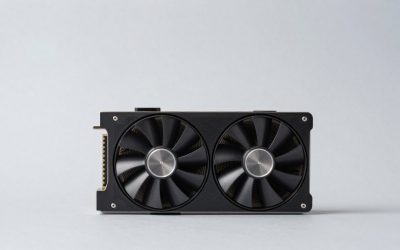
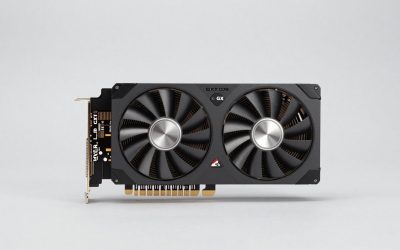
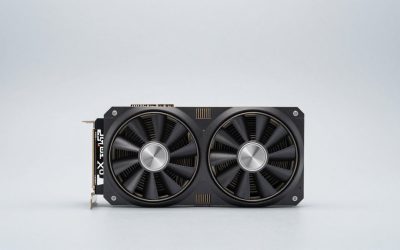
The biggest advantage of PCIe is integration. Once installed, the card does not occupy a USB port, sit beside your keyboard, or add another power adapter to the floor. HDMI cables can route directly to the back of the computer, which helps create a more orderly desk and reduces the chance of accidentally disconnecting the capture device.
PCIe is also a natural choice for a permanent desktop. A card installed in an open slot is less likely to be bumped than a small USB box. This matters when a PC sits under a desk, when several HDMI cables are connected, or when children and pets share the room. Internal installation can also free a USB port for storage, a webcam, or a wireless receiver.
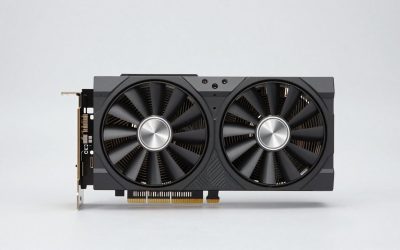
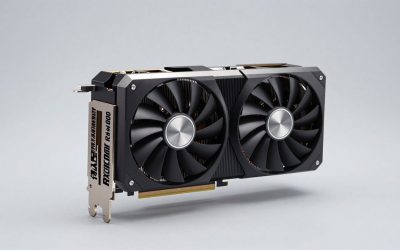
High-end PCIe models are generally aimed at users who want more than basic 1080p recording. The Elgato 4K Pro Internal Capture Card, 8K60 Passthrough, for example, is listed at $299.99 and represents the premium end of this category. Its type of feature set makes more sense for a desktop owner planning a long-term gaming, editing, or live-production setup than for someone recording a console a few times a year.
There are trade-offs. You need a desktop with a suitable PCIe slot, and the computer should have enough physical room and airflow around the card. Installation may take 10–30 minutes for an experienced owner, while a first-time installer may prefer professional help. The card is also tied to that computer: moving it to a laptop or another room is not practical.
Where External USB Capture Card Wins
USB capture cards win on flexibility. Connect the source by HDMI, connect the capture card to the computer by USB, and select it in software such as OBS or a video-conferencing application. You can move the same device from a desktop to a laptop, pack it for a visit, or store it in a drawer when the gaming setup is not in use.
This makes USB particularly useful in homes where one desk serves several purposes. A student can use the card for a camera presentation, a parent can connect a console in the family room, and a hobbyist can switch between a laptop and desktop without opening either machine. External hardware is also the practical option for laptops, compact PCs, and all-in-one computers that have no accessible PCIe slot.
Entry-level pricing is attractive. A generic 4K HDMI Video Capture Card with 1080p at 60 frames per second and USB 3.0 connectivity is listed at $25.89. The Guermok Video Capture Card, described as a 4K USB 3.0 HDMI-to-USB-C model supporting 1080p at 60 frames per second and 2K at 30 frames per second, is listed at $18.99. These prices can make USB a sensible way to test a streaming workflow before investing in a more permanent system.
Read specifications carefully, however. “4K” may describe input or passthrough rather than 4K recording. USB 2.0 models can be limited for high-bitrate video, and a USB-C connector does not automatically mean high-speed performance. The Audio Express AXHDCAP 4K HDMI Video Capture Card is listed at $9.98 and is marketed for streaming, broadcasting, conferencing, teaching, and gaming, but its USB 2.0 connection is a reminder that low price often comes with bandwidth limitations.
Cost Over 5 Years
Purchase price is only part of the calculation. A basic USB capture card costing $10–$30 can be the least expensive route, even if you eventually replace it once. Over five years, that could mean roughly $20–$60 in hardware, assuming one replacement. A more capable USB 3.0 model in the $30–$150 range may last the full period if its resolution and connection standards remain suitable.
PCIe hardware typically costs more upfront, with mainstream choices often around $100–$250 and premium cards reaching $300–$400 or more. Installation is usually a one-time task, but factor in a compatible desktop, an available slot, and potentially a new motherboard or computer if your current system cannot support the card. There is no universal power-cost advantage worth calculating for most households; the computer itself will consume far more energy than the capture device.
For a five-year comparison, choose PCIe when replacing or upgrading the desktop is already part of your plan. Choose USB when avoiding installation, preserving resale flexibility, and using existing computers matter more than a permanently tidy setup.
Which One for Your Home
Small apartment
External USB is usually the better fit. Space-saving desks and shared living rooms benefit from hardware that can be stored away. A compact USB device, often about 3–6 inches long and weighing roughly 2–6 ounces, can live in a drawer with its HDMI and USB cables. It also avoids opening a desktop that may be difficult to access in a tight room.
Family with kids or pets
PCIe has an advantage when the computer is a permanent station. Keeping the capture hardware inside the case reduces loose boxes and cable connections that can be pulled or knocked off a desk. If the family uses different computers, though, an external unit may be more practical; place it behind the monitor or in a cable-management tray and disconnect it when unsupervised.
Rental
USB is the low-commitment choice. It requires no case modification, can move with you, and works well for temporary desks. A USB capture card is also easier to return or resell if your setup changes. Keep the original packaging and use short, properly rated cables to make relocation simpler.
Long-term home
PCIe is compelling for a dedicated gaming or media room that you expect to keep for years. It provides a cleaner permanent installation and leaves external ports available for other accessories. Select a card based on the signals you actually use, such as console output, camera HDMI, refresh rate, HDR, and passthrough resolution, rather than paying for specifications your display and computer cannot use.
FAQ
Is PCIe faster than USB for capture?
Not automatically. A modern USB 3.0 or faster capture device can perform very well, while an older or low-quality PCIe card may have limitations. The important factors are the capture card’s supported resolution, frame rate, compression, USB or PCIe bandwidth, and the computer’s ability to process the signal.
Can I use an external USB capture card with a laptop?
Yes. That is one of its primary advantages. Confirm that the laptop has the required USB port and that the capture card’s software supports its operating system. Use the included cable or a verified high-speed replacement, especially for 1080p60 or higher-bandwidth signals.
Does a capture card record 4K just because it says 4K?
No. Check three separate specifications: maximum input resolution, maximum passthrough resolution, and maximum recording resolution. A card may accept or pass through a 4K signal while recording only 1080p. The computer, display, HDMI version, and recording software must also support the intended setup.
Which option is easier for a first-time buyer?
External USB is generally easier because it does not require opening a computer and can be returned or moved with little effort. PCIe is the better first purchase when you already have a suitable desktop, want a permanent installation, and are comfortable checking slot compatibility before buying.