Key takeaways
- Set up a gaming soundbar for clear dialogue, controlled bass, useful spatial audio, and reliable sync on PC, PlayStation, or Xbox.
The best soundbar settings for gaming begin with neutral EQ, Game or Standard mode, restrained bass, clearly audible dialogue, and only one spatial-audio processor active. Start in stereo PCM to confirm that the connection is stable and synchronized. Then enable surround, Atmos, EQ, or enhancement features one at a time. This method is less exciting than selecting every effect at once, but it makes problems identifiable and produces a dependable baseline.
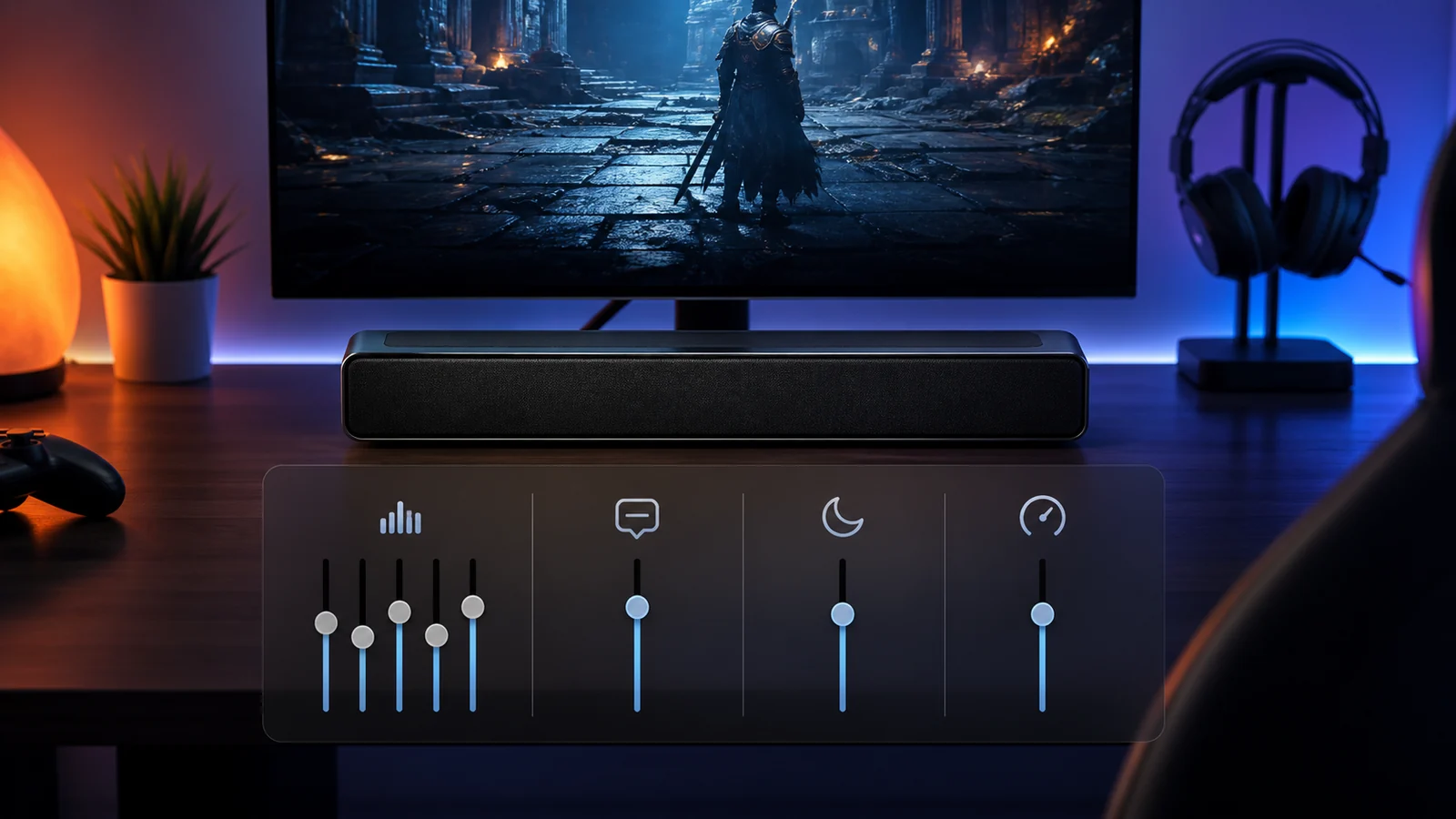
There is no universal numeric preset. Soundbar design, room reflections, seating distance, game mix, connection type, and hearing all matter. The settings below are a repeatable process, not claimed laboratory results.
Our top picks


As an Amazon Associate we earn from qualifying purchases at no extra cost to you.
Begin with the physical setup
Software cannot correct a blocked speaker. Center the bar beneath or above the display, keep its front grille unobstructed, and avoid placing it deep inside a cabinet. Up-firing drivers need the clearance and ceiling conditions described by the manufacturer. A separate subwoofer should have ventilation and a nearby outlet; its position can strongly change bass because room boundaries reinforce some frequencies.
Sit near the centerline. If the bar is far to one side, virtual effects and dialogue localization may become less convincing. Our gaming soundbar placement guide explains desk, TV stand, wall, and subwoofer positioning in more detail.
Before tuning, update firmware, confirm the intended input, and disable television speakers if they create an echo. Record the original settings or use a reset so you can return to a known state.
The recommended baseline
Use these starting choices, adjusting names to match the product:
| Control | Starting point | Reason |
|---|---|---|
| Sound mode | Game or Standard | Usually avoids heavy music/movie coloration |
| EQ | Flat or neutral | Establishes what the system sounds like without compensation |
| Bass | 0 or one step below | Prevents explosions from masking footsteps and dialogue |
| Treble | 0 | Avoids harshness before placement is evaluated |
| Dialogue/voice | Off or low | Enable only if voices remain obscured |
| Night mode | Off | Dynamic compression can reduce impact; useful later at low volume |
| Virtual surround | Off initially | Adds one processing variable at a time |
| Lip sync | 0 | Adjust only after determining the direction of the mismatch |
| Source output | Stereo PCM | Provides a simple diagnostic signal |
Play familiar material at your normal listening level. Do not tune only with a loud cinematic sequence. Use spoken dialogue, quiet environmental audio, a directional effect moving left to right, sustained music, and a bass-heavy scene.
Choose the correct sound mode
“Game” mode may emphasize cues, reduce processing delay, or alter the frequency balance, but manufacturers implement it differently. “Standard” may preserve the source more faithfully. Compare both at matched volume; louder often seems better during a quick switch.
Movie mode can widen effects and strengthen bass but may make competitive cues less precise. Music mode may favor stereo balance. Adaptive or AI modes change processing by content and can be convenient, though their changing character makes them harder to diagnose. Use them after the basic route is stable.
For competitive play, prioritize consistency, dialogue clarity, and timing. For single-player games, a wider or more cinematic presentation may be preferable. Save separate presets if the soundbar permits it.
Adjust bass without losing information
More bass does not reveal more detail. Excess energy from a subwoofer can mask low-midrange information, excite room rattles, and make late-night volume difficult. Start neutral, then reduce bass if voices sound thick or effects overwhelm smaller cues.
If the bar has a subwoofer-level control, change it in small steps. Move the subwoofer before applying extreme EQ; a position near a corner often produces more output and may exaggerate peaks. Avoid blocking ports or placing a wireless subwoofer where its radio link becomes unreliable.
Use bass enhancement cautiously. It may create a satisfying effect at moderate volume but can add distortion or compression near the system’s limits. Never treat audible buzzing as an EQ problem until furniture, cables, and objects near the speakers have been checked.
Improve dialogue carefully
Game dialogue can be masked by music, effects, or a wide dynamic range. First check the game’s own mix options. Many titles provide a dialogue volume, dynamic-range preset, or speaker configuration. A “night,” “small speaker,” or reduced-range mix may improve low-volume clarity more naturally than aggressive treble boost.
Next, enable the soundbar’s dialogue enhancement at its lowest useful level. Strong processing can make voices thin or unnaturally prominent. If a center-channel level is available on a true multichannel bar, increase it incrementally rather than raising all treble.
Make sure the source sends a channel layout the soundbar accepts. Incorrect surround configuration can make center information unexpectedly quiet. Return to stereo PCM to determine whether the mix or channel mapping is responsible.
Use spatial audio only once
Windows Sonic, Dolby Atmos for Headphones, Dolby Atmos for Home Theater, DTS processing, a console output mode, television virtualization, and a soundbar’s surround engine are not interchangeable. Activating several layers can produce diffuse positioning, tonal changes, or delay.
Decide where spatial rendering occurs. For a compatible home-theater soundbar, follow its manufacturer and platform instructions for the supported bitstream or multichannel path. For a stereo bar, its own virtualization may be the intended option. Compare against clean stereo and keep whichever provides clearer, more stable localization.
Microsoft documents spatial-sound selection in Windows settings. Dolby also provides gaming and soundbar setup guidance. Availability does not prove that every game supplies native object metadata, so judge per title.
Configure PC audio
In Windows, open Settings > System > Sound and choose the intended soundbar, TV, or HDMI endpoint. Confirm that games are not locked to a previous output. Begin with enhancements off and a format explicitly supported by the device.
If the bar connects through a TV, Windows may identify the endpoint by the television or GPU name. That is normal. Verify speaker configuration and channel testing. Do not select 7.1 merely because it appears if the TV cannot pass it to the soundbar.
USB soundbars may have vendor software for EQ, firmware, or virtual surround. Establish ordinary USB playback before enabling those extras. Avoid changing Windows EQ, vendor EQ, and in-game EQ simultaneously.
Configure PlayStation and Xbox
Connect the console directly to the television when that is necessary for 4K high-refresh, VRR, or HDR support, then return audio by ARC/eARC. On PlayStation or Xbox, review the HDMI device type and output format. Names and options can change with system software, so use current official support documentation and the TV/soundbar manuals.
Start with the simplest supported output and use the console’s audio test where available. Confirm that the TV is set to the external audio system and that passthrough behavior matches the chosen format. A setting labeled “auto” may select different behavior across sources.
Fix lip-sync problems before EQ
EQ does not solve synchronization. If sound arrives late, disable optional surround, voice processing, volume leveling, and television audio conversion. Enable Game Mode and test stereo PCM. If sound arrives early relative to video, a positive audio-delay control may help. If sound is already late, adding delay makes it worse.
Test with a visible, immediate action rather than speech alone. Record slow-motion phone video only as a rough comparison; phone capture itself is not calibrated measurement. Work through the soundbar input lag guide before replacing equipment.
Tune for competitive games
For shooters and other cue-driven games:
- Use Game or Standard mode.
- Keep bass neutral or slightly reduced.
- Avoid strong room-filling virtual effects if they blur direction.
- Set the game’s dynamic range for your room and listening level.
- Raise dialogue or center level only when communication is masked.
- Prefer a wired path when wireless delay is distracting.
A soundbar cannot reproduce the isolation of a headset or the adjustable separation of well-placed speakers. The goal is useful, repeatable information within the bar’s physical limits.
Tune for cinematic and racing games
Single-player adventures may benefit from wider surround processing, more subwoofer output, and full dynamic range when neighbors and listening distance permit. Racing titles can benefit from clear engine position and environmental effects, but bass should not overwhelm tire and collision cues.
Compare modes at equal volume. If an effect sounds impressive for two minutes but becomes tiring, reduce it. A modest preset that works across dialogue, music, and action is usually preferable to constant menu changes.
Create three useful presets
If presets are available, build:
- Competitive: neutral EQ, restrained bass, minimal virtualization, clear voice chat.
- Cinematic: supported surround path, moderate subwoofer, full or medium dynamic range.
- Night: reduced dynamic range, lower subwoofer, dialogue enhancement at a conservative level.
Label the source and volume used during comparison. Human loudness memory is short, so avoid declaring a winner after slow, unmatched switching.
Troubleshooting checklist
- No sound: confirm power, input, Windows/console output, and TV external-speaker selection.
- Missing voices: test stereo PCM and check channel layout.
- Muddy audio: lower bass, move the subwoofer, and disable loudness enhancement.
- Harsh effects: return treble and dialogue enhancement to neutral.
- Weak surround: confirm source format and remove duplicate virtualization.
- Dropouts: replace the cable, update firmware, and test a simpler audio format.
- Settings reset after sleep: test HDMI-CEC behavior and device startup order.
If you are replacing hardware, use the best gaming soundbar guide to shortlist by connection and room rather than marketing mode count.
Bottom line
The best gaming soundbar preset is a controlled baseline tailored to your room. Place the hardware correctly, begin with neutral EQ and stereo PCM, then add one feature at a time. Reduce bass before boosting treble, use dialogue enhancement sparingly, and assign spatial processing to one device. Save separate competitive, cinematic, and night presets once the signal is reliable and synchronized.
Primary sources
- Microsoft Support: Turn on spatial sound in Windows
- Dolby: Soundbar setup guide
- HDMI Licensing Administrator: eARC