Key takeaways
- Connect a soundbar to a gaming PC through USB, HDMI, optical, or 3.5 mm, then configure Windows and fix common no-sound problems.
The most reliable way to connect a soundbar to a gaming PC is usually a direct wired link: USB when the bar supports USB audio, HDMI through a compatible display or soundbar, optical when both devices provide it, or 3.5 mm analog for simple stereo. The correct method depends on the ports and audio capabilities of the exact PC, monitor, television, and soundbar—not the connector shape alone.
This guide explains the decision and setup process without assuming that every port supports every audio feature. Check the manuals for all devices before buying an adapter. Turn equipment off before making unfamiliar connections, and never force a plug.
Our top picks
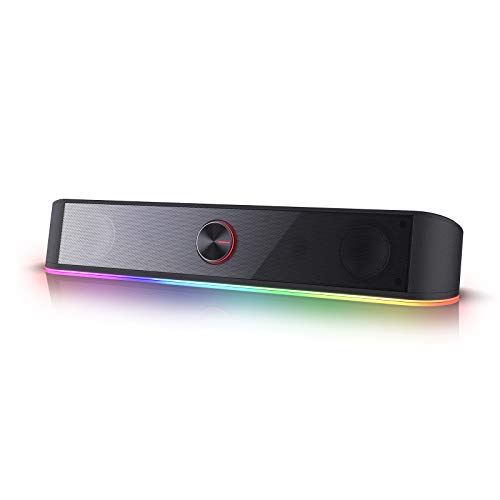 Redragon GS560 RGB Desktop Soundbar
- Rich Sounds & Look - The first Redragon…
- Lightshow Projection - What's better than play your…
- Bounce to Daylight - Easy to place it…
 Razer Leviathan V2 X
- PC Soundbar with Full-Range Drivers: Armed with two…
- Compact Desktop Form Factor: The most compact soundbar…
- USB Type C Power and Audio Delivery: Powered…
| Product | Key specs | |
|---|---|---|
| Redragon GS560 RGB Desktop Soundbar | Rich Sounds & Look - The first Redragon… Lightshow Projection - What's better than play your… Bounce to Daylight - Easy to place it… | Check price |
| Razer Leviathan V2 X | PC Soundbar with Full-Range Drivers: Armed with two… Compact Desktop Form Factor: The most compact soundbar… USB Type C Power and Audio Delivery: Powered… | Check price |
 Bluedee Computer Speakers for Desktop PC Bluedee Computer Speakers for Desktop PC | Check price | |
 LENRUE Computer Speakers for Desktop LENRUE Computer Speakers for Desktop | Check price | |
 LENRUE G11 Computer Speakers for Desktop LENRUE G11 Computer Speakers for Desktop | Surge Stereo Sound - 4 large amplifier IC… Touch Angular Game Lights - Unique Dynamic Angular… All In One Compact - Fits any desktop… | Check price |
 Creative Sound Blaster GS3 Compact RGB Gaming Creative Sound Blaster GS3 Compact RGB Gaming | The soundbar offers multiple advanced RGB lighting presets,… Enjoy acoustic power of up to 24W peak… Step into an immersive soundstage with pronounced bass… | Check price |
 Computer Speakers Computer Speakers | Check price | |
 Bluedee Computer Speakers for Desktop PC Bluedee Computer Speakers for Desktop PC | Check price |
As an Amazon Associate we earn from qualifying purchases at no extra cost to you.
Choose the connection before changing settings
| Connection | Best use | Main limitation |
|---|---|---|
| USB audio | Direct desktop PC connection | Soundbar must expose a supported USB audio device |
| HDMI via TV with ARC/eARC | TV-centered PC and console setup | Requires compatible ARC/eARC ports and correct TV settings |
| HDMI input on soundbar | Source-to-bar-to-display chain | Video passthrough may limit resolution, refresh rate, VRR, or HDR |
| Optical S/PDIF | Stable digital link on supported hardware | More limited format capacity than eARC |
| 3.5 mm analog | Universal stereo and easy diagnosis | Quality and noise depend on the PC/monitor output |
| Bluetooth | Casual wireless playback | Variable latency and additional pairing complexity |
Prefer the simplest path that meets the required format. For ordinary stereo desktop gaming, USB or analog may be all that is needed. For a living-room PC and Atmos-capable TV system, HDMI eARC may be appropriate.
Method 1: USB audio
USB is straightforward when the soundbar documentation explicitly lists USB audio input. A USB-C connector does not automatically mean that the port accepts audio; on some products it is only for power or service.
- Connect the soundbar to its required power source.
- Connect its USB audio port directly to the PC using the supplied or specification-compliant cable.
- Turn on the bar and select its USB input.
- In Windows, open Settings > System > Sound.
- Under Output, select the soundbar by its device name.
- Start with a moderate Windows volume and adjust the physical soundbar control.
- Play a familiar stereo file before enabling EQ or spatial effects.
Some gaming soundbars install as multichannel devices and rely on vendor software for processing. Others appear as standard stereo USB devices. Follow the exact manual rather than forcing a channel layout the product does not advertise. If optional software is installed, update firmware before creating custom presets, then restart and verify that Windows still selects the correct output.
Avoid unpowered hubs during initial setup. A direct motherboard port removes one variable. Once operation is stable, a dock or hub can be tested separately.
Method 2: HDMI ARC or eARC through a television
ARC and eARC send audio from a compatible TV output back to a soundbar. HDMI Licensing Administrator describes eARC as the higher-capacity version, supporting high-bitrate and uncompressed multichannel formats. The crucial detail is direction: the television must have an HDMI port labeled ARC or eARC, and the soundbar must have its corresponding TV audio port.
- Connect the PC’s graphics output to a normal HDMI input on the TV.
- Connect the TV’s labeled ARC/eARC port to the soundbar’s labeled ARC/eARC port.
- Select the ARC/eARC input on the bar.
- In the TV menu, enable ARC/eARC and HDMI-CEC if required by the manufacturer.
- Choose the TV or HDMI display as the Windows output device.
- In the TV audio menu, choose the external audio system.
- Begin with PCM/stereo for diagnosis, then enable supported bitstream or passthrough settings if needed.
Dolby’s setup guidance states that compatible source devices need an HDMI, ARC, or eARC path and appropriate bitstream settings to pass Dolby Atmos to a soundbar. Support can vary by game, PC software, television passthrough, and soundbar. Do not assume an Atmos label at one point guarantees end-to-end playback.
An ordinary PC monitor usually lacks ARC/eARC. Its HDMI input receives video and audio from the PC but may not send audio back through that same port. Look for an explicit label and manual entry.
Method 3: HDMI passthrough through the soundbar
Some soundbars provide an HDMI input plus an HDMI output to the display. In that arrangement, the PC sends audio and video to the bar, which forwards video onward. It can be useful for high-bandwidth audio, but the soundbar becomes part of the video chain.
Before using this route, confirm that the soundbar’s passthrough supports the gaming features you expect: target resolution, refresh rate, HDR mode, variable refresh rate, and chroma format. HDMI audio compatibility does not prove video compatibility. If passthrough caps the display mode, connect the PC directly to the display and use ARC/eARC or another audio connection instead.
Method 4: optical digital audio
Optical S/PDIF, often labeled TOSLINK, is a practical connection when both devices include matching ports. Desktop motherboards no longer universally provide optical output, so inspect the rear I/O rather than relying on a general model family description.
- Remove protective caps from the optical cable.
- Align the keyed connector gently with the PC output and soundbar input.
- Select optical input on the soundbar.
- Select the digital audio/S/PDIF output in Windows.
- Test stereo PCM first.
Optical does not offer eARC’s bandwidth. Supported encoded surround formats depend on both endpoints and software. If sound disappears after changing the Windows format, return to stereo PCM and consult the soundbar manual.
Method 5: 3.5 mm analog audio
Analog is the most useful fallback because it isolates many digital-format issues. Connect the green line-out or headphone output of the PC to the bar’s AUX input. Choose that input, set the PC near a moderate-to-high clean level, and use the bar for normal volume adjustment.
Monitor headphone outputs can work, but they add the display to the signal route and may sound different from a direct PC connection.
Method 6: Bluetooth
Bluetooth is convenient when avoiding a signal cable matters more than timing consistency. Put the bar in pairing mode, open Settings > Bluetooth & devices in Windows, add the audio device, and select it under Sound output.
Use Bluetooth for music or casual gaming only after checking synchronization. The path may involve encoding, transmission, buffering, and decoding. Codec labels alone do not establish end-to-end latency because both sides must negotiate the same mode. If voices and animation do not align, switch to a wired connection rather than chasing EQ settings.
Configure Windows correctly
Microsoft identifies selecting the wrong output device as a common cause of no sound. After connecting the bar:
- Open Settings > System > Sound and select the intended output.
- Open the device properties and confirm left/right balance.
- Choose a format explicitly supported by the device.
- Disable audio enhancements temporarily during troubleshooting.
- Test with spatial sound off.
- Set the correct output inside games that maintain their own audio-device setting.
Microsoft also notes that unsupported formats, enhancements, and driver issues can contribute to distorted or crackling audio. Change one setting at a time. Once plain stereo is stable, introduce spatial sound, vendor EQ, or game-specific processing individually.
Windows Sonic is available through Windows sound settings. Dolby Access and DTS Sound Unbound are separate options. Avoid enabling a Windows spatial processor and an aggressive vendor surround mode simultaneously until you understand which component is rendering the signal.
No sound: a clean troubleshooting sequence
Confirm the hardware path
Check power, selected input, cable seating, and the port labels at both ends. Replace the cable with a known-good cable of the required type. For HDMI ARC/eARC, confirm the cable is connected to the specifically labeled TV port.
Confirm the software path
Select the device in Windows and in the game. Use the Windows test tone. If the device does not appear, reconnect it directly, restart the soundbar, and check Device Manager or Windows Update for an appropriate driver.
Remove optional processing
Turn off enhancements, spatial audio, EQ, and passthrough. Test stereo PCM. If that works, restore features one by one. This establishes which setting changes the behavior.
Separate audio and video problems
If HDMI passthrough causes a lower refresh rate or a blank screen, connect the display directly to the GPU. Establish whether audio works over USB, optical, or analog before rebuilding the HDMI route.
Check wake and default-device behavior
Put the PC to sleep and wake it. Restart Windows. If the default output changes, disable unused display-audio endpoints only after recording what they are; alternatively, reselect the device in each game.
If you have not selected hardware, start with our guide to choose a gaming soundbar. The soundbar or separate PC speakers comparison can prevent buying the wrong form factor. Once audio works, use the soundbar input lag troubleshooting guide if timing remains distracting.
FAQ
Can I plug a soundbar into my graphics card?
The GPU’s HDMI or DisplayPort connection can carry audio to a display or compatible HDMI device. Whether it reaches the soundbar depends on the complete route. A DisplayPort monitor’s 3.5 mm output is one option; a TV’s ARC/eARC connection is another. A USB soundbar connects to the PC instead of the GPU.
Why does my soundbar show as a monitor in Windows?
HDMI audio endpoints are commonly associated with the connected display or GPU driver. Select the correct HDMI output, then use the TV or soundbar settings to route audio. Device naming varies by driver and display.
Final check
A successful installation passes four tests: the soundbar is recognized after restart, every planned source can be selected, the display retains its intended gaming mode, and audio remains synchronized. Begin with the simplest wired signal and stereo PCM. Add surround formats, enhancements, wireless sources, and automation only after the basic path is reliable.
Sources
- Microsoft Support: Fix Audio Issues When No Sound Plays
- Microsoft Support: Fix Distorted or Crackling Audio
- Microsoft Support: Turn On Spatial Sound in Windows
- HDMI Licensing Administrator: Enhanced Audio Return Channel
- Dolby: Soundbar Setup Guide