Key takeaways
- Select each monitor individually and confirm its native resolution is chosen.
- In Advanced display, set the highest refresh rate each panel supports, they do not have to match.
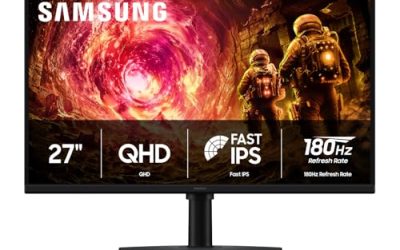
- Your 144Hz or 165Hz gaming panel should show its full rate; a 75Hz secondary running at 75Hz is fine.
A second screen is one of the cheapest upgrades to both gaming and productivity. Game on the primary panel while Discord, a guide, or a stream chat lives on the second, and you stop alt-tabbing out of fullscreen every few minutes. Setting up dual monitors in 2026 is mostly plug-and-play, but a few settings separate a smooth setup from one plagued by mismatched refresh rates and cursor snags.
This guide covers the physical connections, Windows display arrangement, and the gaming-specific settings that keep your main monitor running at full refresh while the second handles everything else. It works whether you are pairing two identical panels or adding a cheaper secondary screen to your existing gaming monitor.
As an Amazon Associate we earn from qualifying purchases.



⚡ Save on Your Next PC — Amazon Prime
Prime members get fast free shipping on the systems above, plus early access to Prime Day & Black Friday PC deals. New members get a 30-day free trial.
Watch: How to Set Up Dual Monitors for Gaming — Video Review
Check Your GPU’s Outputs First
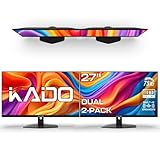
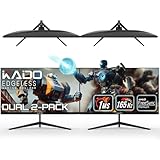
Count the ports on your graphics card, not the motherboard. Most modern GPUs have three DisplayPort and one HDMI, easily enough for two monitors. Use DisplayPort for your primary high-refresh panel because it carries higher bandwidth than older HDMI, and save HDMI for the secondary screen. A matched two-pack such as the Kado dual 24-inch or 27-inch curved sets simplifies this since both panels share the same connectors and resolution.
Connect and Arrange in Windows
Plug both monitors in, then open Settings, System, Display. Drag the on-screen boxes so they match the real physical layout, and set your gaming monitor as the Main Display so games and the taskbar default to it. Align the tops of the boxes so your cursor does not catch on an edge when moving between screens.
Set Correct Resolution and Refresh Rate
- Select each monitor individually and confirm its native resolution is chosen.
- In Advanced display, set the highest refresh rate each panel supports, they do not have to match.
- Your 144Hz or 165Hz gaming panel should show its full rate; a 75Hz secondary running at 75Hz is fine.
Keep Games on the Right Screen at Full Refresh
Windows sometimes caps a high-refresh monitor when a slower second screen is attached. If your main panel drops to 60Hz, set it explicitly in display settings and enable G-Sync or FreeSync only on the primary. Launch games in exclusive fullscreen on the main monitor so the second screen’s slower refresh does not throttle your frame rate.
Optimize the Second Screen for Multitasking
Use the secondary panel for Discord, a browser, hardware monitoring, or OBS. Windows Snap lets you dock windows to halves of the screen instantly. If the two panels differ in height, a dual monitor arm levels them and frees desk space.
Tips
- Match panel scaling (100 or 125 percent) so text size looks consistent across screens.
- Use identical panels when possible to avoid color and brightness mismatch.
- Route the primary cable through the fastest port; do not mix a slow adapter into the chain.
- Calibrate brightness so the secondary screen is not distractingly brighter than your game.
Frequently Asked Questions
Does a second monitor lower gaming FPS?
Barely, if it only shows static windows. Playing a video or running a stream on it uses some GPU resources, so close heavy content on the second screen during demanding games.
Can I mix different sized monitors?
Yes. Windows handles mismatched sizes and resolutions fine. Just align them by their top edges and match scaling so windows move smoothly between them.
Why is my main monitor stuck at 60Hz?
A slower second monitor can force this. Manually set the high refresh rate in Advanced display settings, and use DisplayPort rather than an old HDMI cable for the primary.
Do both monitors need the same refresh rate?
No. Each runs its own rate. A 144Hz gaming panel and a 75Hz secondary work together without issue.
Conclusion
Dual monitors take about ten minutes to set up: connect via DisplayPort for the main panel, arrange the layout in Windows, set each screen’s native resolution and refresh, and keep games in fullscreen on the primary. Do that and you get the productivity of two screens without sacrificing gaming performance.