Key takeaways
- To set up a capture card for console streaming, connect the console's video output into the capture card.
To set up a capture card for console streaming, connect the console’s video output into the capture card, send a second video signal from the card to your TV or monitor, connect the card to your PC, then add the card as a video source in your streaming software. The whole job is about getting one video signal to two places without delay or lost resolution.
This guide is for console players who want to stream or record gameplay from a PlayStation, Xbox, or Nintendo console to a platform such as Twitch or YouTube. It covers the cabling, the software setup, and the common sticking points, like blocked video from copy protection and audio that is out of sync.
Understand How the Signal Flows
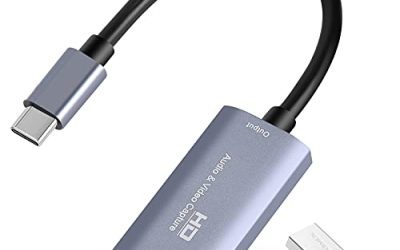
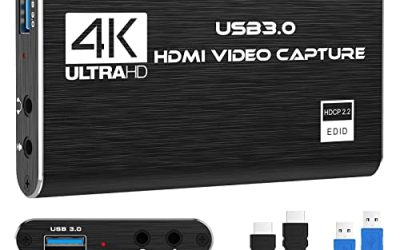
A capture card sits between your console and your display or beside them, and it passes the video to your computer for recording and streaming. There are two main designs. An external card plugs into the PC over USB and has its own HDMI ports. An internal card slots into a PCIe lane inside a desktop and usually has similar ports on its back plate.
Most cards have an HDMI input and an HDMI output, sometimes labeled “pass-through.” The input takes the console signal, and the output feeds your display so that you can play on the screen without lag. The PC receives its own copy over USB or PCIe for the stream.
Check Compatibility Before You Connect
Resolution and frame rate
Look at the maximum resolution and frame rate the card supports on its capture path and on its pass-through path. These are often different. A card might pass a high-refresh signal to your monitor but capture only a lower setting for the stream. Match your console’s output to what the card handles.
PC requirements
External cards need a USB port at the speed the maker lists. Plugging a card that expects a fast port into a slow one can limit resolution or cause dropped frames. Internal cards need a free PCIe slot of the stated length. Your processor and graphics card also need enough headroom to encode video while the PC is running other software.
Console video settings
Some consoles use HDR or variable refresh rate outputs that capture cards do not always handle. If your capture looks washed out or the screen goes black, check these settings first, because turning HDR off in the console video menu often fixes the picture.
Step-by-Step Setup
Step 1: Cable the console
Take the HDMI cable that runs from the console to the TV and move it so that it goes from the console to the HDMI input on the card. Use a high-quality cable rated for the resolution you want, and avoid long runs of cheap cable.
Step 2: Connect the display
Connect a second HDMI cable from the capture card’s output to your TV or monitor. Turn on the display and select the right input. You should see the console picture with no extra delay on the screen.
Step 3: Connect the card to the PC
Plug in the USB cable that came with the card, or seat the internal card and fasten it. Install the drivers or companion software if the maker supplies them. Many modern cards work as standard video devices and need no driver.
Step 4: Add the card to your streaming software
Open your streaming app and create a new scene. Add a video capture device source and pick the card from the list. If the preview is blank, make sure the console is on and sending video, and then re-select the device. Set the resolution and frame rate to match what the console sends.
Step 5: Set up audio
Add an audio source for the card, usually listed as an audio input or capture device. Game sound arrives through the HDMI signal. If you also use a microphone or a headset with a chat mixer, add those as separate sources so you can control the levels individually.
Fix Common Problems
- Black screen in preview: Turn off HDCP content protection in the console’s system settings, since protected signals are not meant to be captured.
- Audio out of sync: Add a small audio delay to the source in your streaming software, and adjust until the sound matches the picture.
- Dropped frames: Lower the stream bitrate or resolution, close other apps, and make sure the USB port or PCIe slot meets the card’s requirement.
- Lag on your TV: Check that you are using the pass-through output and not a capture-only path, and enable the console’s game mode on the display.
- Washed-out colors: Switch the console’s HDR setting off, or set the capture source’s color range to match.
Choose Streaming Settings Sensibly
Your upload speed sets the ceiling for stream quality. Test the connection, and keep the bitrate comfortably below it so spikes do not cause stutter. Platform guidelines list recommended bitrates for each resolution, so check them when you choose your settings.
Use a wired Ethernet connection for the PC, not Wi-Fi. A cabled link is steadier and avoids the sudden drops that make a stream stutter. If your PC has a hardware encoder in its graphics card, enabling it takes load off the processor and leaves more headroom for the game capture.
Setup Options Compared
| Setup type | Pros | Cons | Good for |
|---|---|---|---|
| External USB card | Portable, works with laptops | Needs a fast USB port | Players who move around |
| Internal PCIe card | Stable, no extra cables on the desk | Desktop only, requires opening the case | Permanent streaming desks |
| Stand-alone recorder | No PC needed for recording | Limited live streaming features | Recording clips only |
Before You Start Checklist
- Confirm the card’s supported resolution and frame rate for both capture and pass-through.
- Gather two HDMI cables of the right rating.
- Check the PC port or slot the card requires.
- Turn off HDCP and HDR in the console while you test.
- Install your streaming software and update your graphics drivers.
- Test the setup with a short local recording before going live.
Build a Simple Scene Layout
Once the picture reaches your streaming software, the layout is what viewers actually see. Keep the first version plain. A full-screen game source, a small camera window in a corner, and a single text overlay with your channel name are enough. You can add alerts, a chat box, and a recent-followers panel later, once you know the stream runs smoothly.
Use separate scenes for different moments: one for the game, one for a starting screen, one for a short break, and one for ending. Switching scenes is easier than changing sources mid-stream, and it keeps your viewers from watching a messy transition. Name each scene clearly so you can switch with a hotkey without looking.
Next, monitor your audio the way viewers hear it. Open the audio mixer and watch the meters while you play. Game audio should sit lower than your voice, and neither should hit the red zone. Do a quick local recording and play it back with headphones before you go live. In 2026, most streaming apps include a built-in audio check, which makes this step quick, and a two-minute test saves you from an hour of stream with the wrong levels.
Related guides
- Hall Effect Vs Potentiometer Controller Sticks Explained
- Low Profile Cpu Coolers For Small Form Factor Pcs
- How To Transfer Nintendo Switch Data To A New Console
Frequently Asked Questions
Do I need a powerful PC to stream console games?
Not as much as you would for PC game streaming, since the console runs the game. The PC only has to encode the incoming video, so a modest modern machine often suffices. Hardware encoding helps if the processor is on the weaker side.
Can I stream without a capture card?
Some consoles have a built-in broadcast feature that sends gameplay directly to a streaming service. It offers fewer layout and overlay options than a capture card setup, but it is simpler and requires no extra hardware.
Why does my capture look worse than the game?
The stream bitrate, the resolution setting, and the encoder all affect quality. A low bitrate or a mismatched resolution makes the image look soft. Raise the bitrate within your upload limits or lower the frame rate to give each frame more data.
Should I record and stream at the same time?
You can, but it uses more processing power. If your PC struggles, record at a lower quality, or record with the console’s built-in tools and stream through the card.
FAQ
Do I need a powerful PC to stream console games?
Can I stream without a capture card?
Why does my capture look worse than the game?
Should I record and stream at the same time?
More from Amazon
Programs that pair well with the guide above. Offers and eligibility are set by Amazon and may change.
Free shipping on eligible items, Prime Video and more. Eligible new members can start with a free trial.
Start a Prime free trialAd-free music streaming. Eligible new subscribers can start with a free trial.
Try Music Unlimited freeA Prime membership for ages 18-24 with a trial period. Eligibility is set by Amazon.
See Prime for Young AdultsAudiobooks and podcasts to listen to on the go. Eligible new members can start with a free trial.
Try Audible freeAs an Amazon Associate we earn from qualifying purchases.