Key takeaways
- To balance game and mic audio for streaming, keep your voice as the loudest consistent element.
To balance game and mic audio for streaming, keep your voice as the loudest consistent element, set game sound several decibels lower so it supports rather than competes, and use a limiter on the final mix so that loud explosions never clip. Set levels in your streaming software while wearing headphones, then confirm the result by listening to a short recording on a phone speaker.
Viewers forgive an average picture long before they forgive bad audio. The most common complaints are a quiet voice buried under gunfire, game audio that jumps when a cutscene starts and a voice that crackles every time you shout. This guide takes you through setting up separate audio sources, choosing sensible levels, adding the few filters that matter, and checking the result before you go live. The approach applies to any streaming setup in 2026, whether you use a mixer, a capture card or an all-software workflow.
Start With Separate Audio Sources
You cannot balance what you cannot control separately. Make sure your game or console audio and your microphone arrive as distinct sources in your streaming software, each with its own volume slider and meter. If everything is routed through one combined device, you can only adjust the whole mix and cannot fix a quiet voice without making the game louder too.
If your software supports multiple audio tracks, consider sending voice and game audio to separate tracks for recordings. That gives you a safety net: if a loud game ruined the voice mix, you can fix it later in an editor without rerecording anything.
Set Levels Step by Step
Set the Microphone Level First
Speak at your normal stream volume and adjust the microphone gain so the meter peaks in the upper yellow zone, comfortably below the red. If the meter hits red, lower the gain on the mic or interface. Then use the software slider only for small corrections. A healthy signal at the source always sounds cleaner than a weak signal boosted afterward.
Set the Game Audio Level Second
Play a loud scene and a quiet scene, and adjust the game slider so that the loud moments sit below your voice peaks. Many streamers keep game audio noticeably lower than the voice, since viewers listen to your commentary first. If your game has its own music and effects sliders, reduce music before touching dialogue.
Add Gentle Processing
Three filters do most of the work. A noise gate quiets the mic between phrases, a compressor evens out the difference between whispers and shouts, and a limiter on the final output catches rare peaks. Apply each lightly; heavy settings make a voice sound squashed and exhausting to listen to.
Consider Ducking for Busy Games
If game audio keeps overpowering your voice, use a compressor on the game track that is triggered by your microphone, which lowers the game for a moment while you speak. Set it so the effect is subtle and recovers smoothly, and viewers will simply feel that you are easy to hear.
Work in that order because each step depends on the one before it. A weak microphone signal cannot be rescued by game volume, and a loud game cannot be tamed by a louder voice. Change one setting at a time, listen, and only then move on, so that you always know which adjustment helped.
A Starting Point for Your Mix
| Source | Starting approach | What to watch |
|---|---|---|
| Microphone | Peaks in the upper yellow zone, never red | Clipping when you laugh or shout |
| Game audio | Several decibels below your voice | Sudden loud cutscenes and effects |
| Music or alerts | Quieter than game audio | Competing with speech |
| Chat voices | Close to the level of game audio | Echo if speakers feed the mic |
| Final output | Limiter just below full scale | Overall loudness consistency |
Before You Go Live Checklist
- Wear headphones so that game sound does not leak into the microphone.
- Check that each audio source has its own slider and meter.
- Record a short clip that includes a loud scene and a quiet one.
- Play the clip back on headphones and on a phone speaker.
- Confirm that your voice is clear at the loudest moment of the game.
- Make sure alerts, music and chat sounds are not louder than your speech.
- Save the profile so the levels return the same way next time.
Fixing the Usual Problems
If your voice sounds distant, move the microphone closer before raising gain, since distance is the usual culprit. If you hear an echo of the game inside your voice, the microphone is hearing your speakers, so switch to headphones or reduce speaker volume. Hiss means the gain is too high for the source, while crackling usually means a clipped signal that needs a lower gain or a limiter.
If your viewers say the volume jumps between scenes, reduce the loudest game peaks with a limiter or compressor on the game track, and lower in-game music. If they report that you are too quiet on certain devices, increase overall loudness gradually through compression and a limiter, rather than pushing the mic gain into the red.
Console and Capture Card Setups
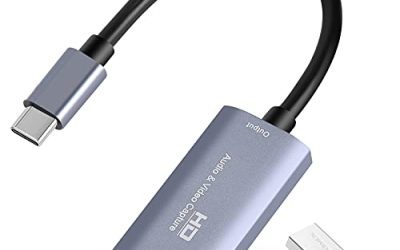
If you stream from a console, the game audio usually reaches the computer through a capture device, while your microphone connects separately. Check that both appear as separate sources in your software and that the capture device is not also sending your own voice back, which causes echo. Some consoles offer party chat that mixes friends’ voices into the game audio, so decide whether you want them on stream and, if not, route chat to a headset only.
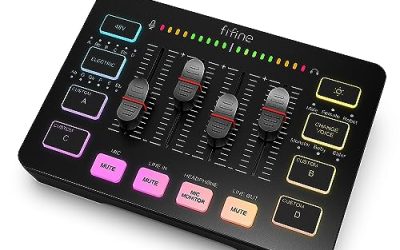
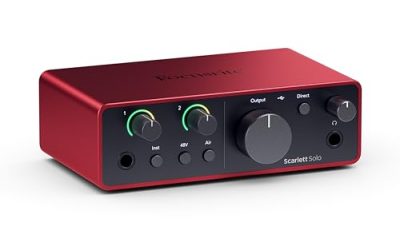
If you use a mixer or audio interface, set its faders so that the physical levels match your software levels, then leave the software sliders near their default positions. That keeps your adjustments in one place and avoids chasing a problem in two different menus.
Building a Repeatable Routine
Good audio comes from consistency. Use the same microphone position every session, mark the gain knob position with a small piece of tape, and save your streaming profile once it sounds right. Before each stream, do a thirty-second check: speak, trigger a loud game sound and confirm that both look sensible on the meters.
Revisit the settings whenever something changes, such as a new game, a new microphone or a different room. Audio that was right for a quiet puzzle game may be wrong for a loud shooter, so keep a few saved profiles for different types of games.
Ask a trusted viewer or a friend in a call to tell you honestly how the stream sounds in the first few minutes. Their ears on a different device are worth more than another hour of fiddling with filters, and they will notice problems you have stopped hearing, such as a faint hum or an alert sound that is too loud.
Common Mistakes
- Judging the mix on speakers instead of headphones, which hides leaks and echo.
- Raising the microphone slider while the source signal is already clipping.
- Leaving game music at full level beneath your commentary.
- Applying strong compression and noise suppression until the voice sounds artificial.
- Never listening to a recorded sample before going live.
Related guides
- Hall Effect Vs Potentiometer Controller Sticks Explained
- Low Profile Cpu Coolers For Small Form Factor Pcs
- How To Transfer Nintendo Switch Data To A New Console
Frequently Asked Questions
How loud should my voice be compared with the game?
Aim for your voice to be clearly louder than the game during normal play, with game audio several decibels lower. Fine-tune by ear on a short recording.
Do I need a hardware mixer to balance audio?
No. Software sliders and filters are enough for most streams. A hardware mixer adds convenience, with physical faders you can reach during a stream.
What is audio ducking?
It is a technique that lowers game or music volume automatically while you speak and returns it afterward. A subtle setting makes your voice easier to hear without obvious pumping.
Why does my voice sound fine to me but quiet to viewers?
Your headphones may be loud, or your mic gain may be low while game audio is high. Record a sample and listen on a phone speaker to see what viewers hear.
FAQ
How loud should my voice be compared with the game?
Do I need a hardware mixer to balance audio?
What is audio ducking?
Why does my voice sound fine to me but quiet to viewers?
More from Amazon
Programs that pair well with the guide above. Offers and eligibility are set by Amazon and may change.
Free shipping on eligible items, Prime Video and more. Eligible new members can start with a free trial.
Start a Prime free trialAd-free music streaming. Eligible new subscribers can start with a free trial.
Try Music Unlimited freeA Prime membership for ages 18-24 with a trial period. Eligibility is set by Amazon.
See Prime for Young AdultsAudiobooks and podcasts to listen to on the go. Eligible new members can start with a free trial.
Try Audible freeAs an Amazon Associate we earn from qualifying purchases.