Our Top Picks
The best 12VHPWR cable for most graphics-card owners on this list is the Corsair ThermalProtect PCIe 5.1 600W 12V-2×6 cable. It is a straightforward male-to-male 16-pin cable with 16 AWG power wires, a published 600W limit, and a built-in thermal switch that is designed to shut the graphics card down if the connector area gets dangerously hot. It suits builders who run a high-power card on a modern power supply with a native 12V-2×6 output and want the most documented safety feature on the shelf. The rest of the list covers specific jobs: ASRock’s L-shaped cables for ASRock power supplies, the ASUS ROG Equalizer for current balancing, CableMod’s right-angle cable for tidy builds, and four extension or conversion cables that solve narrower problems. Because a mismatched cable can damage hardware, we explain below what each one is actually for and which power supplies it can safely work with.
Top 3 Picks
Best overall: Corsair ThermalProtect 600W 12V-2×6. About 650 millimeters long, with 16 AWG power wires, 105 degree Celsius insulation and a thermal switch signal wire, it is documented in more detail than most cables in this class. Corsair states that it is always active and needs no configuration. It works with power supplies that have a native 12V-2×6 output, but you should confirm compatibility with your supply model on the maker’s page.

Fasgear 16 Pin GPU Cable Adapter Extension Cable, Black
Included for 'Best 12VHPWR Cable for Gpu in 2026' because the listing specifies Black, details this guide uses to compare options.
View on Amazon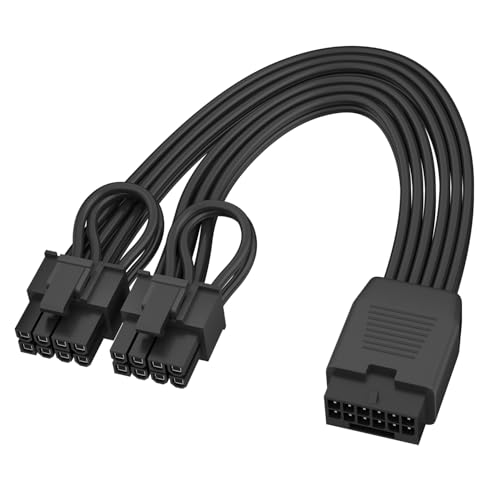
Aukuoy 12VHPWR Cable Extension, 16 Pin(12+4) Female to Dual PCIe 8 Pin(6+2) Male GPU, PSU Conversion Cable for Power Supply 6.8 in(17cm)
Included for 'Best 12VHPWR Cable for Gpu in 2026' because the listing specifies 16 Pin(12+4) Female to Dual PCIe 8 Pin(6+2) Male GPU and PSU Conversion Cable for Power Supply 6.8 in(17cm), details this guide uses to compare options.
View on Amazon
Corsair ThermalProtect PCIe 5.1 600W 12V-2x6 Cable – Black
Included for 'Best 12VHPWR Cable for Gpu in 2026' because the listing specifies Black, details this guide uses to compare options.
View on Amazon
COMeap 12VHPWR Cable Extension, 16 Pin Female to Dual 8 Pin(6+2) Male PCIe Conversion GPU Power Cable for Power Supply with 12+4pin 12VHPWR Port 7 in(18cm)
Included for 'Best 12VHPWR Cable for Gpu in 2026' as a relevant option in this category; details come from the product listing.
View on Amazon
ASUS ROG Equalizer 12V-2x6 PCIe Power Cable
Included for 'Best 12VHPWR Cable for Gpu in 2026' as a relevant option in this category; details come from the product listing.
View on Amazon
ASRock 12V-2x6 600W Power Cable | ATX 3.1 & PCIe 5.1 Compliant | L-Shaped GPU Connector | 16AWG HCS Terminals | for 750W+ ASRock Taichi/Phantom Gaming PSUs
Included for 'Best 12VHPWR Cable for Gpu in 2026' because the listing specifies ATX 3.1 & PCIe 5.1 Compliant and L-Shaped GPU Connector, details this guide uses to compare options.
View on Amazon
ASUS ROG Equalizer 12V-2x6 PCIe Power Cable White Edition
Included for 'Best 12VHPWR Cable for Gpu in 2026' as a relevant option in this category; details come from the product listing.
View on Amazon
CableMod Pro ModMesh Universal 12V-2x6 PCIe Cable (White, 16p to 16p, 90°B)
Included for 'Best 12VHPWR Cable for Gpu in 2026' because the listing specifies 16p to 16p and 90°B), details this guide uses to compare options.
View on Amazon
ASRock 12V-2x6 600W L-Type Cable White, ATX 3.1 & PCIe 5.1, 90° Connector, Dual-Color, NTC Sensor, 16 AWG, HCS Terminals, 2-Year Warranty
Included for 'Best 12VHPWR Cable for Gpu in 2026' because the listing specifies ATX 3.1 & PCIe 5.1 and 90° Connector, details this guide uses to compare options.
View on AmazonBest for ASRock power supply owners: ASRock 12V-2×6 600W L-Type cable with NTC sensor (White). Its right-angle graphics-card connector helps in tight cases, and the built-in temperature sensor talks to compatible ASRock Taichi and Phantom Gaming power supplies to shut the system down on overheating. On other supplies it works as an ordinary cable, but without the sensing protection.
Best for a narrow, simple job: Aukuoy 12VHPWR to dual 8-pin conversion cable. If you have a power supply with a 12+4-pin output and a graphics card that uses two 8-pin connectors, this 17 centimeter cable bridges the gap without a long adapter loom. It is not for powering a 12VHPWR graphics card, and it is limited to the power of two 8-pin connectors.
Quick Comparison
| Product | Best for | Key specs |
|---|---|---|
| Fasgear 16 Pin GPU Cable Adapter Extension | Reaching a card when the stock cable falls short | 16-pin (12+4) extension or adapter style, black; confirm exact variant on the page |
| Aukuoy 12VHPWR to Dual 8-Pin (17 cm) | Powering 8-pin cards from a 12+4 PSU output | 16-pin female to dual PCIe 8-pin (6+2) male, short conversion cable |
| Corsair ThermalProtect 12V-2×6 | Overheat-aware native 12V-2×6 cabling | 600W, 16 AWG, about 650 mm, thermal switch, two-year warranty |
| COMeap 12VHPWR to Dual 8-Pin | Powering 8-pin cards from a 12+4 PSU output | 16-pin female to dual 8-pin (6+2) male conversion cable |
| ASUS ROG Equalizer 12V-2×6 (Black) | Balancing current across conductors | 600W recommended limit, about 750 mm, male to male, three cable combs |
| ASRock 12V-2×6 600W L-Shaped Cable | Tight cases with ASRock supplies | 600W, 16 AWG, HCS terminals, L-shaped GPU connector, for 750W+ ASRock supplies |
| ASUS ROG Equalizer 12V-2×6 (White Edition) | White builds with current balancing | Same design as the black version in a white finish |
| CableMod Pro ModMesh 12V-2×6 (White, 90 degree) | Clean, sleeved, right-angle routing | 16-pin to 16-pin, about 60 cm, 16 AWG, 90 degree connector |
| ASRock 12V-2×6 600W L-Type (White, NTC) | ASRock supplies with sensor protection | 600W, L-type connector, NTC sensor, dual-color connector, two-year warranty |
How We Chose
This guide is built from manufacturer specifications, listing details and published reviews and technical write-ups, not from our own lab work. We prioritized cables whose makers document the wire gauge, the maximum power, the connector standard and the safety features, because these details determine whether a cable is a sensible fit for a high-power graphics card. We also weighed compatibility honestly: the supply-side connector of a modular cable is not standardized across brands, so a cable that is excellent with one power supply can be unsafe with another. Where a listing is vague, as with several generic extension and conversion cables, we describe the product class and tell you what to confirm before you buy. We do not claim to have used any of these cables, and nothing here replaces the instructions from your power supply and graphics card makers.
1. Fasgear 16 Pin GPU Cable Adapter Extension – Best for Reaching a Card When the Stock Cable Falls Short
As an Amazon Associate we earn from qualifying purchases at no extra cost to you.

The Fasgear 16 Pin GPU Cable Adapter Extension Cable is a black 16-pin (12+4) cable from a brand that sells many variants, including male-to-female extensions, 90 degree extensions, and 16-pin to multiple 8-pin cables. The listing name does not say which one this is, so the first step is to read the product page and look at the connector images carefully. An extension cable of this kind sits between the cable from your power supply and the graphics card, giving you a few extra centimeters of reach or a different connector angle.
The main thing to understand is that an extension adds another electrical connection. The 12VHPWR and 12V-2×6 connectors carry a lot of current through small pins, and every extra contact point is another place where resistance can rise if the plug is not perfectly seated. Fasgear describes its cables as using 16 AWG wire and 600W-class construction, but the safest option is always a single native cable of the right length. Use an extension only when you truly need one, check that it is explicitly designed for your connector standard and your graphics card, and avoid stacking adapters.
Before ordering any extension, measure the gap you are trying to close. Run a piece of string along the intended path from the supply outlet to the graphics card socket, including any bend you plan to make, and compare it to the stock cable length. Many cases need only a few centimeters of extra reach, and in some cases moving the supply cable to a different routing channel solves the problem without any extension at all. If you do use one, plug both ends in firmly, keep the joint away from sharp bends and re-check it after the first long gaming session.
Key specs
- Connector: 16-pin (12+4) cable in black; confirm male and female ends on the page.
- Style: adapter or extension, depending on the variant shown in the listing.
- Power: Fasgear states 600W-class capacity claims across its range; verify the figure for this exact variant.
- Compatibility: designed for 12VHPWR and 12V-2×6 graphics cards; not for cards with 8-pin or 12-pin sockets.
Pros
- Solves a real layout problem when the stock cable is slightly short or awkwardly angled.
- Black finish blends into most builds.
- Brand offers many configurations, so you can find a matching connector style.
Cons
- Listing name is generic, so details must be verified.
- An extension adds a connection point, which increases the importance of full seating.
- Not a substitute for a correctly sized native cable.
Compared with the CableMod 16-pin to 16-pin cable, which replaces the stock cable entirely, the Fasgear extension is the less elegant but more flexible fix when you already have a working cable. If you are choosing between a long-term solution and a quick one, a single native cable from the CableMod, Corsair, ASUS or ASRock families is the better practice. Treat this one as a problem-solver, not a first choice.
2. Aukuoy 12VHPWR to Dual 8-Pin (17 cm) – Best for Powering 8-Pin Cards from a 12+4 Supply Output

The Aukuoy cable does the reverse of what most shoppers expect. According to the listing, it takes a 16-pin (12+4) female connector at one end and splits into two PCIe 8-pin (6+2) male plugs at the other, in a short 6.8 inch, 17 centimeter length. It is meant for power supplies that expose a 12VHPWR-style output and need to feed a graphics card that uses regular 8-pin power. In other words, it is a conversion cable for the power supply end, not a cable that plugs into a modern 12VHPWR graphics card.
That distinction matters for safety. Two 8-pin PCIe connectors are specified at 150W each on the graphics-card side, so a card powered from this cable should be a card that needs roughly 300W or less in total, and the PCIe slot supplies another 75W. This is a good fit for many midrange cards and for builds where the power supply came with a 12+4 output and no spare 8-pin leads. It is a poor fit for a high-power card, and it should never be used to try to power a 12VHPWR graphics card in reverse.
Note also what the 17 centimeter length implies. The cable is meant to sit close to the supply, which means the 8-pin plugs end up near the supply side of the case and need a second, longer run to reach the card unless the supply and card are close together. In practice, that makes it most useful in compact layouts where the supply sits near the graphics card. In a full tower, measure the distance first, because a very short converter that cannot reach the card is no help, and an extension on top of a converter is exactly the stacking of adapters that you should avoid.
Key specs
- Connectors: 16-pin (12+4) female to dual PCIe 8-pin (6+2) male.
- Length: about 17 centimeters (6.8 inches) per the listing.
- Use: connects a supply’s 12+4 output to a graphics card with two 8-pin sockets.
- Limit: sized for two 8-pin connectors, not for a 450W or 600W card.
Pros
- Very short cable keeps routing neat and avoids clutter.
- Solves a specific compatibility gap between newer supplies and older cards.
- Simple design with no electronics to fail.
Cons
- Limited to the power of two 8-pin connectors, which suits only moderate-power cards.
- Pinout on the supply side must match your supply’s output; confirm with the supply maker.
- Generic brand with little published detail on wire gauge in the product name.
The nearest alternative is the COMeap cable, which describes the same female-16-pin to dual-8-pin layout. The Aukuoy is the one with a stated length of 17 centimeters, which makes it easy to judge whether it will reach. Before buying either, confirm in your power supply manual that the 12+4 output is wired in a way that supports this use, because supplying the wrong pinout can damage the card.
3. Corsair ThermalProtect 12V-2×6 – Best for Overheat-Aware Native Cabling

The Corsair ThermalProtect PCIe 5.1 600W 12V-2×6 cable is the most feature-rich plain cable in the group. Corsair lists a length of about 650 millimeters, 16 AWG power wires, a 24 AWG sense wire set, a 26 AWG thermal switch signal wire, 105 degree Celsius insulation and a flame-retardant connector housing. The cable has a 600W maximum, male-to-male 16-pin ends, dual-tone connectors that show whether the plug is fully seated, and a two-year warranty. Its headline feature is a thermal sensor in a cable comb near the connector, which Corsair says triggers a shutdown of the graphics card if the area gets too hot.
Corsair describes a demonstration with a deliberately poorly seated connector in a hot environment, in which the protection tripped in under two minutes. That is the maker’s own scenario, and independent reviewers have raised questions about how well any thermal switch can track connector hot spots, so think of the feature as an additional layer, not a replacement for correct installation. The cable is compatible with power supplies that have a native 12V-2×6 output, and retailer pages mention Corsair Type 4 supplies, so check the Corsair compatibility notes for your exact model before ordering.
Independent coverage of this cable has been mixed in tone, which is useful context. Some writers like the simple, always-on protection and the low-profile design. Others point out that a switch reacting to heat does not fix the root causes of connector problems, such as a loose plug or an uneven load, and that it shuts the card down rather than preventing the problem. The balanced view is that it is a reasonable extra safeguard at a modest step up from a plain cable, and a better fit for people who want some protection than for people who plan to rely on it entirely.
Key specs
- Standard: PCIe 5.1, 12V-2×6, 600W maximum.
- Length: about 650 millimeters, male to male.
- Wire: 16 AWG power wires with a thermal switch signal wire.
- Safety: thermal switch near the connector, dual-tone seating indicator.
- Warranty: two years.
Pros
- Documented specifications and a clear protective feature.
- Visible seating indicator helps catch a loose plug.
- Available in black and white to match most builds.
- Straightforward, no software required.
Cons
- Compatibility depends on the supply-side connector, so confirm with Corsair.
- A thermal switch shuts the card down, which is protective but can look like a random crash if you do not know it tripped.
- Two-year warranty is shorter than some power supply warranties.
Compared with the ASUS ROG Equalizer, which aims to spread current across conductors, the Corsair aims to cut power when heat appears. They address different failure modes, and neither removes the need for proper seating. If you want the clearest published safety feature and your supply is compatible, the Corsair is the strongest all-round pick here.
4. COMeap 12VHPWR to Dual 8-Pin – Best for Bridging Older Cards to a Newer Supply

The COMeap cable is the second of the two conversion cables on the list and follows the same layout: a 16-pin female connector on one end and two 8-pin (6+2) male PCIe connectors on the other, described as a conversion cable for power supplies that have a 12+4-pin 12VHPWR output. Like the Aukuoy, its role is to let you power a graphics card with traditional 8-pin sockets from a supply whose modular outputs include a 16-pin socket. It is not a way to feed a 12VHPWR graphics card.
A typical use case is an upgrade path. You bought a modern power supply that came with a 12+4 output, you are still using an older or midrange graphics card with two 8-pin inputs, and you do not have a native 8-pin cable that fits. This kind of cable can fill the gap, as long as your supply maker documents that the 12+4 output can supply the current. Because the output of a 16-pin socket on a supply can be wired differently by brand, matching the cable to the supply is vital. If the manual does not describe the output or lists it only for the maker’s own cable, contact support before you try a third-party converter.
Because the product name here is long and the brand publishes little technical detail, the product page is where you should confirm the points that matter: the number of conductors in each branch, the wire gauge, whether the two 8-pin plugs come from separate wire groups, and the exact supply outputs the maker says it fits. A cable that merges all of its wires into a single thin bundle can run hotter than one with dedicated wires per plug. If the page does not answer these questions, send the seller a message or choose a cable from your supply maker instead.
Key specs
- Connectors: 16-pin female to dual 8-pin (6+2) male PCIe plugs.
- Use: connect a supply’s 12+4 output to a graphics card with two 8-pin sockets.
- Limit: the power of two 8-pin connectors; the PCIe spec allots 150W per connector on the card side.
- Compatibility: depends on your supply’s 12+4 output wiring; verify with the maker.
Pros
- Fixes a compatibility problem without replacing the supply or the card.
- Compact conversion keeps the cable run short.
- Useful for moderate-power cards that do not need a 12V-2×6 plug.
Cons
- Generic brand, with limited published detail on wire gauge and construction.
- Not suited to high-power cards, and not suited to powering a 12VHPWR card.
- Wrong pinout for your supply could be dangerous, so the matching step is not optional.
Compared with the Aukuoy, the COMeap listing does not state a length in its name, so check the product page for dimensions. Both are narrow-use cables, and the better choice depends on length and which one matches your supply’s documentation. If you can get a native 8-pin cable from your supply maker instead, that is generally the safer route.
5. ASUS ROG Equalizer 12V-2×6 (Black) – Best for Balancing Current Across Conductors

The ASUS ROG Equalizer is a male-to-male 12V-2×6 cable, about 750 millimeters long, that ASUS positions as a way to improve current stability for high-power graphics cards. ASUS states that it is compliant with ATX 3.1 and PCIe 5.1, recommends it for loads up to 600W, and quotes a higher per-wire current capacity than a standard cable. The box includes three cable combs, and the connector uses tin-plated oxygen-free copper with gold-plated spring contacts on the graphics-card side, according to the maker.
The idea behind the Equalizer is to reduce the chance that one or two wires carry far more current than the others, which is what happens when a connector is slightly misaligned and some pins make poor contact. ASUS has not published full details of the internal design, and early press coverage that described a built-in temperature sensor was later corrected: the extra conductors support ASUS’s own voltage-stabilizing feature and the software monitoring is a separate item. ASUS shares a thermal comparison in which a standard cable with missing conductors heats up far more than the Equalizer, but because that is the maker’s own scenario, treat it as a design intent rather than a guarantee. Warranty is three years.
A careful reading of the maker’s claims is worthwhile. ASUS describes a per-wire capacity of 17 amps for this cable, far above the 9.2 amp figure for a standard terminal, and a thermal comparison that favors the Equalizer under a staged fault. Those numbers describe the cable and a specific test scenario. They do not change the limits of the graphics card socket, the supply output or the connector at either end, which still follow the 600W specification. In other words, the Equalizer can add margin to the cable, but the whole chain is only as strong as its weakest connection.
Key specs
- Standard: 12V-2×6, ATX 3.1 and PCIe 5.1 compliant per the maker.
- Length: about 750 millimeters, male to male, with three combs in the box.
- Power: recommended for use under a 600W total limit.
- Materials: tin-plated oxygen-free copper wire, gold-plated spring contacts at the GPU end.
- Warranty: three years.
Pros
- Designed specifically to even out current among the conductors.
- Longer length gives flexibility in larger cases.
- Maker supports it with a multi-year warranty and published statements.
Cons
- Details of the internal design are not fully published.
- Early reports of temperature sensing were incorrect, so do not assume it will shut a system down.
- Supply-side compatibility must be confirmed for non-ASUS power supplies.
Next to the Corsair ThermalProtect, the Equalizer is the more passive solution: it aims to prevent hot spots from forming rather than react to them. If your power supply is from ASUS or from a maker that documents compatibility, this is an attractive option for a high-end build. If you value an active shutdown feature, look at the Corsair or at the ASRock NTC cable instead.
6. ASRock 12V-2×6 600W L-Shaped Cable – Best for Tight Cases with ASRock Supplies

The ASRock 12V-2×6 600W power cable is an L-shaped design with a right-angle connector for the graphics card side. The listing states that it is compliant with ATX 3.1 and PCIe 5.1, uses 16 AWG wire with HCS terminals, and is intended for ASRock Taichi and Phantom Gaming power supplies of 750W and above. ASRock’s published specifications for this family list a length of 700 millimeters and a 600W maximum, with a classic green connector that helps you see whether it is fully plugged in.
The L-shape is the main feature. In many cases, the side panel sits close to the graphics card, and a straight plug forces the cable to bend sharply within a few centimeters of the connector, which is the exact situation that connector makers warn against. A right-angle plug lets the cable leave the card along the board edge instead. ASRock recommends that all connectors be fully inserted and click-locked, and that the cable should not be bent in any direction after it is plugged in. Because the cable is made for specific ASRock supplies, do not assume it will fit a different brand’s modular socket.
Think of the L-shape in terms of the space it saves. A straight plug on a card with the socket facing the side panel needs roughly 35 millimeters of clear space before the cable can bend, and that is often more than a case provides. The L-shaped plug turns the cable 90 degrees immediately and leaves it flat against the card, which can reduce the width needed to well under that figure. Check the orientation, though: the plug exits in one direction, and on some cards that direction points toward the fan or the backplate. Compare it with your card’s socket location on the product images before ordering.
Key specs
- Standard: 12V-2×6, ATX 3.1 and PCIe 5.1 compliant.
- Power: 600W maximum, 16 AWG wire, HCS terminals.
- Connector: L-shaped graphics-card end for tight clearances.
- Compatibility: ASRock Taichi and Phantom Gaming supplies of 750W and up, per the listing.
Pros
- Right-angle plug reduces side-panel pressure and sharp bends near the socket.
- Designed to match a specific family of power supplies, which reduces pinout guesswork.
- Clear seating indicator in the connector color.
Cons
- Only suitable for matching ASRock supplies.
- L-shape orientation must match your card’s socket position; check clearance.
- This version does not mention the temperature sensor that the white NTC variant adds.
The nearest alternative is the white ASRock NTC cable, which is essentially the same shape with a temperature sensor and a different finish. Choose this one when you want the L-shaped plug in a darker build, and the NTC version if you want the sensing feature or a white look. Compared with CableMod’s 90 degree cable, the ASRock is less universal but more tightly matched to its own supplies.
7. ASUS ROG Equalizer 12V-2×6 White Edition – Best for White Builds with Current Balancing

The ROG Equalizer White Edition is the same cable design as the black version in a white finish, aimed at builds with white cases, white sleeving or white graphics cards. All of the functional details carry over: a male-to-male 12V-2×6 cable of about 750 millimeters, compliance with ATX 3.1 and PCIe 5.1, a recommended 600W limit, and ASUS’s approach to spreading load across conductors. The difference is cosmetic, and for many builders that matters because a bright cable running through a white case is a very visible part of the finished look.
Because the cable is visible, small details become important. Check the length against your case: a 750 millimeter run is generous in a mid-tower but can be a lot of excess in a compact case, and extra length that gets bundled behind the motherboard tray can crowd airflow. Use the supplied combs to keep the wires parallel and flat near the plug, and keep the first few centimeters straight before any curve. If your graphics card also has a white shroud, the matching color is a good reason to choose this edition, but it should not override compatibility checks for your power supply.
White cables are a visual choice, and it is worth thinking about the whole color scheme. If your power supply cables, fan cables and sleeving are all black, a bright white graphics card cable can stand out strongly, which some builders want and others do not. If the case has a window and the cable is the first thing you see, consider whether a white cable will clash with the motherboard heat sinks and RAM. Also remember that bright sleeving can discolor with dust and warm air over time, so a gentle wipe with a dry microfiber cloth every few months keeps it fresh.
Key specs
- Standard: 12V-2×6, ATX 3.1 and PCIe 5.1 compliant per the maker.
- Length: about 750 millimeters, male to male.
- Finish: white edition of the Equalizer design, with combs included.
- Power: recommended for a 600W total limit.
Pros
- Matches white builds without sacrificing the Equalizer’s design goals.
- Long enough for full-size cases.
- Same warranty and compliance claims as the black version.
Cons
- White sleeving shows dust and stains more than black.
- Supply-side compatibility still needs to be confirmed.
- May be longer than necessary in a small case.
The nearest alternative is the CableMod white 90 degree cable, which is shorter and right-angled. If you want the cable to be a design feature and prefer a straight plug, the Equalizer White Edition is the pick; if clearance at the card is your concern, the CableMod is more helpful. Both need a supply with a compatible modular connector.
8. CableMod Pro ModMesh 12V-2×6 (White, 90 Degree) – Best for Clean, Right-Angle Routing

The CableMod Pro ModMesh Universal 12V-2×6 cable is a 16-pin to 16-pin sleeved cable with a 90 degree connector at the graphics card end. CableMod lists a length of 24 inches, or 60 centimeters, 16 AWG wires rated for up to 600W, and a hidden bridge technology called StealthSense inside the angled connector that removes the need for separate sense wires. It is sold in many sleeving colors, and this listing is the white version. The maker offers variants for different latch orientations, so you must match the variant to the position of the latch on your graphics card socket.
The right-angle design is the selling point. On many large cards, the 12V-2×6 socket points up toward the side panel, and a straight plug pushes the cable into the glass. A 90 degree plug makes the wire run flat along the card edge, which is both neater and kinder to the connector. CableMod uses the word Universal because the supply-side end is made for supplies with a native 12V-2×6 output, but modular sockets are not standardized, so confirm compatibility with your supply model in the maker’s list. The warranty is one year per the maker.
The variant choice deserves more attention than the sleeving color. CableMod makes its 90 degree cables in versions that point the cable toward different sides of the graphics card, and picking the wrong one means the cable runs into the card or into the fan. Look at your card: find the position of the latch on the socket and the direction in which you want the cable to leave, then match that to the variant description on the product page. If the page is unclear, look at the customer questions or contact the maker before buying, because the wrong orientation cannot be fixed by bending the cable.
Key specs
- Connectors: 16-pin to 16-pin, 90 degree plug at the graphics card end.
- Length: 24 inches (60 centimeters) per the maker.
- Wire: 16 AWG for up to 600W, Pro ModMesh sleeving in white.
- Technology: StealthSense bridge in the connector instead of separate sense wires.
- Warranty: one year per the maker.
Pros
- Right-angle plug reduces side-panel pressure and sharp bends near the socket.
- Sleeved cable is neat and available in many colors.
- Sized for typical mid-tower runs without lots of excess length.
Cons
- Variant selection matters; the wrong orientation points the cable in the wrong direction.
- Shorter warranty than some power supply-brand cables.
- Third-party cable, so confirm that your supply maker allows its use.
Compared with the ASRock L-type cable, the CableMod is the more universal and better-looking option, while the ASRock is the more matched option for its own supplies. If you want a high-quality sleeved cable and your power supply is on CableMod’s compatibility list, it is the best-looking choice here. Before buying, check the variant description and your card’s latch direction.
9. ASRock 12V-2×6 600W L-Type Cable (White, NTC Sensor) – Best for ASRock Supplies with Sensor Protection

The white ASRock L-type cable adds an NTC temperature sensor to the same right-angle design as the other ASRock cable. According to the listing and ASRock’s announcements, it is compliant with ATX 3.1 and PCIe 5.1, uses 16 AWG wire and HCS terminals, has a dual-color connector that helps show seating, and carries a two-year warranty. The sensor sits at the graphics card connector and sends a signal to compatible ASRock Taichi or Phantom Gaming power supplies, which can shut the system down if temperatures rise too high.
The catch is that the sensing function only works with that family of ASRock power supplies. On other supplies, the cable should still carry power, but without the protection. That makes it a bundle: the cable is most valuable if you already own, or plan to buy, a compatible ASRock supply such as the PG-1000PSF. Used that way, the supply, the cable and the connector form a protective loop, which is a stronger design than a passive cable alone. Even so, the sensor is a backup, and the best protection remains a fully seated plug, a straight cable run for the first stretch and a clean, undamaged connector.
A practical advantage of the sensor design is that it gives the power supply information, not just the graphics card. When the sensor trips, the supply can cut power to the system, which is a stronger response than a card-level throttle. The trade-off is that your system will turn off abruptly, so you should save your work, keep a record of when it happens and inspect the connector afterward. If it happens repeatedly, stop using the card and contact the support teams of the graphics card, the cable and the supply, because a repeated trip is a sign that something in the chain needs attention.
Key specs
- Standard: 12V-2×6, ATX 3.1 and PCIe 5.1 compliant.
- Power: 600W maximum with 16 AWG wire and HCS terminals.
- Connector: L-type, 90 degree graphics card end in a dual-color design.
- Protection: NTC temperature sensor, active only with compatible ASRock Taichi or Phantom Gaming supplies.
- Warranty: two years.
Pros
- Combines a right-angle plug with temperature sensing.
- Seating indicator helps catch incomplete insertion.
- White finish suits light-colored builds.
Cons
- Sensor works only with compatible ASRock supplies.
- Needs a supply rated 750W or higher per ASRock.
- Shutdown on a sensor trip may appear as a sudden system power-off.
Next to the Corsair ThermalProtect, this is the other cable that includes an active protective feature, but it is tied to one brand’s supplies while the Corsair targets a wider range of native 12V-2×6 supplies. For ASRock supply owners, this is the logical choice; for everyone else, the Corsair or the CableMod will fit better.
12VHPWR vs 12V-2×6: What You Are Actually Buying
The original 12VHPWR connector and the newer 12V-2×6 connector look almost identical and share the same 16-pin layout: twelve larger power pins (six carrying 12 volts and six grounds) and four small sideband sense pins. The 12V-2×6 revision changed the geometry so that the power terminals are slightly longer and the sense pins are shorter. The practical effect is that a card is less likely to draw full power if the plug is not pushed all the way in. A 12V-2×6 cable will physically plug into a 12VHPWR socket and the reverse is generally true, which is why many listings use both names. Still, check your graphics card manual before assuming a cable is a match.
How to Choose: Safety, Fit and Power Math
Choosing a cable for a graphics card that can draw hundreds of watts is mostly about avoiding mistakes. Work through the questions below in order.
Step 1: Know what your card and supply need
Look at the power socket on your graphics card. If it is a 16-pin 12VHPWR or 12V-2×6 socket, you need a cable or adapter with a 16-pin plug on that end. If your card has two or three 8-pin sockets, you need standard PCIe 8-pin cables, and the conversion cables in this guide are the only ones that apply. Then look at the supply. A modern ATX 3.1 supply with a native 12V-2×6 output should come with a cable from the maker, and that cable is usually the safest choice because it was designed for that supply. A third-party cable is worth considering if you need a different length, finish or angle, and only if the cable maker lists your supply as compatible.
Step 2: Do the current math
The power connector carries current on six 12 volt pins. At 600W, the total current is 600 divided by 12, which is 50 amps, so each pin carries about 8.3 amps if the load is shared evenly. Terminals in this class are commonly specified at around 9.2 amps per pin, so a fully loaded cable runs at roughly 90 percent of the terminal specification, leaving a margin of only about 10 percent. A card that draws 575W needs about 48 amps, or 8 amps per pin. If one pin makes poor contact and the others pick up its share, the remaining five could carry about 9.6 amps each, above the 9.2 amp figure. That is the arithmetic behind the connector’s melted-plug reports, and it is the reason a fully seated plug matters so much.
For 8-pin sockets, the PCI Express specification allots 150W per connector on the card side, so two 8-pin plugs cover 300W and three cover 450W. Power supply makers often build their own cables with more margin, but the safe approach is to follow the supply maker’s published guidance for the exact cable, and not to infer capacity from the connector count alone.
Step 3: Match the form factor to your case
Measure the distance from the graphics card socket to the side panel. Many manufacturers advise leaving about 35 millimeters, a bit under an inch and a half, of straight cable before a bend. If your case does not allow that, a right-angle plug such as the CableMod 90 degree cable or the ASRock L-type cable solves the problem more safely than bending a straight cable hard. Also consider total length: 600 to 750 millimeters is enough for most full-size cases, and excess length should be bundled loosely behind the tray rather than coiled tightly.
Step 4: Decide whether you want active protection
Some cables add monitoring. The Corsair ThermalProtect uses a thermal switch, and the ASRock NTC cable uses a temperature sensor that works with compatible ASRock supplies. These can shut the system down if the connector area heats up. They are a useful safety net, but they only act after heat appears, and a shutdown during a game means you must inspect the connector rather than simply reboot. The ASUS Equalizer takes a different approach by trying to prevent uneven current in the first place.
Decision matrix
| Your situation | Best pick | Why |
|---|---|---|
| Native 12V-2×6 supply, want an extra safety feature | Corsair ThermalProtect | Thermal switch and seating indicator, documented specs |
| ASRock Taichi or Phantom Gaming supply, tight case | ASRock L-type NTC (White) or L-shaped (black) | Matched supply family, right-angle plug, optional sensor |
| Side panel presses on the cable, want a neat look | CableMod 90 degree | Right-angle plug and sleeved cable |
| High-end build, want current balancing in black | ASUS ROG Equalizer (Black) | Designed to even out current among conductors |
| White build with a long run | ASUS ROG Equalizer White Edition | Same design in white, about 750 mm |
| Stock cable is a few centimeters short | Fasgear extension | Adds reach, but adds a connection point |
| Supply has a 12+4 output, card has two 8-pin sockets | Aukuoy or COMeap conversion cable | Bridges the connector gap for moderate-power cards |
Installing a 12V-2×6 Cable Safely
Turn off the supply with its rocker switch, unplug the power cord and press the case power button once to drain residual charge before you touch the cables. Inspect both ends of the cable and the graphics card socket for bent pins, cracks, burn marks or discoloration, and do not use any cable that shows damage. Push the plug straight into the socket with firm, even pressure until the latch clicks, then look at the connector from the side to confirm there is no visible gap between the plug and the socket housing. Many dual-color or green-banded connectors are designed so that a visible color band disappears when the plug is fully seated, so follow the maker’s instructions.
Do not bend the cable close to the connector, and do not let the side panel push on the plug. Do not use adapters made for a different supply brand, and avoid stacking an extension on top of an adapter. After the first few hours of heavy gaming, power down and recheck that the connector is still fully seated. If the plug or the socket ever smells burnt, looks discolored or feels unusually hot after use, stop using the card, unplug the system and contact the graphics card or supply maker. Plugging and unplugging repeatedly wears the contacts, so avoid unnecessary reseating, and replace the cable if the latch no longer holds firmly.
Extension Cables and Conversion Cables: When They Make Sense
An extension cable such as the Fasgear adds a second mating interface between the supply and the card. Each interface has some contact resistance, and the higher the current, the more heat a poor contact produces. In a card that draws 450W or more, those added junctions deserve caution. Use an extension when your case layout truly demands it, buy one built for the same connector standard as your card, and avoid using it on a card that is already operating close to the limit.
Conversion cables such as the Aukuoy and COMeap are a different category. They are meant to adapt a supply output to a connector style, and they are safe only within the limits of both ends. If your supply’s 12+4 output was designed to feed a 12VHPWR card, using it to power two 8-pin sockets is a downgrade in capacity, which is acceptable for moderate cards and unacceptable for high-power ones. Always check that the pinout is documented by your supply maker, and never use a converter to push more power through a connector than its standard allows.
Common Mistakes to Avoid
The most frequent mistake is not pushing the plug in all the way. A close second is bending the cable tightly at the connector to make the side panel fit. Others include mixing modular cables between supply brands, reusing an old cable from a previous supply, buying a cable based on color or price without checking supply compatibility, and plugging several adapters in a chain. A final mistake is ignoring warning signs: a system that crashes only under heavy graphics load, a connector that feels warm, or a faint plastic smell are all signals to stop and inspect.
Frequently Asked Questions
Is 12VHPWR the same as 12V-2×6?
They share the same 16-pin layout and fit each other, but 12V-2×6 changes the pin lengths so a loose plug is less likely to deliver full power. Many cable listings use both names. Check your graphics card and supply manuals to confirm which connector they use.
Can I use a cable from a different power supply brand?
Only if the cable maker states that it works with your exact supply model. The graphics card end is standardized, but the supply end is not, and the pin assignments can differ between brands and even between series. A mismatch can damage components.
Do I need a right-angle cable?
You need one if the side panel or a nearby obstruction forces the cable to bend sharply within a few centimeters of the connector. A right-angle plug lets the cable leave the card flat. If you have enough clearance for a straight run, a standard cable works fine.
What does the thermal switch in the Corsair cable do?
Corsair states that a sensor near the connector signals the graphics card to shut down if temperatures get too high. It is a protective feature and does not replace proper seating. If your system shuts down under load, unplug it and inspect the connector before trying again.
Can I power a 12VHPWR graphics card with two 8-pin cables?
Some supply makers provide a cable that does this, and they specify the model it is meant for. Do not use a generic adapter. The conversion cables in this guide go the other way, from a supply 16-pin output to two 8-pin plugs, and they are not for powering a 12VHPWR card.
How tight can I bend the cable?
Most makers recommend keeping the first stretch next to the connector straight, often around 35 millimeters, and then using a gentle curve. Sharp bends right at the plug can pull the terminals out of alignment and increase resistance.
Should I replace the cable that came with my power supply?
Not unless you have a reason such as length, angle, color or a protection feature. The supply’s own cable was designed for it, and a third-party cable should be used only if the maker lists your supply as compatible. If your original cable is damaged or has been bent sharply, replacing it is sensible.
Does the cable matter for a lower-power card?
The risks rise with power. A card in the 200 to 300W class has much more margin than one drawing 575W, but the same rules about seating, bend radius and compatibility still apply.
Our Recommendation by Situation
If you want one dependable choice, buy the Corsair ThermalProtect when your supply is compatible. If you own an ASRock Taichi or Phantom Gaming supply, the ASRock L-type cables are the natural pair, and the white NTC version adds sensor protection. If your case is tight and you want a neat look, choose the CableMod 90 degree cable, and if you prefer current balancing, pick the ASUS Equalizer in black or white. Treat the Fasgear extension and the two dual 8-pin conversion cables as problem-solvers for specific situations, and always confirm compatibility with your supply and card before you order.