Our Top Picks
 TP-Link WiFi 6 PCIe WiFi Card for PCUp to 3Gbps Speed3.75 x 4.76 x 0.85 inches1 poundsCheck on Amazon
The best Wi-Fi 7 PCIe card for most desktops in this group is the TP-Link BE9300 tri-band card that ships with a magnetic antenna base. It pairs the full tri-band Wi-Fi 7 feature set, including 6GHz and 320MHz channels, with Bluetooth 5.4, a design that puts the antennas where they can actually reach a signal, and a familiar brand with broad driver and support coverage. It suits anyone with a Windows 11 desktop who is buying a Wi-Fi 7 router or mesh system and wants the wireless link to stop being the weak point of the PC. If you only have a Wi-Fi 6 router, or your internet connection is well under a gigabit, the cheaper Wi-Fi 6 cards in this list are the more sensible spend, and a plain Ethernet cable beats every card here whenever you can run one. Below you will find the three top picks, a comparison table, product-by-product notes, and a plain-language guide to antennas, Bluetooth cables, Windows support and realistic speeds.
Top 3 Picks
Best overall: TP-Link BE9300 PCIe Wi-Fi 7 card with magnetic base. It offers tri-band Wi-Fi 7 with Bluetooth 5.4, detachable high-gain antennas on a magnetic base, and a low-profile bracket for compact cases. TP-Link lists up to 5,760Mbps on 6GHz, 2,880Mbps on 5GHz and 688Mbps on 2.4GHz, which is the full BE9300 class and a safe long-term choice.

TP-Link BE9300 PCIe WiFi 7 Card for PC|Tri-Band, High-Gain Antenna, BT5.4
Included for 'Best Wi-Fi 7 PCIe Card for Desktop in 2026' because the listing specifies Tri-Band and High-Gain Antenna, details this guide uses to compare options.
View on Amazon
TP-Link WiFi 7 BE9300 PCIe WiFi Card for Desktop PC| Tri-Band,BT5.4 w/Base
Included for 'Best Wi-Fi 7 PCIe Card for Desktop in 2026' because the listing specifies Tri-Band and BT5.4 w/Base, details this guide uses to compare options.
View on Amazon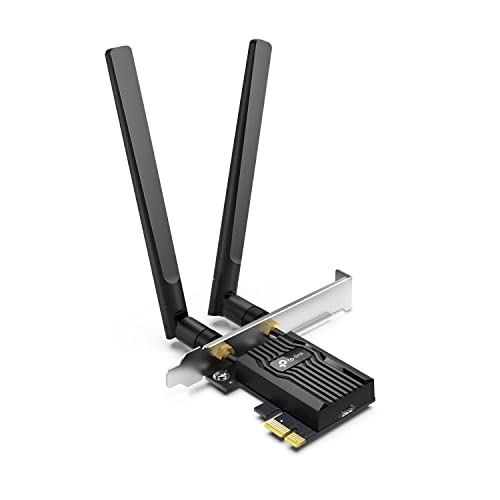
TP-Link WiFi 6 PCIe WiFi Card for Desktop PC- AX3000 Dual Band Network Card
Included for 'Best Wi-Fi 7 PCIe Card for Desktop in 2026' as a relevant option in this category; details come from the product listing.
View on Amazon
MSI Herald-BE WI-FI 7 MAX (Wi-Fi 7, 802.11BE, Bluetooth 5.4, PCIe, Multi-Link Operation Technology, External Antenna)
Included for 'Best Wi-Fi 7 PCIe Card for Desktop in 2026' because the listing specifies 802.11BE and Bluetooth 5.4, details this guide uses to compare options.
View on AmazonTP-Link WiFi 6 PCIe WiFi Card for PC,AX3000 Dual Band|Magnetized Base|BT5.3 | Up to 2400Mbps, 802.11 AX Dual Band Wireless Adapter, MU-MIMO, Low Latency, Support Win11,10 (64bit) - Archer TX3000E
Included for 'Best Wi-Fi 7 PCIe Card for Desktop in 2026' because the listing specifies AX3000 Dual Band and Magnetized Base, details this guide uses to compare options.
View on Amazon
MSI Herald WiFi 7 PCIe Card for Desktop PC BE9400 Tri-Band, Bluetooth 5.4, 6GHz, MLO, 320MHz, 5.8Gbps
Included for 'Best Wi-Fi 7 PCIe Card for Desktop in 2026' because the listing specifies Bluetooth 5.4 and 6GHz, details this guide uses to compare options.
View on Amazon
UGREEN WiFi 7 BE6500 PCIe WiFi Card, Bluetooth 5.4, IEEE 802.11ax/be, 6G 2882Mbps/5G 2882Mbps/2.4G 688Mbps Tri Band, MLO Technology, Flexible Dual 6dBi High Gain Antenna, WPA3, Support Windows 11 Only
Included for 'Best Wi-Fi 7 PCIe Card for Desktop in 2026' because the listing specifies Bluetooth 5.4 and IEEE 802.11ax/be, details this guide uses to compare options.
View on Amazon
GIGABYTE WiFi 7 GC-WIFI7 (802.11/ Tri-Band WiFi/Bluetooth 5.3/ 4K-QAM/PCIe Expansion Card)
Included for 'Best Wi-Fi 7 PCIe Card for Desktop in 2026' as a relevant option in this category; details come from the product listing.
View on AmazonBest value for Wi-Fi 7: UGREEN Wi-Fi 7 BE6500 PCIe card. The listing gives 2,882Mbps on both 6GHz and 5GHz and 688Mbps on 2.4GHz, with Bluetooth 5.4 and MLO. That is a step below the BE9300 cards because the 6GHz link is limited to 160MHz channels, but it is plenty for real-world home networks and often sits lower in cost. UGREEN states that the card is for Windows 11 only.
Best premium alternative: MSI Herald Wi-Fi 7 BE9400. MSI’s tri-band card advertises 320MHz channels on 6GHz, MLO and Bluetooth 5.4. It suits buyers who want a motherboard-maker brand with a design that matches a gaming build, and who are comfortable checking the exact hardware version and driver support before they buy.
Quick Comparison
| Card | Best for | Key specs |
|---|---|---|
| TP-Link BE9300 (high-gain antenna listing) | Wi-Fi 7 upgrade with strong antennas | Tri-band Wi-Fi 7, BE9300, Bluetooth 5.4, PCIe |
| TP-Link BE9300 with magnetic base | Best overall, flexible antenna placement | Tri-band Wi-Fi 7, BE9300, Bluetooth 5.4, MLO, magnetic base |
| TP-Link AX3000 Wi-Fi 6 | Low-cost Wi-Fi 6 upgrade | Dual-band Wi-Fi 6, AX3000, PCIe |
| MSI Herald-BE Wi-Fi 7 MAX | Wi-Fi 7 with MSI quality and MLO | Wi-Fi 7 (802.11be), Bluetooth 5.4, PCIe, MLO, external antennas |
| TP-Link AX3000 Wi-Fi 6 with magnetic base | Wi-Fi 6 with flexible antenna placement | Dual-band Wi-Fi 6, AX3000, Bluetooth 5.3, up to 2,400Mbps on 5GHz |
| MSI Herald Wi-Fi 7 BE9400 | Premium tri-band Wi-Fi 7 | BE9400 tri-band, Bluetooth 5.4, 6GHz, MLO, 320MHz |
| UGREEN Wi-Fi 7 BE6500 | Value Wi-Fi 7 | Tri-band, 2,882Mbps on 6GHz and 5GHz, Bluetooth 5.4, MLO |
| GIGABYTE GC-WIFI7 | Tri-band Wi-Fi 7 from a motherboard maker | Tri-band Wi-Fi 7, Bluetooth 5.3, 4K-QAM, PCIe expansion card |
Two of the eight cards are Wi-Fi 6 models; they are included because many readers searching for a Wi-Fi 7 card are comparing against a budget Wi-Fi 6 upgrade. Speeds are link rates from listing names and manufacturer pages, not what you will measure in a room.
How We Chose
This ranking comes from desk research rather than bench work. We compared the eight cards on the details their listing names and manufacturer pages state: the Wi-Fi generation, the band layout and channel widths, the maximum link rates per band, the Bluetooth version, the antenna design, the operating-system support and any mention of multi-link operation. We then judged each card against how people actually use a PC adapter: Windows 11 gaming, streaming, large downloads and Bluetooth peripherals. We gave weight to brands with a long driver and support record, to clarity about operating-system requirements, and to practical hardware features such as detachable antennas and a low-profile bracket. Where a model has been sold with different chipsets or revisions, we say so and ask you to confirm the hardware version before buying.
1. TP-Link BE9300 PCIe Wi-Fi 7 Card (High-Gain Antenna) – Best for a Straightforward Wi-Fi 7 Upgrade
As an Amazon Associate we earn from qualifying purchases at no extra cost to you.

This TP-Link listing describes a BE9300 PCIe Wi-Fi 7 card for desktop PCs with tri-band operation, a high-gain antenna and Bluetooth 5.4. BE9300 is the top mainstream consumer Wi-Fi 7 class: link rates up to about 5,760Mbps on 6GHz with 320MHz channels, about 2,880Mbps on 5GHz and about 688Mbps on 2.4GHz. The listing name is nearly identical to the one in the next section, so compare the box contents and the product photos on the page to see which antenna and base design you are getting.
Who it suits: owners of a desktop with a free PCIe slot who have, or plan to buy, a Wi-Fi 7 router, and who want Bluetooth 5.4 built in so they can retire a separate USB dongle. It is also a good fit for small-form-factor cases, provided the bracket can be swapped for the low-profile size that TP-Link generally ships in the box.
Key specs
- Standard: Wi-Fi 7 (802.11be), tri-band, BE9300 class
- Bluetooth: 5.4, connected through an internal USB header
- Interface: PCIe (an x1 slot is enough)
- Antenna: high-gain external antenna per the listing
Pros
- Full-featured Wi-Fi 7 including 6GHz and the widest channel option.
- Bluetooth 5.4 included, which supports modern headphones and controllers.
- Widely supported brand with downloadable drivers.
Cons
- Needs a Wi-Fi 7 router to reach the headline rates.
- Requires a free internal USB header for Bluetooth.
- Windows 11 is the supported platform for Wi-Fi 7 features, per TP-Link’s materials.
Compared with the magnetic-base version in the next section, this listing emphasizes the antenna and gives fewer details about the base, so check the page for what is in the box. If you want an antenna you can position on top of the desk or the case, the version with a magnetic base is the more predictable choice. Compared with the UGREEN BE6500, this card has twice the 6GHz channel width, which only pays off with a Wi-Fi 7 router that supports 320MHz.
Before installation, power off and unplug the PC, install the card in a PCIe slot (a x1 slot is plenty even though the card may physically fit a longer slot), connect the Bluetooth cable to a motherboard USB header, and attach the antennas before powering on. Then install the driver supplied by the manufacturer. Skipping the Bluetooth cable is the most common reason users say Bluetooth is missing even though Wi-Fi works.
Because two TP-Link BE9300 listings exist with such similar names, a short checklist helps: compare the listed antenna type, look for a magnetic base in the product photos, check whether the Bluetooth header cable and low-profile bracket are listed in the box contents, and read the operating-system line. Whichever listing you choose, keep the box contents list until you have confirmed that everything works.
2. TP-Link BE9300 PCIe Wi-Fi 7 Card with Magnetic Base – Best Overall

This is the TP-Link Archer-class BE9300 card with the detachable magnetic antenna base mentioned in the listing name. TP-Link states tri-band Wi-Fi 7 with up to 5,760Mbps on 6GHz, 2,880Mbps on 5GHz and 688Mbps on 2.4GHz, support for 320MHz channels, 4K-QAM, multi-RU and multi-link operation, plus Bluetooth 5.4. The two external antennas connect to the card by SMA connectors and attach to a base with a braided cable of about one meter, which lets you place them on top of a case, on the desk or on a shelf where they can see the room.
Who it suits: almost anyone building or upgrading a desktop for Wi-Fi 7, particularly when the PC sits under a desk or inside a metal case where antennas mounted at the back of the card perform poorly. The base is the single most useful feature on the list for real-world signal, since moving the antennas out of a shielded case can make a bigger difference than an extra tier of chipset.
Key specs
- Standard: Wi-Fi 7, tri-band, BE9300 class (up to 5,760 / 2,880 / 688Mbps per TP-Link)
- Bluetooth: 5.4, via internal USB header cable
- Antennas: two detachable external antennas on a magnetic base
- Bracket: standard and low-profile per TP-Link’s contents list (confirm on the page)
- Operating system: Windows 11 64-bit per TP-Link
Pros
- Magnetic base makes antenna placement easy and effective.
- Full Wi-Fi 7 feature set, including MLO and 320MHz channels.
- Includes the Bluetooth header cable and a low-profile bracket.
- Familiar brand with driver downloads and clear manuals.
Cons
- Windows 11 only, so Windows 10 users need a different card.
- Bluetooth depends on a spare internal USB header.
- The 6GHz band needs a compatible router and has shorter range through walls.
Compared with the MSI Herald BE9400, the two share the same class of advertised speeds, and the TP-Link stands out for its antenna base and straightforward packaging. Compared with the UGREEN BE6500, the TP-Link gives you 320MHz capability and a magnetic base, which are worth having if your router supports them.
A realistic expectation helps. The link rate on the box is a theoretical figure for a perfect connection with a matching router; the throughput you measure in a house is usually well below it, and range on 6GHz is shorter than on 5GHz. Even so, a Wi-Fi 7 card with well-placed antennas typically gives lower latency and steadier connections than an older Wi-Fi 5 or Wi-Fi 6 adapter, especially on a busy network with many devices.
Range deserves a second look. The 6GHz band is the fastest but it is also the most easily blocked by walls, floors and furniture, so keep the base in line of sight to the router when you can. In a home where the router is two rooms away, the same card may connect mostly on 5GHz, which is perfectly normal and still faster than an older adapter.
3. TP-Link AX3000 Wi-Fi 6 PCIe Card – Best Budget Upgrade for a Wi-Fi 6 Router

This TP-Link card is a Wi-Fi 6 model, not a Wi-Fi 7 card. The listing calls it an AX3000 dual-band network card for desktop PCs, which in TP-Link’s naming means up to about 2,402Mbps on 5GHz and about 574Mbps on 2.4GHz. It has no 6GHz band, no 320MHz channels and no multi-link operation. It earns its place in this guide because many buyers searching for a Wi-Fi 7 card have a Wi-Fi 6 or Wi-Fi 6E router and an older PC with a weak adapter, and for that situation a Wi-Fi 6 card is often all that is needed.
Who it suits: desktop owners on a budget, anyone upgrading from a Wi-Fi 5 or older adapter, and households whose internet plan and router are Wi-Fi 6 or slower. It also suits older systems running Windows 10, since Wi-Fi 6 drivers are broadly available; confirm the supported operating systems on the product page.
Key specs
- Standard: Wi-Fi 6 (802.11ax), dual-band, AX3000 class
- Interface: PCIe
- Bands: 2.4GHz and 5GHz (no 6GHz)
- Bluetooth: confirm the version and whether the listing includes it
Pros
- Large upgrade over old Wi-Fi 5 and older adapters.
- Cost-effective and easy to install.
- Broad operating-system support compared with Wi-Fi 7 cards.
Cons
- Not Wi-Fi 7: no 6GHz, no 320MHz channels, no multi-link operation.
- Peak speeds are far below the Wi-Fi 7 cards.
- Antenna design is simpler than the magnetic-base versions.
Compared with the AX3000 card with a magnetic base later in the list, this one is the plainer version with the antennas attached directly to the card, and the other is the better choice if your case is metal or the PC sits on the floor. Compared with the Wi-Fi 7 cards, the main trade is future-proofing: if you plan to buy a Wi-Fi 7 router in the next year or two, a Wi-Fi 7 card avoids buying twice.
A quick rule helps here. If your internet plan is below a gigabit per second and your router is Wi-Fi 6, the bottleneck is nearly always the plan or the router, not the PC’s adapter, and a Wi-Fi 6 card will make full use of what you pay for. Wi-Fi 7 starts to matter when you transfer large files across your own network, use a multi-gig internet plan, or want the lowest latency in a crowded apartment building.
Check the Bluetooth line in the listing carefully, since the title of this model emphasizes the network card itself. If you need Bluetooth, confirm that the model includes it and which version, and otherwise plan to use a separate USB Bluetooth adapter. Also confirm the supported Windows versions on the page before purchase if your PC runs an older release.
4. MSI Herald-BE WI-FI 7 MAX – Best for Wi-Fi 7 with MSI Design and MLO

The MSI Herald-BE WI-FI 7 MAX is a PCIe Wi-Fi 7 card with 802.11be, Bluetooth 5.4, multi-link operation and external antennas. MSI’s store describes a peak speed in the 5.8Gbps class with 320MHz channels on 6GHz and 4096-QAM, and lists a PCIe Gen4 x1 interface and a Qualcomm Wi-Fi 7 module. The name is easy to confuse with the MSI Herald BE9400 elsewhere in this guide, and some retailers mix the names, so check the exact product name and chipset on the box or in the specification sheet.
Who it suits: buyers who want Wi-Fi 7 from a motherboard and graphics-card maker, particularly in an MSI-themed build, and who value MLO for lower latency. It requires Windows 11, according to MSI’s materials, so it is not for Windows 10 systems.
Key specs
- Standard: Wi-Fi 7 (802.11be), tri-band, around 5.8Gbps maximum per MSI
- Bluetooth: 5.4
- Interface: PCIe (x1)
- Features: multi-link operation, external antennas
Pros
- Full Wi-Fi 7 feature set including 320MHz and MLO.
- Motherboard-maker brand with a design that suits gaming builds.
- Bluetooth 5.4 for current headphones and controllers.
Cons
- Naming overlaps with the BE9400, which can cause confusion at checkout.
- Windows 11 only, so older systems are excluded.
- Requires a Wi-Fi 7 router to show its advantage.
Against the TP-Link BE9300 with magnetic base, the MSI offers similar headline performance, and the TP-Link has the more flexible antenna base. Against the MSI Herald BE9400, the product names suggest a family relationship, and the sensible approach is to buy whichever one is in stock after you confirm the chipset, the antenna design and the driver support for your operating system.
When you read the specification sheet, look for the words Windows 11, Bluetooth header and antenna type. A few minutes of reading prevents the usual surprises: a missing USB header cable, antennas that do not reach outside a metal case, or a driver that needs a newer build of Windows than you have installed. Run Windows Update before installing the card so the operating system is current.
Be careful about two things with this card. First, driver availability: download the driver from MSI’s support page for the exact model name rather than relying on a generic driver from Windows Update, because Wi-Fi 7 support is still maturing in some versions of Windows. Second, the router: if your router is Wi-Fi 6 or Wi-Fi 6E, the card will connect at those standards and will not show its full capability until you upgrade. That is not a flaw, but it is a reason to budget for the whole chain rather than only the PC adapter.
Also verify the antenna arrangement from the product photos and the box contents. Knowing whether the antennas attach straight to the card or sit on a separate base lets you decide whether you need an extension option for a metal case.
5. TP-Link AX3000 Wi-Fi 6 PCIe Card with Magnetic Base – Best Wi-Fi 6 Card for Antenna Placement

This TP-Link AX3000 card is another Wi-Fi 6 model, distinguished by the magnetized antenna base and Bluetooth 5.3 named in the listing, with a headline of up to 2,400Mbps (the 5GHz link). Like the other AX3000 card it is dual-band: 5GHz and 2.4GHz, no 6GHz, and no Wi-Fi 7 features. The base is the point. A card installed in the rear of a tower, behind a metal panel and next to a graphics card, has a poor view of the room; a base that clings to the top of a steel case lifts the antennas into the open.
Who it suits: owners of a Wi-Fi 6 or Wi-Fi 6E router with a desktop in a hard-to-reach location, people who want built-in Bluetooth without a USB dongle, and budget-minded buyers whose network does not need Wi-Fi 7. It is also a sensible pick when you want a dependable, mainstream adapter and do not need to chase the newest standard.
Key specs
- Standard: Wi-Fi 6 (802.11ax), dual-band, AX3000 class
- Peak 5GHz rate: about 2,400Mbps per the listing
- Bluetooth: 5.3, connected through an internal USB header
- Antennas: external, on a magnetized base
Pros
- Magnetized base lifts the antennas out of the case for better reception.
- Bluetooth 5.3 included, which covers most current accessories.
- Affordable route to Wi-Fi 6 for older desktops.
Cons
- No 6GHz band and no Wi-Fi 7 features.
- Peak speed is well below the Wi-Fi 7 cards.
- Bluetooth needs an internal USB header connection.
Compared with the other AX3000 card, this version is the one to choose when antenna placement is a concern. Compared with the UGREEN BE6500, it trades the 6GHz band and multi-link features for simplicity and a lower cost of entry. If your router already supports 6GHz and you want that extra spectrum, move up to a Wi-Fi 7 card or consider a Wi-Fi 6E model, since the 6GHz band is where congestion is lowest.
Setup is straightforward. Install the card in an x1 or longer PCIe slot, attach the antennas to the base and place it on the top or side of the case, connect the Bluetooth header cable, and install the driver. If Windows installs a generic driver automatically, download the manufacturer’s current version afterward for better stability. When connecting, pair the card with the 5GHz network name from your router for the best speed, and keep 2.4GHz for devices that need extra range.
It is worth thinking about the router, too. A Wi-Fi 6 card works with any router, but the rates on the box assume a matching Wi-Fi 6 router and a clean channel. In apartments with dozens of neighboring networks, the 5GHz band can be crowded, and a smart channel choice in the router settings often matters more than the adapter.
6. MSI Herald Wi-Fi 7 BE9400 PCIe Card – Best Premium Tri-Band Alternative

The MSI Herald Wi-Fi 7 card in this listing is described as a BE9400 tri-band PCIe card for desktop PCs with Bluetooth 5.4, 6GHz support, multi-link operation and 320MHz channels. MSI’s materials list up to about 5,764Mbps on 6GHz, 2,882Mbps on 5GHz and 688Mbps on 2.4GHz, and describe external antennas with a magnetized base and a PCIe x1 interface. The chipset is not prominently stated on all retail pages, and one outside report suggests a different vendor from the MSI Herald-BE MAX, so confirm hardware details with the seller or the box before installation if driver support matters to you.
Who it suits: buyers who want a premium Wi-Fi 7 card from a motherboard maker and who value a magnetized antenna base. It is aimed at gaming and streaming builds that already use MSI parts, though it will work in any desktop with a free PCIe slot and a Windows 11 installation.
Key specs
- Standard: Wi-Fi 7, tri-band, BE9400 class (about 5,764 / 2,882 / 688Mbps per MSI)
- Bluetooth: 5.4
- Channels: up to 320MHz on 6GHz, with multi-link operation
- Antennas: external, magnetized base per MSI
Pros
- Full-featured Wi-Fi 7 with the widest channel option.
- Magnetized antenna base for better placement.
- Gaming-oriented design and brand support.
Cons
- Chipset and driver details are less obvious than on some competitors.
- Name overlap with the Herald-BE MAX can cause confusion.
- Needs a Wi-Fi 7 router for its main benefits.
Next to the TP-Link BE9300 with magnetic base, the MSI delivers a very similar advertised speed class, and the real difference is in packaging, driver support and brand preference. Next to the UGREEN BE6500, the MSI offers the 320MHz channel width, which improves peak speeds on a compatible router but not coverage or latency by itself.
Multi-link operation, which both brands highlight, lets a Wi-Fi 7 client use more than one band at once, for example 5GHz and 6GHz together, to improve reliability and reduce latency. The benefit depends on the router: the router must support MLO, and implementations differ. If you have a Wi-Fi 7 router, enable MLO in the router’s settings if it is not on by default, and update the router’s firmware, since early firmware often had rough edges. If you do not have a Wi-Fi 7 router yet, the card still works as a Wi-Fi 6E or Wi-Fi 6 client until you upgrade.
Finally, think about size and slot position. Large graphics cards can cover several slots, and a card in a slot right below a graphics card may run warmer. Place the Wi-Fi card in an x1 slot that has airflow, keep the cable for the Bluetooth header tidy, and route the antenna cable away from fans.
7. UGREEN Wi-Fi 7 BE6500 PCIe Card – Best Value Wi-Fi 7

The UGREEN BE6500 card is the value pick for Wi-Fi 7. Its listing states Bluetooth 5.4, support for 802.11ax and 802.11be, tri-band rates of 2,882Mbps on 6GHz, 2,882Mbps on 5GHz and 688Mbps on 2.4GHz, multi-link operation, WPA3 and two flexible 6dBi antennas that screw onto the card. The 6GHz band uses 160MHz channels rather than the 320MHz of the BE9300 and BE9400 cards, which is the main difference. UGREEN’s listing also says the card supports Windows 11 only.
Who it suits: people who want Wi-Fi 7 and Bluetooth 5.4 without paying for the widest channels, those with a Wi-Fi 7 router that does not support 320MHz, and buyers who value having both the 6GHz and 5GHz bands at a high rate. In many homes the router, not the card, is the limit, and a 160MHz link is plenty.
Key specs
- Standard: Wi-Fi 7, tri-band, BE6500 class (2,882 / 2,882 / 688Mbps per the listing)
- Bluetooth: 5.4
- Antennas: two 6dBi adjustable antennas attached to the card
- Operating system: Windows 11 only per the listing
Pros
- Lower entry point into Wi-Fi 7 than the BE9300 and BE9400 cards.
- Both 6GHz and 5GHz at a high rate, with MLO support.
- Adjustable high-gain antennas and Bluetooth 5.4.
Cons
- Narrower 160MHz channels on 6GHz limit peak speed.
- Antennas attach directly to the card, which can be poor placement in a case.
- Windows 11 only, and chipset details are not stated in the listing name.
Compared with the TP-Link BE9300 with magnetic base, the UGREEN gives up the 320MHz channel width and the detached antenna base. If your router sits in the same room, that matters little. If your PC is far from the router or hidden inside a metal case, the TP-Link’s base will matter more than the speed class. Compared with the Wi-Fi 6 cards, the UGREEN adds 6GHz and MLO, which are the features that justify upgrading in the first place.
A worked example shows what the numbers mean. A 160MHz channel with two spatial streams and 4096-QAM yields a link rate around 2,882Mbps, which is where the 6GHz and 5GHz figures come from. Doubling the channel to 320MHz doubles the rate to about 5,764Mbps. In practice, the throughput you see is typically a fraction of the link rate because of protocol overhead, distance and interference, so a card advertising 2,882Mbps will not normally copy files at 360MB per second, but it can comfortably exceed a gigabit connection in a good spot.
If you want better placement with this card, you can improve results by pointing the antennas upward and away from the metal back panel, and by keeping the case away from walls. If that is not enough, consider a card with a magnetic base or an extension cable if the product page lists one.
8. GIGABYTE GC-WIFI7 – Best for a Motherboard-Maker Tri-Band Option

The GIGABYTE GC-WIFI7 is a tri-band Wi-Fi 7 PCIe expansion card with Bluetooth 5.3 and 4K-QAM named in the listing. Retail pages describe it in the BE5800 class, with about 5,764Mbps on 6GHz, 2,402Mbps on 5GHz and 573Mbps on 2.4GHz, along with multi-link operation, multi-RU and MU-MIMO. It uses a high-gain two-by-two antenna design that some retailers describe as magnetic. Because retail descriptions disagree about the chipset, and a user comment quoted by a hardware site says different hardware revisions used chips from different vendors, treat the exact revision as something to check on the box.
Who it suits: buyers with a GIGABYTE or AORUS build who want a matching accessory, and anyone who wants tri-band Wi-Fi 7 with a major motherboard brand’s warranty. It is a reasonable alternative if the TP-Link and MSI cards are out of stock, provided you confirm the hardware revision and the operating-system support that goes with it.
Key specs
- Standard: Wi-Fi 7, tri-band, BE5800 class per retail pages
- Bluetooth: 5.3
- Features: 4K-QAM, multi-link operation, multi-RU, MU-MIMO
- Interface: PCIe x1 expansion card
Pros
- Full tri-band Wi-Fi 7 from a motherboard maker.
- High-gain two-by-two antenna design with directional options.
- Good match for GIGABYTE and AORUS builds.
Cons
- Bluetooth 5.3 is a step behind the 5.4 on competing cards.
- Different hardware revisions have been reported, so driver and OS support may vary.
- Warranty length differs by region, so confirm it.
Compared with the MSI Herald BE9400 and the TP-Link BE9300, the GIGABYTE sits a step lower in its advertised speed class and Bluetooth version, which matters little in everyday use. Compared with the UGREEN BE6500, the GIGABYTE’s 6GHz link is rated higher while the 5GHz link is lower, and the overall experience on a typical home network will be similar.
The lesson from the revision issue applies to any PC component with a long retail life. Manufacturers sometimes change the chip inside a product without changing its name, so the model number alone does not always tell you which drivers and operating systems are supported. Check the revision printed on the box or card, read the support page for that revision, and keep the packaging until you are sure everything works. If something is wrong, an early return is far easier than a late one.
Finally, check your motherboard for a spare internal USB header for the Bluetooth cable, and make sure the card’s Bluetooth is enabled in the device manager after the driver is installed. Wi-Fi may work immediately while Bluetooth waits for the cable and a second driver, which can look like a faulty card when it is only an incomplete installation.
Wi-Fi 7 Explained: What Actually Changes on a Desktop
Wi-Fi 7 (802.11be) builds on Wi-Fi 6E with four changes that matter to a desktop. First, channels on the 6GHz band can be 320MHz wide, double the 160MHz limit of Wi-Fi 6E. Second, 4096-QAM packs more data into each transmission, raising peak rates by about 20 percent over 1024-QAM. Third, multi-link operation lets the card and router use two bands at once, which improves reliability and latency. Fourth, multi-RU allows a router to assign several slices of a channel to one device, which makes better use of a crowded channel. All four need support at both ends: a Wi-Fi 7 card with a Wi-Fi 6 router behaves like a Wi-Fi 6 client.
The 6GHz band is the headline. It is a clean slice of spectrum with far fewer neighbors than 2.4GHz and 5GHz, but its signal is more easily absorbed by walls and furniture, so it rewards a short, clear path to the router. In rooms that are close to the router, 6GHz often delivers the best latency and the fewest dropouts. In distant rooms, the card will usually fall back to 5GHz, and good antenna placement does more for you than any extra spec.
Two practical details are easy to miss. The 6GHz band is regulated by country, and a card or router may disable some channels depending on the region setting, so a Wi-Fi 7 setup in another country may behave differently from one in the United States. And the first time you connect, the operating system may default to 5GHz even when 6GHz is available; open the network list and choose the 6GHz name to test it. If the 6GHz network does not appear, update the driver, check that the router has 6GHz enabled, and move closer to the router before assuming something is broken.
How to Choose a Wi-Fi 7 PCIe Card for a Desktop
Step 1: Check your PC
You need a free PCIe slot. Wi-Fi cards use an x1 connection, but they fit in x1, x4, x8 and x16 slots. Make sure the slot is not hidden behind a graphics card cooler. You also need a spare internal USB 2.0 header on the motherboard for Bluetooth, since the cards route Bluetooth through a small cable. Finally, check your operating system: most Wi-Fi 7 cards require 64-bit Windows 11, and some require a recent build. If you run Windows 10 or Linux, read the manufacturer’s support page carefully, because a Wi-Fi 6 card may be the safer choice.
Step 2: Check your router
Wi-Fi 7 features only appear when the router supports them. If your router is Wi-Fi 6 or 6E, a Wi-Fi 7 card will still work and will run at the router’s level, but you will not use 320MHz channels or multi-link operation. If you plan to upgrade the router within a year, buy the Wi-Fi 7 card now and enjoy better 6GHz performance with a Wi-Fi 6E router in the meantime.
Step 3: Do the speed arithmetic
Link rates on the box are theoretical. A rough way to estimate real-world throughput is to take 40 to 60 percent of the link rate in a good spot. For the BE9300 cards, a 5,760Mbps 6GHz link rate suggests about 2,300 to 3,500Mbps under good conditions with a matching router, which is far above any home internet plan. For the BE6500 card at 2,882Mbps, expect about 1,150 to 1,730Mbps. A Wi-Fi 6 AX3000 card with a 2,402Mbps 5GHz link rate suggests about 960 to 1,440Mbps. If your internet plan is 500Mbps, every card in this guide exceeds it with room to spare, and the differences show up mainly in local transfers, latency and reliability.
Now convert to file copy time. A 50GB game install is 400 gigabits. At 1,000Mbps of real throughput that is 400 seconds, about seven minutes. At 2,500Mbps it is 160 seconds, under three minutes. At 500Mbps it is 800 seconds, over 13 minutes. These estimates ignore the speed of the source and the destination, but they show why Wi-Fi 7 matters most for big local transfers and multi-gig connections.
Step 4: Think about antennas and placement
Antenna placement is often the most valuable upgrade. A card mounted behind a metal back panel sees the room through a shield. A base that sits on the top of the case, a desk or a shelf can raise throughput significantly. Cards with a magnetic base and a cable of about a meter give you that flexibility. Cards with antennas screwed onto the bracket are fine when the case has a mesh or plastic rear and the PC sits on the desk.
Step 5: Check Bluetooth needs
Bluetooth 5.4 is on five of the cards, Bluetooth 5.3 on two others, and one Wi-Fi 6 card does not make the version obvious in its listing name. If you use modern wireless headphones, controllers or a keyboard, any of these versions works, but Bluetooth 5.4 is the newest. Remember that the internal cable must be connected to the motherboard header for Bluetooth to appear in the operating system.
Step 6: Plan for drivers and updates
A wireless card is only as good as its driver. Download the newest driver from the manufacturer’s support page for your exact model and hardware revision, install it before you rely on the card, and keep Windows updated. Many early Wi-Fi 7 problems, such as a missing 6GHz network or a card that refuses to enable multi-link operation, were solved by a driver or router firmware update rather than by new hardware. Brands with an established support site and frequent driver releases are therefore a safer bet than listings that give little information about drivers.
Decision matrix
| Your situation | Best pick | Reason |
|---|---|---|
| Wi-Fi 7 router, Windows 11 desktop, metal case | TP-Link BE9300 with magnetic base | Top spec plus antennas that can leave the case |
| Wi-Fi 7 router, want to save, PC close to router | UGREEN BE6500 | Wi-Fi 7 with 6GHz at a lower tier |
| MSI or gaming-themed build | MSI Herald BE9400 or Herald-BE MAX | Matching brand, full Wi-Fi 7 features |
| GIGABYTE or AORUS build | GIGABYTE GC-WIFI7 | Brand match, check the hardware revision |
| Wi-Fi 6 router, tight budget | TP-Link AX3000 Wi-Fi 6 | Big upgrade over old adapters |
| Wi-Fi 6 router, PC in a closed case | TP-Link AX3000 with magnetic base | Wi-Fi 6 with better antenna placement |
| Windows 10 or Linux desktop | Check support first; Wi-Fi 6 card is often safer | Wi-Fi 7 drivers are Windows 11-focused |
Wi-Fi 6, Wi-Fi 6E and Wi-Fi 7 Side by Side
| Feature | Wi-Fi 6 (AX) | Wi-Fi 6E (AXE) | Wi-Fi 7 (BE) |
|---|---|---|---|
| Bands | 2.4GHz and 5GHz | Adds 6GHz | 2.4GHz, 5GHz and 6GHz |
| Widest channel | 160MHz | 160MHz | 320MHz on 6GHz |
| Modulation | 1024-QAM | 1024-QAM | 4096-QAM |
| Multi-link operation | No | No | Yes, when router supports it |
| Cards in this guide | Two TP-Link AX3000 cards | None | Six cards |
The table shows why the choice is less about raw speed than about spectrum and latency. A Wi-Fi 6 card is perfectly good where the network is modest; a Wi-Fi 7 card earns its place with a Wi-Fi 7 router, a multi-gig plan or a busy neighborhood.
Antennas, Cables and Slots: Practical Notes
Wi-Fi cards use small SMA-style connectors for the antennas. Tighten them by hand until snug, and avoid over-tightening with pliers, which can strip the thread or damage the card’s connector. Do not twist the antenna cable repeatedly, because the thin coaxial cable inside is delicate. If a card comes with a base and a long cable, route the cable out of a rear slot or a gap at the top of the case, and avoid pinching it against a side panel.
On slots, a card in the slot nearest the processor is not faster; Wi-Fi cards need very little bandwidth. Choose the slot that gives the antennas and the Bluetooth cable the best path and keeps the card away from the graphics card’s exhaust. If your motherboard has only M.2 slots and no free PCIe slots, an M.2 Wi-Fi module with a separate antenna kit is an alternative, but it is a different product from the cards in this guide.
Installing a Wi-Fi 7 PCIe Card
- Shut down the PC, switch off the power supply and unplug the cord, then touch the metal case to discharge static electricity.
- Remove a slot cover or choose an x1 slot that is not blocked by the graphics card.
- Insert the card and secure it with the screw; swap to the low-profile bracket if your case needs it.
- Connect the Bluetooth cable from the card to a free internal USB header on the motherboard.
- Attach the antennas or the antenna base cable to the card’s connectors, hand-tight only.
- Boot Windows, install the driver from the manufacturer, restart, and connect to the 6GHz or 5GHz network name.
- Update the router firmware and enable multi-link operation if your router offers it.
Common Mistakes
The most common mistakes are forgetting the Bluetooth cable, hiding the antennas behind the case, buying a Wi-Fi 7 card for a Windows 10 PC, and expecting Wi-Fi 7 speeds from a Wi-Fi 6 router. Another is using a single network name for all bands on the router, which makes it hard to force the card onto 6GHz. Give each band its own name for testing, then merge them if you prefer. Last, remember that a wired Ethernet connection is still the most reliable option for stationary PCs. If you can run a cable, a 2.5Gbps Ethernet port on the motherboard beats most wireless links on stability and latency.
Fixing a Weak or Unstable Signal
- Move the antennas to the top of the case or the desk, away from metal and cables.
- Point the antennas upward or at a slight angle, since vertical antennas favor horizontal coverage.
- Update the router firmware and the card driver.
- Give each band its own network name and connect to 5GHz if 6GHz is too weak at your distance.
- Change the router channel on 5GHz if neighbors are crowding it.
- Try an Ethernet cable as a test; if the wired link works, the problem is the wireless path rather than the internet service.
Frequently Asked Questions
Do I need a Wi-Fi 7 router to benefit from a Wi-Fi 7 card?
You need one to use Wi-Fi 7 features such as 320MHz channels and multi-link operation. With a Wi-Fi 6 or Wi-Fi 6E router, the card works as a Wi-Fi 6 or 6E client, which is still a worthwhile improvement over older adapters. You can buy the card now and upgrade the router later.
Will a Wi-Fi 7 card work on Windows 10?
Many manufacturers state that their Wi-Fi 7 cards need 64-bit Windows 11, and some listings say Windows 11 only. Check the product page for the exact operating-system line. If you stay on Windows 10, a Wi-Fi 6 card with clear Windows 10 support is the safer purchase.
Why does Bluetooth not show up after installation?
Almost always because the Bluetooth cable is not connected to a motherboard USB header, or the Bluetooth driver has not been installed. Power down, connect the cable from the card to an internal USB 2.0 header, then boot and install the manufacturer’s driver. Check the device manager for a Bluetooth entry.
Is 6GHz better than 5GHz?
It is cleaner and offers wider channels, but it has shorter range through walls. Close to the router, 6GHz usually gives the best speed and lowest latency. Farther away, 5GHz is often faster in practice, so a good card and router will switch between bands based on conditions.
Is a PCIe card better than a USB Wi-Fi adapter?
For a desktop, a PCIe card usually offers better antenna options, lower overhead and no USB port occupied. USB adapters are easier to move between machines and can be a better choice for laptops or for PCs with no free slot. Both types need a compatible driver.
How fast will my Wi-Fi really be?
Expect roughly 40 to 60 percent of the link rate in a good spot with a matching router, and much less through walls or in crowded areas. A card advertising 2,882Mbps will not usually reach that figure in file copies, but it can far exceed a gigabit connection when conditions are good.
Should I choose the card with the most Mbps on the box?
Not necessarily. The headline figure is a sum of three bands and a theoretical limit, and no single device uses all three at once. Antenna placement, router quality, driver maturity and your distance from the router affect the result more than a difference between 5,800Mbps and 9,300Mbps on paper.
Can I use the antennas from another device?
Use the antennas that come with the card or the antenna options listed by the manufacturer. Antennas are matched to the connector type and the bands the card uses, and a poor match can reduce performance or damage the card. Never power up a Wi-Fi card without its antennas connected.
Our Recommendation by Situation
If you have, or plan to buy, a Wi-Fi 7 router and run Windows 11, choose the TP-Link BE9300 card with the magnetic base. If you want Wi-Fi 7 at a lower tier, the UGREEN BE6500 is the value pick. MSI and GIGABYTE builds are well served by the matching Herald and GC-WIFI7 cards, after you confirm the hardware revision. If your router is Wi-Fi 6 or your PC is running Windows 10, a TP-Link AX3000 card is the sensible, low-risk upgrade. In every case, place the antennas in the open, connect the Bluetooth cable, and consider a wired connection if the PC never moves.