Key takeaways
- A guide to the apps that actually view webcams and security cameras: brand apps, generic IP camera viewers and desktop tools, and how to choose between them.
As an Amazon Associate we earn from qualifying purchases.
Viewing a camera on your phone sounds like one simple job, but the app that works depends entirely on which camera you own. A USB webcam needs no viewing app at all on a computer, a cloud security camera usually only works inside its maker’s app, and an IP camera with standard streaming protocols can be watched in almost anything. Choosing wrong means downloading three apps that cannot see your camera before finding the one that can.
This guide is for streamers checking a webcam feed, for households with one or more security cameras, and for anyone who has inherited a camera and does not know what opens it. It explains the real app options by group, what each group can and cannot do, and the protocol checks that decide compatibility before you install anything.
How to Choose
Identify the camera type before the app
The camera decides the app, not the other way round. Cloud cameras from brands such as Ring, Arlo, Wyze and Reolink are set up in, and primarily viewed through, their own manufacturer’s app, because the video travels through the brand’s servers. Standalone IP cameras that support ONVIF or RTSP can stream to generic viewer apps and desktop software. A plain USB webcam is different again: it has no network stream, so you view it in whatever program uses it, such as a meeting app, OBS Studio or a simple camera utility on the computer itself.
Check which protocols the camera exposes
For anything beyond the maker’s own app, the listing and manual need to mention ONVIF, RTSP or both. ONVIF lets viewer apps discover the camera and pull its stream with a standard profile; RTSP gives you a stream address you paste into an app or a player such as VLC. Many consumer cloud cameras deliberately omit both, locking viewing to the brand app and its subscription. If a camera’s documentation never mentions either protocol, assume generic apps cannot see it and plan around the manufacturer’s app from the start.
Separate live viewing from recordings and alerts
Almost every app shows a live picture for free. The differences appear in what happens around it: motion alerts, recorded event history, continuous recording playback and sharing access with family members are frequently subscription features in brand apps such as Ring, Arlo and Wyze. Generic viewers take the opposite approach: they show live streams from many brands in one grid and can record locally on the phone or a computer, but they cannot reproduce each brand’s cloud event history or smart detection. Decide whether you are really choosing a viewer or a recording service, because they are different purchases.
Count your cameras and your screens
One camera from one brand is happiest in its own app. The pain starts with a mixed household: a doorbell from one maker, a nursery camera from another, a streamer’s webcam on the desk. Generic viewers earn their place there, gathering RTSP and ONVIF cameras into a single multi-view grid, and desktop tools matter if you want the feed on a PC or a television rather than a phone. Also check where you will watch from: remote viewing away from home is automatic with cloud brand apps, while local-protocol cameras need the app to reach your network, which may mean the maker’s cloud relay or your own VPN.
The Main App Groups
Manufacturer apps: Reolink, Wyze, Ring and Arlo
Each cloud camera brand has its own app, and for that brand’s cameras it is the fullest-featured option: setup, live view, motion alerts, two-way talk and the subscription recording history all live there. The Reolink app covers Reolink’s battery, Wi-Fi and PoE cameras and also reaches many of them locally without a subscription for live view. The Wyze app runs Wyze cameras and the rest of that ecosystem. Ring and Arlo tie recorded history closely to their paid plans. The strength of this group is completeness per brand; the weakness is that three brands means three apps, three accounts and three alert styles.
Generic IP camera viewers: tinyCam Monitor and IP Cam Viewer
Generic viewers exist for cameras that speak standard protocols. tinyCam Monitor, on Android, connects to ONVIF and RTSP cameras from many makers, shows multi-camera grids, and can record locally; it is the usual answer for a mixed camera shelf. IP Cam Viewer, by Robert Chou, has been the long-running equivalent across phones, with support for a very wide list of camera models and stream types. Neither can log into a closed cloud ecosystem for you: if the camera does not expose a local stream, these apps cannot invent one. They reward a little setup work, entering addresses and credentials per camera, with one screen for everything. That trade, ten minutes of configuration in exchange for never juggling brand apps again, is why this group exists, and why it suits patient owners of several cameras far better than someone with a single doorbell.
Desktop viewing: VLC and OBS Studio
On a computer, two free tools cover most viewing jobs. VLC media player opens RTSP stream addresses directly, which makes it the quickest way to check an IP camera’s feed or keep a small window open while you work. OBS Studio is the streamer’s tool: it takes USB webcams and capture sources, arranges them into scenes and can send a virtual camera feed into meeting software, so it is how a webcam gets viewed, framed and reused rather than merely watched. Neither replaces a phone app for alerts, but for desk-based viewing they are usually already installed or cost nothing to add.
Viewing on a television or a second screen
Plenty of people want the camera on the biggest screen in the room rather than a phone. The major brand apps publish versions for streaming platforms and smart televisions, so a doorbell or nursery camera can be pulled up on the TV with the same account used on the phone. Generic streams reach a television indirectly: a small computer or media box running VLC or a viewer app, connected over HDMI, is the flexible route for ONVIF and RTSP cameras. Either way, big-screen viewing is a display choice layered on top of the app decision, not a separate ecosystem to buy into.
The computer’s built-in camera tools
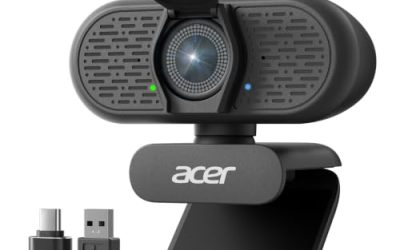
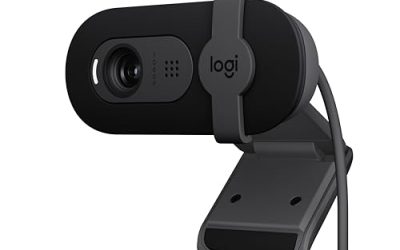
For a USB webcam alone, the simplest viewer is the one already on the machine: the Camera app on Windows or Photo Booth and FaceTime on a Mac show the feed instantly, which is the fastest sanity check for focus, framing and lighting before a call or a stream. Meeting platforms such as Zoom and Teams also preview the webcam in their settings. These tools do nothing for network cameras, but they answer the most common webcam question, “what does mine look like right now”, without installing anything.
Which One Fits Your Situation
You own cameras from one brand
Stay in the manufacturer’s app. It is the only place with the full feature set for that brand, including setup, firmware updates, alerts and any recording plan you pay for. Adding a generic viewer on top only makes sense if you later buy a second brand or want a permanent multi-view screen somewhere.
You have mixed cameras and want one screen
Start with a generic viewer such as tinyCam Monitor, and first confirm that each camera exposes ONVIF or RTSP in its settings or manual. Cameras that do will join the grid; any closed cloud camera that does not will stay in its own app, and knowing that before you begin saves an evening of failed connection attempts.
You are a streamer checking a webcam
Your viewer is OBS Studio, with the operating system’s camera app for a quick framing check before you go live. The security camera apps in this guide are irrelevant to a USB webcam, because there is no network stream to view. Set the scene once in OBS and use its preview and virtual camera output everywhere else.
You want recordings and smart alerts, not just live pictures
Choose based on the subscription, not the viewer. Ring, Arlo and Wyze each gate event history and richer detection behind their plans, and the live picture is the free part. If avoiding subscriptions matters more, pick cameras with local recording and ONVIF support, and let a generic viewer or a network recorder hold the footage instead.
Common Mistakes
- Downloading a generic viewer for a closed cloud camera that exposes no RTSP or ONVIF stream, then blaming the app.
- Paying for a brand’s subscription before checking whether the free live view and alerts already cover your needs.
- Leaving camera passwords on their defaults when enabling RTSP or remote viewing in a third-party app.
- Expecting one app to merge a doorbell’s cloud recordings with another brand’s cameras; generic apps merge live streams, not cloud histories.
- Judging a webcam’s picture in one app’s compressed preview and assuming the camera itself is poor quality.
Frequently Asked Questions
Can one app really view all my cameras?
Only if every camera exposes a standard stream. Generic viewers such as tinyCam Monitor gather ONVIF and RTSP cameras from many brands into one grid, which covers most standalone IP cameras. Closed cloud cameras, including many doorbells, stay inside their own apps because the makers do not publish a local stream for third parties to use.
Do I need a subscription just to watch my camera live?
Generally no. Live viewing is free in the major brand apps, including Ring, Arlo, Wyze and Reolink. Subscriptions buy the history around the live picture: saved event clips, longer retention and smarter detection. If all you do is check the camera when an alert sounds or peek at a room, the free tier of the maker’s app is usually enough.
How do I view a USB webcam without any extra software?
Use what the computer already has. The Windows Camera app or Photo Booth on a Mac shows the feed immediately, and every meeting app previews the webcam in its video settings. For framing, overlays and sending the picture into other programs as a virtual camera, OBS Studio is the standard free step up.
What is RTSP, and why do apps keep asking for it?
RTSP is the standard protocol cameras use to send a video stream to other software. An app that supports it can show any camera that publishes an RTSP address, which is why generic viewers ask for that address during setup. If your camera’s settings or manual never mention RTSP or ONVIF, it almost certainly only works inside the manufacturer’s app.
FAQ
Can one app really view all my cameras?
Do I need a subscription just to watch my camera live?
How do I view a USB webcam without any extra software?
What is RTSP, and why do apps keep asking for it?
More from Amazon
Programs that pair well with the guide above. Offers and eligibility are set by Amazon and may change.
Free shipping on eligible items, Prime Video and more. Eligible new members can start with a free trial.
Start a Prime free trialAd-free music streaming. Eligible new subscribers can start with a free trial.
Try Music Unlimited freeA Prime membership for ages 18-24 with a trial period. Eligibility is set by Amazon.
See Prime for Young AdultsAudiobooks and podcasts to listen to on the go. Eligible new members can start with a free trial.
Try Audible freeAs an Amazon Associate we earn from qualifying purchases.