Our Top Picks
For most people starting out, the best streaming PC is a single gaming PC with a recent GPU that has a hardware video encoder (NVIDIA NVENC, AMD AMF or Intel Quick Sync), 32 GB of RAM, a fast NVMe SSD and a capable multi-core CPU. A dedicated second PC only makes sense when you play very demanding games at high frame rates, stream at high quality for hours, or need to separate your broadcast from a game that crashes. This streaming pc build guide explains how to choose between the two layouts, which encoder to use, what each part must do, and how to size your upload connection before you spend money.
Quick answer
| Your situation | Best layout | Encoder | Key parts |
|---|---|---|---|
| Starting out, 1080p games, 1080p60 stream | Single PC | GPU hardware encoder (NVENC, AMF or Quick Sync) | Mid-range GPU, 6 to 8 core CPU, 32 GB RAM, NVMe SSD |
| High-refresh competitive games plus a 1080p60 stream | Single PC with a strong CPU and GPU | GPU hardware encoder | 8 to 12 core CPU, high-end GPU, 32 GB RAM |
| Demanding AAA at 1440p or 4K plus a high-bitrate stream | Dual PC | GPU encoder on the stream PC, or CPU encoding for specific quality goals | Capture card, second PC, 16 GB RAM on the stream PC |
| Stream from a console | Dedicated streaming PC with a capture card | GPU hardware encoder | Capture card with HDMI passthrough, mid-range PC |
| Limited upload speed (under about 10 Mbps) | Either; fix the bitrate first | Efficient codec such as AV1 or HEVC where the platform supports it | Wired Ethernet and a realistic bitrate |
That table is the whole decision. The sections below show why, and how to choose parts that fit.

Elgato 4K S Capture Card for PS5, Xbox Series X/S, Switch 2 | 4K60 capture, 1440p120 or 1080p240 passthrough, HDR10 support, Near-zero latency, USB-C, Analog audio input
Chosen because it specifies Xbox Series X/S and Switch 2.
View on Amazon
Elgato Game Capture Neo Black Portable USB Capture Card, 4K60 HDR
Chosen because it specifies 4K60 HDR.
View on Amazon
Elgato HD60 S, External Capture Card, Stream and Record in 1080p60 with ultra-low latency on PS5, PS4/Pro, Xbox Series X/S, Xbox One X/S, in OBS, Twitch, YouTube, works with PC/Mac
Chosen because it specifies External Capture Card and Stream and Record in 1080p60 with ultra-low latency on PS5.
View on AmazonSingle PC or dual PC: the decision in numbers
A single PC does everything: it runs the game, encodes the video, and uploads it. Encoding uses either a dedicated hardware block on the GPU, which takes a small share of GPU resources, or the CPU, which competes with the game for cores. A dual-PC setup splits the work: a gaming PC sends its video to a capture card on a second PC that runs OBS Studio or similar software and handles the broadcast.
| Factor | Single PC | Dual PC |
|---|---|---|
| Cost | One system to buy | A second PC plus a capture card |
| Impact on game frame rate | Small with hardware encoders; larger with CPU encoding | Almost none on the game PC, apart from capture output |
| Complexity | Low | Higher: cables, audio routing, two sets of settings |
| Failure isolation | A game crash can end the stream | The stream can continue if the gaming PC crashes |
| Desk and power | One tower | Two towers and more heat |
| Best for | Most streamers | High-end games, full-time streamers, console capture |
The practical rule: start with a single PC. Hardware encoders from NVIDIA, AMD and Intel are good enough that the dedicated second PC is a luxury for most creators. Move to a dual setup when measurements in your own monitoring tools show the game dropping frames while streaming, and not before.
Choose the encoder first
The encoder determines both the quality you can reach at a given bitrate and which parts you need. There are three choices for the video itself.
| Encoder | Where it runs | Hardware needed | Strengths | Caveats |
|---|---|---|---|---|
| x264 (H.264 in software) | CPU | A fast CPU with many cores, often on a dedicated streaming PC | Very flexible and good quality at slow presets | Heavy CPU load that competes with a game on a single PC |
| NVENC (H.264, HEVC, AV1) | Dedicated block on NVIDIA GPUs | GeForce RTX cards; AV1 encode requires RTX 40 or 50 series | Low impact on the game, good quality | Slight GPU overhead; AV1 depends on platform support |
| AMD AMF / VCN (H.264, HEVC, AV1) | Dedicated block on Radeon GPUs | Radeon cards; AV1 encode on RX 7000 and 9000 series | Low CPU impact | Quality at a given bitrate varies by generation |
| Intel Quick Sync (H.264, HEVC, AV1) | Media engine in Intel iGPUs and Arc GPUs | Intel Core with integrated graphics, or Arc cards | Useful as a second encoder in a dual-GPU or secondary-use scenario, and Arc supports AV1 | Not present on CPUs sold without integrated graphics (the “F” models) |
AV1 is the newest codec in this list, and published guides describe it as noticeably more efficient than H.264, so a stream can look similar at a lower bitrate. Whether you can actually use it depends on the platform you broadcast to: YouTube documents support for AV1 ingest, while Twitch has been rolling out higher quality and newer codecs through its Enhanced Broadcasting feature in OBS Studio, and its standard ingest still centres on H.264. Check the current documentation from your target platform before you buy a GPU for AV1 alone. If you stream to more than one site, H.264 remains the safest common denominator.
Check your upload bandwidth before you buy parts
Bandwidth is the most overlooked part of a streaming PC build guide, and it is free to check. Test your connection from the PC you will use, over wired Ethernet, with a recognised speed test. Pay attention to the upload number, not the download.
Worked example: how much upload do you need?
Take the video bitrate you plan to stream, add audio (typically 128 to 160 kbps), then add headroom so the connection does not run at its limit. A common recommendation is to keep your video bitrate at or below about two-thirds of your measured, sustained upload speed.
| Stream target | Typical video bitrate | Audio | Total | Suggested minimum upload |
|---|---|---|---|---|
| 720p at 30 fps | 2,500 to 3,500 kbps | 128 kbps | About 3.6 Mbps | About 5.5 Mbps |
| 1080p at 60 fps (Twitch standard) | Up to 6,000 kbps | 160 kbps | About 6.2 Mbps | About 9.5 Mbps |
| 1080p at 60 fps (YouTube-style higher bitrate) | 8,000 to 10,000 kbps | 160 kbps | About 10.2 Mbps | About 15 Mbps |
| 1440p at 60 fps | 12,000 to 20,000 kbps | 160 kbps | About 20 Mbps | About 30 Mbps |
The recommended bitrate ranges here follow the figures commonly published in platform guidance and OBS documentation, and the “minimum upload” column applies a headroom factor of about 1.5. Always confirm the current maximum bitrate for the platform you use, since limits change.
If your upload is below about 6 Mbps, put the money into a better internet plan, a wired connection or a more efficient codec before spending more on the PC. A wired Ethernet connection almost always beats Wi-Fi for stability, because Wi-Fi drops cause dropped frames at the viewer’s end.
Parts that matter for streaming
CPU
On a single PC, choose a CPU with enough cores that the game, OBS, a browser, chat and Discord do not all fight for the same few threads. Six cores is the bare minimum for streaming with a hardware encoder; eight to twelve cores give comfortable headroom, especially for games that already use several cores. If you plan to encode with x264 on the CPU, the requirement jumps: a dedicated streaming PC with a modern 8-core or better processor is the usual recommendation, and the slower the x264 preset, the more cores you need. For current platforms, AMD’s AM5 (Ryzen 7000, 8000 and 9000) and Intel’s LGA1851 (Core Ultra 200S) and LGA1700 (12th to 14th Gen) sockets are all sensible starting points; match the board and the memory type as documented by the manufacturer.
| Tier | Streaming role | CPU guidance |
|---|---|---|
| Entry | Single PC, hardware encoder, 1080p | 6 cores with simultaneous multithreading, current generation |
| Mid | Single PC, heavier games, overlays, browser sources | 8 to 12 cores |
| High | Dedicated stream PC with x264, or one PC with many background tools | 12 or more cores on a single PC; 8 cores or more for the dedicated streaming machine |
GPU
For a single-PC build the GPU does two jobs: render the game and encode the stream. Pick one with a modern encoder generation, enough VRAM for your games plus OBS (the capture and scene composition also use video memory), and enough raw performance for your target resolution. For 1080p streaming of a 1440p game, 8 GB of VRAM is workable for many titles, but 12 to 16 GB leaves more breathing room. On a dedicated streaming PC, the GPU can be modest: an entry-level card with a current encoder is enough, and some builders use the CPU’s integrated graphics or a small discrete card purely for encoding.
RAM
Use 32 GB (two 16 GB modules) for a single streaming PC. Games, OBS, a browser with chat and alerts, and a communication app can together exceed 16 GB. A dedicated streaming PC can get by with 16 GB. Match the kit to the platform: DDR5 only on AM5 and LGA1851, and either DDR4 or DDR5 on LGA1700 depending on the motherboard.
Storage
Use an NVMe SSD for the operating system and games, and consider a second drive for recordings. Local recordings at high bitrates grow quickly. As a worked example, a 1080p60 recording at 20,000 kbps uses about 20 divided by 8, or 2.5 MB per second, which is roughly 9 GB per hour. A two-hour session therefore needs about 18 GB, and a week of daily sessions can fill hundreds of gigabytes. Keep recordings on a separate drive so game loading is not affected.
Capture card (dual PC or console)
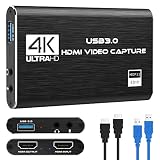
A capture card moves video from another device into your streaming PC. The main specifications to read are the maximum resolution and frame rate it can capture, whether it supports HDMI passthrough for a monitor with no added lag, and the interface: USB 3.x for external cards, or PCIe for internal cards. For a 1080p60 stream, a card that does 1080p60 capture is enough. If you want to capture 4K or high-refresh video from the gaming PC, choose a card whose specification states that mode explicitly, and check that the passthrough supports the refresh rate you play at.
Power supply, cooling and case
Streaming loads run the CPU and GPU harder for longer, so choose a quality power supply with headroom, as described by the manufacturer’s recommended system power for your graphics card. Pick a case with good airflow and enough front or top USB ports for a webcam, microphone and capture card. A case with at least one USB 3 header and a USB-C front connector saves you from running cables to the back of the tower. Check the motherboard has the matching internal headers before you buy.
Build and software setup in order
- Choose the layout (single or dual) using the first table.
- Pick the platform and check CPU socket, motherboard and RAM type.
- Select the GPU for the encoder you want, and confirm the case fits its length and thickness.
- Select storage: NVMe for the system and games, and a second drive for recordings.
- Assemble the PC with the CPU, RAM and M.2 drive on the board first, then cooler, case, PSU, cables, and GPU last.
- Install Windows 11 and drivers: chipset, graphics, network.
- Install OBS Studio and run the auto-configuration wizard, then adjust the bitrate to your upload test.
- Set up audio: separate tracks for game, voice and music, so you can edit recordings later.
- Do a private recording and a private test stream before going public, and check for dropped frames in OBS’s stats window.
OBS starting settings to adapt
| Setting | Starting point | Reason |
|---|---|---|
| Output resolution | 1920 x 1080 (or 1280 x 720 for weak upload) | Matches most viewers’ displays |
| Frame rate | 60 fps for action games, 30 for slow games | Smoother motion needs more bitrate |
| Rate control | CBR (constant bitrate) | Predictable for live platforms |
| Keyframe interval | 2 seconds | Required or recommended by most platforms |
| Encoder | Hardware (NVENC, AMF or Quick Sync) for a single PC | Leaves CPU cores for the game |
| Audio bitrate | 160 kbps | Clear voice and game audio |
Common streaming PC mistakes
- Buying for peak benchmarks, not for the stream. The GPU encoder generation and upload connection matter as much as raw FPS.
- Streaming over Wi-Fi. Use Ethernet whenever possible.
- Too little RAM. 16 GB is tight on a single PC with a browser and chat open.
- Choosing a CPU without integrated graphics, then wanting Quick Sync. Intel “F” models do not have it.
- Forgetting front USB and header counts. A webcam, microphone, capture card and controller can use more ports than expected.
- Running the bitrate at the connection’s limit. Leave headroom, as in the bandwidth table.
- Ignoring thermals. A closed-in case turns hours of streaming into throttling.
Troubleshooting a stream that drops frames
| OBS message or symptom | Cause | Fix |
|---|---|---|
| Dropped frames (network) | Upload too slow or unstable | Lower bitrate, use wired Ethernet, pick a nearer ingest server |
| Encoding overloaded | CPU or encoder cannot keep up | Use a faster x264 preset, switch to a hardware encoder, or lower output resolution |
| Rendering lag | GPU is saturated by the game | Lower game settings or cap the frame rate |
| Stuttering game but smooth stream | OBS and the game competing for the GPU | Run OBS as administrator if recommended, lower game graphics, or move encoding to a second device |
| Capture card shows black | HDCP, cable, or resolution mismatch | Set the console or PC output to a supported mode, replace the HDMI cable |
How we compared
We compared manufacturer manuals, specifications and independent guides named below. We did not build or benchmark these systems ourselves.
Sources
- OBS Project, OBS Studio documentation and streaming guides
- Twitch, broadcasting guidelines and Enhanced Broadcasting announcement
- YouTube Help, live streaming encoder settings and bitrate guidance
- NVIDIA, NVENC video encode support matrix
- AMD, Radeon video encoding (VCN) documentation
- Intel, Quick Sync Video and Arc media engine documentation
- AMD and Intel desktop processor specification pages
- Microsoft, Windows 11 specifications and system requirements
Frequently Asked Questions
Do I need a dual PC setup to stream?
No. Most streamers use one PC with a hardware encoder. A second PC helps when you play very demanding games, want an isolated broadcast machine, or capture a console.
How many CPU cores do I need for streaming?
Six cores is the practical minimum with a hardware encoder, and eight to twelve cores are more comfortable. CPU encoding with x264 needs more cores, usually on a dedicated streaming PC.
Is NVENC better than x264?
Modern NVENC delivers good quality with very little load on the CPU. x264 on a slow preset can look better at some bitrates, but it uses much more CPU power.
How much RAM does a streaming PC need?
Use 32 GB for a single PC that games and streams at once. A dedicated streaming PC can run well with 16 GB.
What upload speed is needed to stream at 1080p60?
Plan for about 9 to 10 Mbps of reliable upload for a 6,000 kbps stream, and more for higher bitrates. Test over wired Ethernet.
Do I need a capture card?
Only for a dual-PC setup or for streaming a console. A single gaming PC captures its own screen in software.
Can I stream and game on a laptop?
Yes, if it has a modern GPU with a hardware encoder and good cooling, but sustained loads can cause heat and throttling, so a desktop is more reliable.
Which GPU feature matters most for streaming?
The hardware encoder generation, followed by enough VRAM and performance for your games. Check which codecs your target platform accepts before relying on a newer one such as AV1.