Key takeaways
- Go to your motherboard manufacturer’s support page and find your exact model, checking the revision if applicable.
- Download the latest BIOS file, reading the release notes to confirm it addresses your issue.
- Extract the file and, if the tool requires it, rename it exactly as the instructions specify for Flashback.
Updating your motherboard BIOS sounds intimidating, but it is often the fix for a range of problems: support for a new CPU, better memory compatibility, security patches, and stability improvements. Modern boards have made the process far safer than it used to be, and knowing the steps means you can do it confidently instead of avoiding it.
This guide explains how to update your BIOS safely in 2026, covering the different methods, the precautions that prevent a failed flash, and what to do if something goes wrong. Whether you are dropping in a new Ryzen chip or chasing a memory fix, follow along carefully and you will be on the latest firmware in minutes.
Our top picks




As an Amazon Associate we earn from qualifying purchases at no extra cost to you. Ratings are shown as listed on Amazon.
⚡ Save on Your Next PC — Amazon Prime
Prime members get fast free shipping on the systems above, plus early access to Prime Day & Black Friday PC deals. New members get a 30-day free trial.
Watch: How to Update Your Motherboard BIOS — Video Review
Know Which Method Your Board Supports
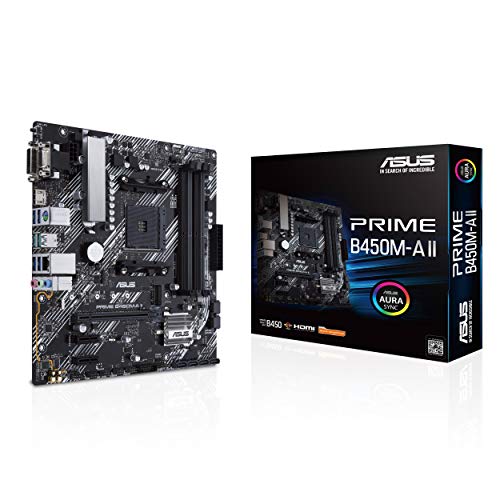
There are three common ways to update. The safest is a built-in flashing tool in the BIOS itself, such as ASUS EZ Flash or ASRock Instant Flash. Some boards also offer BIOS Flashback, found on models like the ASUS TUF Gaming B550-PLUS WiFi II and ASRock B860 Pro A, which lets you flash from a USB stick with no CPU installed. Avoid updating from within Windows if a BIOS-level option exists.
Download the Correct File
- Go to your motherboard manufacturer’s support page and find your exact model, checking the revision if applicable.
- Download the latest BIOS file, reading the release notes to confirm it addresses your issue.
- Extract the file and, if the tool requires it, rename it exactly as the instructions specify for Flashback.
Prepare a USB Drive
Format a USB stick to FAT32 and copy the BIOS file to its root. For BIOS Flashback, plug the drive into the specific labeled USB port. A clean, freshly formatted drive avoids read errors that can interrupt the flash, so do not skip this step.
Run the Flash and Wait
Enter the BIOS and launch the built-in updater, or press the Flashback button and watch the indicator light. The board will read the file, write the new firmware, and reboot on its own. Do not touch the power, press reset, or remove the USB drive while the update is in progress.
Reconfigure After Updating
A BIOS update usually resets settings to default, so you will need to re-enable your memory profile (XMP or EXPO), set your boot order, and reapply any fan curves. This is normal and takes only a few minutes.
Tips
- Use a UPS or stable power: A power cut mid-flash can brick the board, so avoid updating during storms or on a flaky outlet.
- Only update when needed: If your system is stable and your CPU is supported, there is often no reason to update.
- Keep a diagnostic tool handy: A POST code card can help identify problems if a board fails to boot after a flash.
- Read the notes: Some updates cannot be rolled back, so confirm the new version is right for you before flashing.
Frequently Asked Questions
Do I need a CPU installed to update the BIOS?
Not if your board supports BIOS Flashback, which flashes from USB with no CPU or RAM installed. Otherwise you need a working, supported CPU to enter the BIOS.
Can a BIOS update damage my PC?
Only if the flash is interrupted by a power loss or by removing the drive early. Follow the steps and use stable power, and the process is very safe.
Will updating erase my files?
No. The BIOS update only changes firmware on the motherboard; your drives and files are untouched. It does reset BIOS settings to default, though.
How do I know if I need a BIOS update?
Update if you are installing a newer CPU the board did not originally support, fixing a memory compatibility issue, or applying an important stability or security patch.
Conclusion
Updating your BIOS is a straightforward task when you follow the right method and take basic precautions. Download the correct file, use a clean FAT32 USB drive, ensure stable power, and never interrupt the flash. Afterward, restore your memory profile and settings, and your board will be ready with the latest firmware and full support for your hardware.