Key takeaways
- “4K” is prominent, but autofocus type, frame-rate modes, and system requirements are missing.
- No stated close-focus distance when the webcam is marketed for product demonstrations or beauty content.
- A very wide 90° view with no software crop option for a small desk setup.
- Only automatic exposure and white balance, with no way to lock settings.
- A fixed USB cable that is shorter than 3 feet for a monitor-mounted setup.
- Claims of “AI autofocus” without explaining whether the camera supports face tracking, focus lock, or manual adjustment.
- A flimsy clip with no 1/4-inch mounting thread if you expect to use a tripod or desk arm.
Streaming webcam autofocus is easy to underestimate until it starts hunting during a live broadcast. The most common mistake is buying based on resolution alone: a 4K label does not guarantee that your face stays sharp when you lean toward the camera, hold up a product, or shift in your chair. Another mistake is assuming “autofocus” means the same thing on every webcam. Some models use contrast detection, which can pulse back and forth before locking; others use phase-detection autofocus (PDAF), which is generally better at making quick, confident distance changes.
For streaming in 2026, autofocus speed matters most when your content includes movement. Gamers who mostly remain one distance from the camera can prioritize stable face focus. Makers, beauty creators, cooking streamers, and product reviewers need a webcam that can refocus from their face to an item held 10 to 24 inches from the lens without a distracting blur cycle. The right purchase is less about chasing the fastest claimed focus and more about matching focus behavior, field of view, frame rate, and lighting to how you actually stream.
Our top picks
 EMEET S600 4K Webcam for Streaming
- Unmatched 4K Streaming Quality - The EMEET S600…
- Advanced PDAF Autofocus & Light Balance
- Enhanced Audio Clarity & Customizable FOV - The…
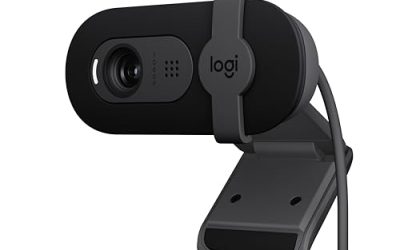
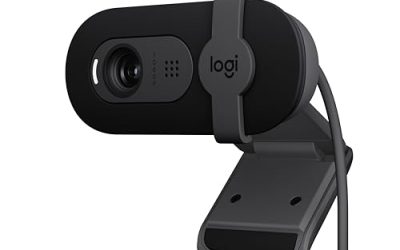
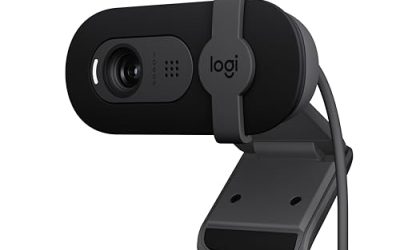
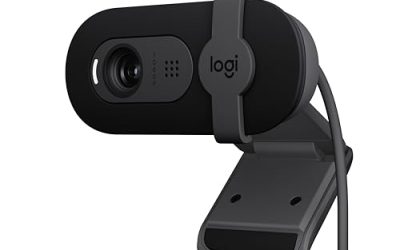
 Logitech Brio 101 Full HD 1080p Webcam
- Compatible with Nintendo Switch 2’s new GameChat mode
- Auto-Light Balance: RightLight boosts brightness by up to…
- Privacy with a Slide: The integrated webcam cover…
 NexiGo N680E Pro 4K Webcam with Ring
- 【Unmatched 4K Streaming Quality】The NexiGo N680E Pro has…
- 【PDAF Autofocus & Enhanced Audio Clarity】Keep your audience…
- 【Tri-Tone Adjustable Ring Light】The built-in ring light offers…
| Product | Key specs | |
|---|---|---|
| EMEET S600 4K Webcam for Streaming | Unmatched 4K Streaming Quality - The EMEET S600… Advanced PDAF Autofocus & Light Balance Enhanced Audio Clarity & Customizable FOV - The… | Check price |
| Logitech Brio 101 Full HD 1080p Webcam | Compatible with Nintendo Switch 2’s new GameChat mode Auto-Light Balance: RightLight boosts brightness by up to… Privacy with a Slide: The integrated webcam cover… | Check price |
| NexiGo N680E Pro 4K Webcam with Ring | 【Unmatched 4K Streaming Quality】The NexiGo N680E Pro has… 【PDAF Autofocus & Enhanced Audio Clarity】Keep your audience… 【Tri-Tone Adjustable Ring Light】The built-in ring light offers… | Check price |
 EMEET C960 4K Webcam for PC EMEET C960 4K Webcam for PC | Unmatched Clarity with True 4K Resolution - Experience… PDAF Focus & Auto Light Correction - Equipped… Dual Omnidirectional Mics - The built-in dual microphones… | Check price |
As an Amazon Associate we earn from qualifying purchases at no extra cost to you.
Decide These 3 Things First
- How much do you move? If you stay seated 24 to 36 inches from the camera, modest autofocus is usually sufficient. If you regularly lean forward, stand up, or show objects close to the lens, look for PDAF autofocus and a webcam designed to focus at roughly 4 to 8 inches or closer.
- What is your usual lighting? Autofocus slows down in dim rooms because the camera has less contrast to read. A webcam paired with a small 5- to 10-watt desk light can focus more consistently than a more expensive camera used in a dark room.
- Are you streaming at 1080p or 4K? Most live platforms still make 1080p at 30 or 60 fps the practical choice. A 4K webcam can provide more detail and cropping flexibility, but its autofocus quality, sensor size, and USB bandwidth matter more than resolution alone.
Focus System: PDAF Versus Contrast Detection
The autofocus system is the central specification for this purchase. Contrast-detection autofocus looks for the point of highest image contrast. It can work well for static video calls, but it may visibly “hunt” when lighting changes or when you present an object near the lens. Hunting means the image briefly moves from sharp to soft and back again while the camera searches for focus.
Phase-detection autofocus, often listed as PDAF, estimates whether the subject is in front of or behind the focus point and can move in the correct direction more decisively. That makes it especially useful for streams with frequent foreground demonstrations. The EMEET S600 and EMEET C960 4K models list PDAF autofocus, as does the NexiGo N680E Pro. Those types of specifications are worth prioritizing when focus changes are part of your content.
Do not treat PDAF as an automatic guarantee. Camera software can still favor the background, react slowly in low light, or change focus when a hand crosses your face. Look for a webcam that offers optional manual focus or focus lock in its companion software. A focus-lock setting is valuable for a stationary talking-head setup because it prevents unexpected refocusing when you gesture.
For a desktop stream, place the webcam about 24 to 36 inches from your face. If you need to show small items, test whether the camera can focus at 6 to 12 inches. Many webcams can technically focus closely, but their sharpest, most flattering results often appear between 18 and 40 inches.
Sensor Size and Lens Quality
Sensor size affects autofocus indirectly because a larger sensor can capture more light and create a cleaner image for the focusing system to evaluate. It also influences detail, noise, and how natural your image looks after digital sharpening. A webcam with a sensor around 1/2.55 inch, such as the Sony-sensor-equipped EMEET S600, has a meaningful advantage over very small basic webcam sensors when lighting is limited.
For budget webcams under $35, expect 1080p resolution, a small sensor, and a fixed-focus or basic autofocus lens. This can be enough for occasional streams, especially when the camera stays at one distance. The Logitech Brio 101, priced around $24.99, represents the kind of entry-level option that makes sense for simple seated use rather than close-up product work.
In the $45 to $90 range, look for 4K capture, autofocus, and a better lens-and-sensor combination. A 4K sensor is useful even if you broadcast at 1080p because it can preserve detail during cropping. However, avoid assuming every 4K webcam will look better: poor lighting, aggressive noise reduction, and weak autofocus can erase the advantage.
A lens with a wider aperture can help in dim conditions, but webcam makers do not always provide meaningful aperture data. Instead, judge the complete setup: sensor size, stated autofocus type, low-light performance controls, and whether you can add lighting. A 12-inch ring light or a compact key light positioned 18 to 30 inches from your face often improves focus reliability more than a resolution upgrade.
Frame Rate, Resolution, and USB Connection
Autofocus has to keep up with the frame rate you use. At 30 fps, the camera has more time between frames to settle focus. At 60 fps, motion looks smoother, but the camera needs more light and may reduce resolution or apply heavier processing. For most streamers, 1080p at 60 fps is a strong target for games, tutorials, and live product demonstrations.
Check the exact modes rather than the largest number on the box. A camera may record 4K at 30 fps but offer 1080p at 60 fps. That is normal and often preferable. The NexiGo N680E Pro, for example, is marketed with 4K capability and 1080p at 60 fps, a useful combination for creators who need smooth live motion without giving up the option of higher-resolution recording.
Use a direct USB connection whenever possible. A USB hub shared with external drives, microphones, capture cards, and lighting can create dropped frames or connection instability that looks like a camera problem. A 3- to 6-foot USB cable is usually easier to manage on a desk than a longer run, and an extension cable should be rated for data rather than charging only.
For 4K streaming or recording, verify that your computer, streaming software, and USB port can support the selected mode. If your system struggles, a clean 1080p image with reliable autofocus is better than an unstable 4K feed.
Field of View and Camera Placement
Field of view affects how demanding autofocus feels. A narrow 65° to 73° field of view keeps attention on your face and limits background distractions. The EMEET C960 4K lists a 73° field of view, which is a practical middle ground for one person at a desk. It can show your upper body and a small portion of the workspace without making your face too small in the frame.
Wider views around 78° to 90° are useful for standing presentations, workout streams, or showing a large desk. The tradeoff is that subjects appear farther away, and a close object held toward the lens can cause more dramatic focus shifts. If your room is visually busy, a narrower view is often the better choice.
Mount the camera at eye level or no more than 2 to 4 inches above it. A monitor clip works for most screens, but check the clamp opening if you use a thick ultrawide display. For flexible framing, choose a webcam with a standard 1/4-inch threaded mount and use a small tripod or desk arm. A 12- to 20-inch desktop tripod gives enough height for a seated setup without occupying much desk space.
Keep your background at least 3 feet behind you when possible. This separation makes you easier to distinguish from the background and reduces the chance that autofocus will favor a bright object behind your shoulders.
Lighting and Exposure Control
Fast autofocus is not just a lens feature; it depends heavily on light. In a dim room, the camera may lengthen shutter speed, add gain, and struggle to identify clear subject edges. The result can be slow focus transitions, noise, and motion blur. Aim for soft, even light on your face rather than relying on overhead room lighting alone.
A 5- to 10-watt LED key light at a distance of 18 to 30 inches is sufficient for many desk setups. Position it slightly above eye level and about 30° to 45° to one side of the camera. If you use a ring light, choose a 10- to 12-inch model with adjustable brightness and color temperature. Very bright, un-diffused lighting can create reflections on glasses, so reduce intensity before moving the light directly in front of you.
Ring-light webcams can be convenient for small spaces. The NexiGo N680E Pro includes a ring light, which may help for calls and compact streaming stations. Still, an external light is easier to position independently, so it usually produces more flattering depth and gives the autofocus system clearer facial contrast.
Where software allows it, set exposure and white balance manually after you establish your lighting. Automatic exposure changes can cause a camera to rethink focus when a bright object enters the frame. Manual controls create a more stable stream.
Audio, Privacy, and Everyday Construction
Built-in microphones are convenient but should not determine your webcam choice. Dual microphones can improve basic speech pickup, yet a dedicated USB microphone placed 6 to 12 inches from your mouth will usually sound more controlled. If you use the webcam’s microphones, sit within about 2 to 3 feet and keep noisy PC fans or speakers away from the camera.
Look for a solid monitor clip with a rubberized contact surface, especially if your webcam weighs 5 to 9 ounces. A loose hinge can allow the camera to sag or vibrate when you type. A physical privacy shutter is also more dependable than a software-only privacy setting because it visibly blocks the lens. The NexiGo N680E Pro includes a privacy shutter; other models may include one or require a separate sliding cover.
Choose a body with a stable base and a lens housing that does not wobble when adjusted. Plastic construction is normal at every price tier, but the hinge, cable strain relief, and mounting thread are the parts that determine daily durability.
Price Tiers, Software, and Warranty
Budget: $20 to $40. Expect 1080p at 30 fps, basic microphones, fixed focus or modest autofocus, and limited image controls. This tier is best for stationary streamers with good lighting. It is not the ideal category for frequent close-up demonstrations.
Mid-range: $45 to $90. This is the sweet spot for most creators. Look for 4K capture, 1080p at 60 fps, PDAF autofocus, a 70° to 80° field of view, and useful software controls. The EMEET S600 at about $59.49, EMEET C960 4K at about $47.99, and NexiGo N680E Pro at about $79.99 sit in this practical range.
Premium: $100 to $200. Spend here only if you need stronger software, more consistent low-light image quality, HDR, adjustable framing, or higher-end build quality. At this level, compare warranty terms closely. A 1-year warranty is common; 2 years is preferable for a webcam used daily. Confirm that the warranty covers hardware defects, not just software support.
Most webcams are plug-and-play and require no assembly beyond clipping them to the monitor and connecting one USB cable. Allow 10 to 20 minutes for camera positioning, software updates, exposure settings, and testing autofocus in your streaming app.
Spec Checklist
| Spec | Budget | Mid | Premium |
|---|---|---|---|
| Typical price | $20–$40 | $45–$90 | $100–$200 |
| Resolution / frame rate | 1080p / 30 fps | 4K / 30 fps; 1080p / 60 fps | 4K / 30–60 fps options |
| Autofocus | Fixed focus or basic autofocus | PDAF preferred | PDAF with advanced controls |
| Field of view | 65°–78° | 70°–90° | Adjustable or software-selectable |
| Lighting need | Bright room or external 5–10W light | Moderate room light recommended | Good low-light performance, but light still helps |
| Useful extras | Monitor clip | Privacy shutter, 1/4-inch mount, software controls | HDR, framing controls, stronger build |
Red Flags
- “4K” is prominent, but autofocus type, frame-rate modes, and system requirements are missing.
- No stated close-focus distance when the webcam is marketed for product demonstrations or beauty content.
- A very wide 90° view with no software crop option for a small desk setup.
- Only automatic exposure and white balance, with no way to lock settings.
- A fixed USB cable that is shorter than 3 feet for a monitor-mounted setup.
- Claims of “AI autofocus” without explaining whether the camera supports face tracking, focus lock, or manual adjustment.
- A flimsy clip with no 1/4-inch mounting thread if you expect to use a tripod or desk arm.
FAQ
How fast should webcam autofocus be for streaming?
For talking-head streams, the best autofocus is often the least noticeable: it should hold your face steadily at a distance of about 24 to 36 inches. For product streaming, choose a PDAF model that can refocus cleanly when you move an item from roughly 6 to 12 inches away back to your face.
Is PDAF autofocus worth paying more for?
Yes, if you move frequently or show objects to viewers. PDAF is generally a better investment than extra resolution for makers, reviewers, cooks, and beauty creators. For a stationary webcam used only for meetings and occasional gaming, basic autofocus or fixed focus can be enough.
Why does my webcam keep focusing on the background?
This usually happens when the background is brighter, more detailed, or closer in apparent contrast than your face. Add a front light, move at least 3 feet away from the background, reduce bright windows behind you, and use face tracking or focus lock if the webcam software provides it.
Should I buy a 4K webcam if I stream at 1080p?
A 4K webcam can be worthwhile for better cropping flexibility and detail, but only if it also has dependable autofocus and adequate lighting. If your budget is limited, a strong 1080p 60 fps webcam with PDAF autofocus and a $20 to $40 light can be the more effective streaming upgrade.