Key takeaways
- Gaming PC HDMI or DisplayPort output to the capture card’s input
- Capture card passthrough output to your gaming monitor or television
- Capture card USB connection to the streaming PC
- Microphone, headset, or mixer connected according to your audio plan
The Short Answer
Yes—if your second PC needs to receive the gaming PC’s video and audio through HDMI or another physical video connection. A capture card converts that signal into a webcam-like input that streaming software such as OBS can recognize.
However, a capture card is not automatically required for every dual-PC setup. You can sometimes stream with software-based tools such as NDI, desktop capture, or remote-display applications. Those options may save money, but they use network bandwidth, add configuration steps, and can introduce delay or extra load on one of the computers.
Our top picks
 Elgato 4K S Capture Card for PS5
- 4K60 Capture: Record in cinematic quality with crisp…
- HFR Support: Play and capture in 1440p120 or…
- HDR10 Support: Capture brilliant HDR content with tone…
 Capture Card
- 【1080P HD High Quality】Capture resolution up to 1080p…
- 【Plug and Play】No driver or external power supply…
- 【Compatible with Multiple Systems】suitable for Windows and Mac…
As an Amazon Associate we earn from qualifying purchases at no extra cost to you.
For most people building a reliable two-PC streaming setup in 2026, a capture card remains the simplest and most dependable choice. The key is buying one that matches your resolution, refresh rate, connectors, and recording goals.
What You Actually Get
A capture card sits between your gaming PC and your streaming PC. The gaming PC sends its video output to the card, and the card passes that signal to the streaming computer over USB or PCIe. Your monitor may connect through a separate passthrough output, allowing you to play normally while the streaming PC records or broadcasts the same feed.
A common external arrangement looks like this:
- Gaming PC HDMI or DisplayPort output to the capture card’s input
- Capture card passthrough output to your gaming monitor or television
- Capture card USB connection to the streaming PC
- Microphone, headset, or mixer connected according to your audio plan
Internal PCIe cards work similarly, but they install inside the streaming PC and usually require an available expansion slot. External USB models are easier to move between computers and generally simpler for first-time builders.
The important specifications are input type, passthrough resolution, capture resolution, maximum frame rate, HDR support, audio handling, and connection speed. For example, a card may pass through a high-refresh gaming signal while capturing at 1080p60. That can be perfectly suitable for streaming, but it is different from capturing 4K at 60 frames per second.
Also check whether your gaming monitor uses DisplayPort. Many affordable capture cards accept HDMI only, so you may need an active DisplayPort-to-HDMI adapter. Adapters can create compatibility problems, particularly with high refresh rates, HDR, adaptive sync, or copy-protection handshakes.
As a general guide, a 1080p60 capture card is enough for most live streams. A 4K-capable model makes more sense if you record high-resolution footage, use a 4K console, or want more flexibility for future upgrades. External cards commonly draw power through USB and may use roughly 2 to 10 watts, depending on their design and features. The streaming PC also needs enough USB bandwidth; connecting several high-data devices to one USB controller can cause dropped frames.
Pros
- Reliable video transfer: The streaming PC receives a dedicated video feed instead of relying on screen-sharing software or a network connection.
- Low practical delay: Passthrough lets you play on your normal monitor while OBS handles the captured preview. You do not have to play from the delayed preview window.
- Lower gaming-PC workload: The second computer can handle encoding, overlays, alerts, recording, and broadcast tasks.
- Broad software compatibility: Most established capture cards appear as video sources in OBS and similar applications.
- Console and camera flexibility: Many models also accept signals from a camera, PlayStation, Xbox, Switch, or another computer.
- Cleaner troubleshooting: A physical signal path is usually easier to diagnose than a network-based workflow with multiple drivers and settings.
Cons
- Added cost: Basic USB capture devices can cost about $20 to $50, while dependable 4K-capable models often range from $100 to $250 or more.
- More cables and hardware: A dual-PC setup may require extra HDMI cables, USB cables, adapters, a microphone solution, and possibly an HDMI splitter or switch.
- Resolution compromises: An inexpensive card may capture only 1080p60, even if your gaming PC and monitor run at 1440p or 4K.
- Potential compatibility issues: HDR, variable refresh rate, ultra-high refresh rates, HDCP, and unusual resolutions can interrupt the signal.
- Audio takes planning: Game audio, voice chat, microphone monitoring, and alerts can end up on different devices unless you configure routing carefully.
- It does not replace a strong streaming PC: The second computer still needs a capable processor or graphics card, sufficient memory, storage, and a stable internet connection.
Who Should Buy It
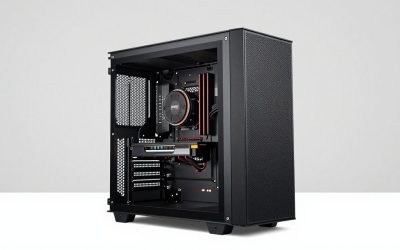
Buy a capture card if you want a dependable dual-PC streaming or recording setup and your gaming computer has a free video output. It is especially useful when the gaming PC already runs demanding games and you want the streaming PC to manage encoding, browser sources, animations, recordings, or multiple displays.
A capture card is also a good choice for creators who switch among several sources. A console, camera, and gaming PC can all be useful inputs, provided the card supports their resolutions and connectors. If you want 4K recording or high-quality HDR footage, expect to spend more than the minimum. The Elgato 4K S Capture Card, listed at $146.99, is positioned for users who want a more capable 4K-oriented device for sources such as PS5, Xbox Series X/S, or Switch 2.
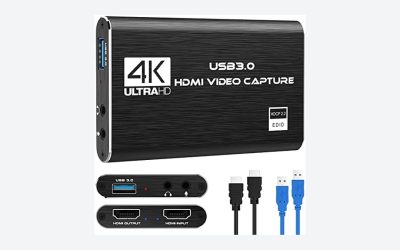
For a straightforward 1080p60 stream, a budget USB card may be enough. The listed 4K HDMI Video Capture Card costs $25.89 and advertises 1080p60 capture over USB 3.0. That type of product can be reasonable for a secondary setup, basic tutorials, or occasional streaming, but verify its driver support, passthrough behavior, audio performance, and return policy before relying on it for professional work.
Who Should Skip It
Skip the capture card if you stream directly from one PC without a second computer. Modern graphics cards can often encode video efficiently, and a well-configured single-PC setup is less expensive and easier to wire.
You may also skip it if your only goal is sending a desktop view from one computer to another and you are comfortable using NDI, Steam Remote Play, Sunshine/Moonlight, or another network-based method. These solutions can work well over wired Ethernet, but they are more sensitive to network quality and software configuration.
Finally, do not buy a cheap card simply because it says “4K” on the package. That label may describe passthrough rather than actual capture. Check the fine print for the maximum recorded resolution and frame rate. A card that accepts a 4K signal but records only 1080p30 may not meet your expectations.
Cheaper Alternatives
| Option | Cost | Trade-off |
|---|---|---|
| Software capture on one PC | $0 | Lowest cost, but the gaming PC handles both gameplay and streaming. Performance and encoder settings matter. |
| NDI or network video workflow | $0-$30 | No capture hardware, but it uses network bandwidth and can add latency or setup complexity. Wired gigabit Ethernet is strongly preferred. |
| Basic USB HDMI capture card | $20-$60 | Affordable 1080p streaming, but quality control, audio support, passthrough, and driver reliability vary widely. |
| Used PCIe capture card | $50-$150 | Often better integrated than a bargain USB model, but it needs a compatible desktop slot and may have limited warranty coverage. |
| Single-PC streaming upgrade | $100-$500+ | Money goes toward a stronger GPU, CPU, or encoder instead of a second PC; simpler wiring, but less separation between gaming and production tasks. |
FAQ
Can I use a capture card without a second PC?
Yes. You can use one to bring a console, camera, or another computer into OBS on a single PC. In that situation, the card is an input device rather than part of a dual-PC workflow.
Do I need a capture card for two monitors?
No. A second monitor connects directly to your graphics card. A capture card is needed only when another computer must receive and process the first computer’s video signal.
Will a capture card reduce gaming performance?
Usually, the impact is small when passthrough is configured correctly, but the exact result depends on the card, connection, resolution, and encoding setup. The gaming PC still produces the game image, while the streaming PC performs much of the broadcast work. A poorly configured USB connection or incompatible signal can cause stuttering or dropped frames.
Is 4K capture necessary for a dual-PC stream?
No. For many platforms, 1080p60 is a practical target and requires less storage, bandwidth, and processing power. Choose 4K capture if you specifically record 4K footage, need HDR support, use a 4K source, or want room for future equipment. Always distinguish between 4K passthrough and 4K recording before you buy.