Key takeaways
- Find the best webcams for use with Zoom, from sharp 1080p and 4K cameras to autofocus, low-light correction and clear built-in mics for better video calls.
As an Amazon Associate we earn from qualifying purchases.
A Zoom call puts your face on screen for everyone in the meeting, and the camera built into most laptops was chosen for thinness rather than picture quality. Grainy video, washed-out skin tones and a lens that loses focus when you lean forward all make you harder to follow, especially in a long meeting where attention already drifts. Choosing a separate webcam is really a decision about how clearly colleagues, clients and classmates will see you, and the right camera depends on your room, your light and how you sit at your desk.
This guide is written for remote workers joining daily stand-ups, teachers running online classes, freelancers meeting clients, and anyone whose laptop camera keeps letting them down. It walks through the specifications that matter on Zoom, resolution, focus, low-light handling, microphones and framing, and the practical setup steps that make an ordinary camera look far better, so you can match a webcam to your desk instead of guessing from a box.
How to Choose
Resolution and Frame Rate
Resolution decides how much detail the camera captures, and frame rate decides how smooth movement looks to the people on the other end. A 1080p camera at 30 frames per second suits most Zoom calls, because the video window is usually small and Zoom compresses the feed before it reaches other participants. A 1080p camera at 60 frames per second looks smoother when you gesture, nod or lean toward the lens, which helps in presentations where movement carries meaning. A 4K camera captures finer detail and lets you crop the image without it turning soft. Before paying for extra resolution, check your upload speed and your computer, since a higher-resolution feed needs more bandwidth and processing power to stay steady.
Autofocus and Low-Light Correction
Autofocus keeps your face sharp as you shift in your chair, lean in to read something or sit back to think, and it matters more on Zoom than on a still photo because you move the whole time. A fixed-focus camera can work if you always sit at the same distance, but it punishes any change in posture with a soft image. Low-light correction matters just as much, because most home offices are lit by a single ceiling light or a window off to one side. Cameras with automatic light correction brighten shadows and balance exposure so your face does not disappear into a dark frame. Look for a camera that adjusts exposure and white balance on its own.
Field of View and Framing
Field of view controls how much of your room appears behind you, and the right width depends on how you sit. A narrow view around 65 to 78 degrees keeps the shot tight on your head and shoulders and hides clutter at the edges, which suits solo calls from a small desk. A wider view near 90 degrees suits people who sit farther back, share the frame with a second person, or show a whiteboard. Some cameras let you switch between two or three fields of view in software, handy when one camera serves both solo and group calls. Digital zoom can narrow a wide image, so a wide camera stays flexible.
Microphones, Privacy and Plug-and-Play
A webcam with a built-in microphone simplifies your setup, because Zoom can use the camera as both the video and the audio source with no extra gear. Dual microphones with noise reduction pick up your voice more clearly and cut down keyboard clicks and room hum, though a dedicated headset or USB microphone will still sound better in a noisy room. Privacy matters on a camera that faces you all day, so a physical shutter or a lens cover that slides over the glass is worth having, and some cameras include an indicator light that shows when the camera is active. Plug-and-play USB cameras are the simplest choice, since Zoom detects them as a video device without extra drivers.
Webcam Types That Work Well on Zoom
1080p Webcams for Everyday Calls
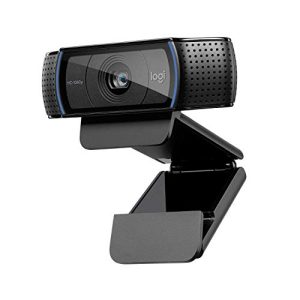
A 1080p webcam is the sensible default for daily Zoom meetings, because it matches the resolution most calls actually display and keeps bandwidth and processing demands modest. These cameras are usually compact, mount on top of a monitor or laptop lid with a clip, and connect over a single USB cable, so they take minutes to set up. Look for autofocus, automatic light correction and a built-in microphone with noise reduction, since those three features decide how you look and sound far more than a higher resolution number. A 1080p camera also pairs well with older laptops, which may struggle to process a 4K feed smoothly. If your calls are mostly one-to-one conversations and team stand-ups, this type covers the job without complication.
4K Webcams for Sharper Detail
A 4K webcam captures far more detail than a 1080p model, and that detail shows up in close-ups, in recorded meetings that colleagues watch later, and in presentations where you hold something up to the lens. On Zoom you can zoom into a 4K feed and still keep a sharp 1080p output, which gives you framing options a lower-resolution camera cannot match. The trade-off is that a 4K feed needs a faster connection and a stronger computer to stay smooth, and many calls will downscale the video anyway, so the extra detail is most valuable when you record locally or present to a large group. Check that the camera can also run at 1080p at 60 frames per second, since that mode is often the better choice for a live call.
Wide-Angle Webcams for Group Calls
A wide-angle webcam suits calls where more than one person shares the frame, such as a small huddle room, a classroom, or two colleagues sharing a desk. A field of view around 90 to 110 degrees captures everyone without anyone sitting awkwardly close to the lens, and some models let you adjust the angle in software so the same camera works for a solo call too. Wide-angle lenses can distort faces at the edges of the frame, so sit near the centre when you are the main speaker, and keep the camera at eye level to avoid a stretched look. A wide-angle camera with a built-in microphone array is particularly useful in a small meeting room, because it picks up voices from across the table without a separate conference microphone.
Webcams With Built-In Microphones
A webcam with a built-in microphone keeps your desk clear and your setup simple, which matters when you join calls from a laptop at a kitchen table or a shared workspace. Dual microphones with noise reduction do a reasonable job of isolating your voice from background noise, and some models add beamforming that focuses on sound coming from directly in front of the camera. The limits show up in echoey rooms and open offices, where a headset or a dedicated microphone will sound clearer and keep your colleagues from hearing every conversation nearby. If you use the built-in microphone, sit within arm’s reach of the camera, speak toward it, and test the audio in Zoom before an important call so you know how you sound to others.
Setting Up Your Webcam for Zoom
Position the Camera at Eye Level
Camera height changes how you look more than almost any specification, because a lens below your chin shoots up at your face and a lens above your head looks down on you. Place the camera at eye level, or slightly above it, so the frame shows your head and shoulders with a little space above your head. A stack of books under a monitor, a laptop stand, or a small tripod can lift a camera to the right height, and a camera clipped to the top of an external monitor usually lands close to eye level on its own. Sit about an arm’s length from the lens, keep your eyes near the camera when you speak, and avoid sitting so close that your face fills the whole frame.
Light Your Face, Not Your Screen
Good light is the cheapest upgrade a webcam can get, and it matters more than resolution once the camera is decent. Face your main light source, such as a window or a desk lamp, so the light falls on your face rather than behind you, and avoid sitting with a bright window directly behind your head, which turns you into a silhouette. A single soft light placed behind the camera, at about the height of your face, smooths shadows and gives the camera enough light to keep the image clean. Overhead ceiling lights alone tend to cast shadows under your eyes and chin, so add a lamp or a small ring light in front of you if your room feels dim. Test the result in a Zoom preview before the call starts.
Check Your Background and Framing
Your background is part of the message on a video call, so spend a minute on it before you join. A tidy shelf, a plain wall, or a closed door reads as calm and professional, while a cluttered room or a bed in the frame pulls attention away from what you are saying. Zoom offers virtual backgrounds and blur, but a real, uncluttered background looks more natural and avoids the flickering edges that appear when you move. Frame yourself in the centre of the image with your head near the top of the frame and your shoulders visible, and leave enough room at the sides that gestures do not disappear off screen. If you share the frame with someone else, sit shoulder to shoulder so both of you stay inside the shot.
Test Audio and Video Before the Call
A two-minute check before an important call saves the awkward first minutes of a meeting spent fixing a muted microphone or a camera pointing at the ceiling. Open Zoom, go into the video settings, and confirm the right camera is selected, then look at the preview to check your framing, your light and your background. Use the audio test to speak a sentence and listen to the playback, which tells you whether the microphone is picking you up clearly and whether background noise is leaking in. If you use a headset or an external microphone, confirm Zoom is using it rather than the webcam microphone, and close other apps that might claim the camera. A quick test also confirms the camera is not covered by a privacy shutter you forgot to open.
Which One Fits Your Situation
You Join Calls All Day from a Home Office
A 1080p webcam with autofocus, automatic light correction and a built-in microphone fits a full day of calls, because it stays sharp as you shift in your chair and sounds clear without extra gear. The plug-and-play USB connection works the moment you plug it in, and a privacy shutter closes the lens between meetings. Spend your effort on light and camera height rather than extra resolution, since a well-lit 1080p feed looks better on Zoom than a dim 4K one.
You Present or Teach to a Room
A 4K webcam fits presenting and teaching, because detail holds up when you hold notes to the lens, and you can zoom into the feed to frame a whiteboard without the image turning soft. Pick one with a wide field of view and a microphone that picks up your voice from a distance, and use a tripod to place it at the right height. A 1080p mode at 60 frames per second gives a smoother option for discussion.
You Share a Desk or a Small Meeting Room
A wide-angle webcam fits a shared desk or a small meeting room, because its broad field of view captures two or three people without crowding. Pick a model with an adjustable field of view, so one camera frames solo calls tightly and group calls widely, and a built-in microphone array that hears voices across the table. Mount it at the far end of the table, at eye level, and sit near the centre when you speak.
You Travel and Call from Different Places
A compact 1080p webcam fits travel, because it slips into a laptop bag, clips onto any laptop lid, and connects over a single USB cable needing no extra power. Plug-and-play support matters most here, since you cannot rely on installing drivers on a borrowed computer, and a built-in privacy cover protects the lens in transit. Look for autofocus and automatic light correction, because hotel rooms and coworking spaces have unpredictable light, and test the camera in Zoom before each call.
Common Mistakes
- Sitting with a bright window behind you, which turns your face into a dark silhouette no camera can fix.
- Placing the camera far below eye level, so colleagues spend the whole call looking up your nose.
- Choosing a camera by resolution alone, while ignoring autofocus, low-light handling and microphone quality.
- Buying a 4K camera for a slow connection or an older laptop, then wondering why the video stutters.
- Forgetting to test the microphone in Zoom, and discovering mid-call that the wrong audio device is selected.
Frequently Asked Questions
Do I need a 4K webcam for Zoom?
No, a 1080p webcam is enough for most Zoom calls, because the video window is usually small and Zoom compresses the feed before it reaches other participants. A 4K camera is worth considering if you record meetings locally, present to a large group, or want to crop and zoom the image without losing sharpness. For everyday one-to-one calls and team stand-ups, autofocus and good light matter more than extra resolution.
Can I use any USB webcam with Zoom?
Yes, almost any USB webcam works with Zoom, because Zoom detects standard USB video devices without extra drivers. Plug the camera in, open Zoom, go into the video settings, and select the camera from the list. Some cameras need companion software for settings such as field of view, exposure and white balance, so check whether those settings are saved on the camera or reset each time you unplug it.
Does a webcam microphone sound good enough for Zoom?
A webcam with dual microphones and noise reduction sounds clear enough for most calls when you sit close to the camera in a quiet room. In a noisy office or an echoey room, a headset or a dedicated USB microphone will sound noticeably better and keep background noise away from your colleagues. Test the audio in Zoom before an important call so you know how you sound to others.
Why does my webcam look dark on Zoom?
A dark image comes from the light, not the camera, because webcams struggle when the light sits behind you. Face a window or a lamp so light falls on your face, add a soft light behind the camera if the room is dim, and check that the camera’s automatic light correction is on. If it is still dark, move closer to the light or add a desk lamp facing you.
FAQ
Do I need a 4K webcam for Zoom?
Can I use any USB webcam with Zoom?
Does a webcam microphone sound good enough for Zoom?
Why does my webcam look dark on Zoom?
More from Amazon
Programs that pair well with the guide above. Offers and eligibility are set by Amazon and may change.
Free shipping on eligible items, Prime Video and more. Eligible new members can start with a free trial.
Start a Prime free trialAd-free music streaming. Eligible new subscribers can start with a free trial.
Try Music Unlimited freeA Prime membership for ages 18-24 with a trial period. Eligibility is set by Amazon.
See Prime for Young AdultsAudiobooks and podcasts to listen to on the go. Eligible new members can start with a free trial.
Try Audible freeAs an Amazon Associate we earn from qualifying purchases.