Key takeaways
- Best teen amateur webcams: a guide for adult creators on camera quality, lighting, privacy controls, framing, audio and staying safe while you stream.
As an Amazon Associate we earn from qualifying purchases.
Picking a webcam for amateur-style adult streaming comes down to a practical trade-off: the picture has to look warm and clear in a dim room, the camera has to stay out of the way when it is not in use, and the setup has to work without a studio budget. Resolution matters, but so does the way a camera handles uneven light and background clutter, because viewers notice a flickering, grainy feed long before they notice a specification number. The right choice flatters a small room and keeps private details out of frame.
This guide is written for adults aged 18 and over who are starting out as amateur creators, for streamers moving on from a built-in laptop camera, and for creators who record clips rather than broadcasting live. It covers what to look for in a webcam, lighting, framing, audio and privacy controls, so the equipment can be compared on facts rather than packaging claims.
How to Choose
Resolution, Frame Rate and Low-Light Handling
Full HD at 1080p is the sensible baseline for this kind of streaming, because it looks clean on viewers’ screens while keeping file sizes and upload demands manageable. A 4K camera captures more detail, yet it also needs stronger lighting, a faster connection and more processing power, and much of that detail is lost in compression. Frame rate shapes how movement reads: 30 frames per second suits a mostly still, conversational setup, while 60 frames per second earns its place when the creator moves around the frame. Low-light handling matters more than either number in a bedroom after dark, so check how the camera copes with a single lamp and whether it brightens shadows without washing out skin tones.
Autofocus, Field of View and Framing Control
Autofocus decides whether the picture stays sharp when the creator leans in, stands up or shifts position, and a slow or hunting focus is far more distracting than a slightly lower resolution. Look for a camera that locks onto a face quickly and holds it steady. Field of view decides how much of the room appears behind the creator: a narrower angle around 65 to 78 degrees keeps the frame tight and the background private, while a wide angle above 90 degrees suits a creator who moves around but shows far more of the room. Software control of zoom, pan and tilt is worth having, because it lets the frame be tightened without physically moving the camera.
Privacy Controls, Microphones and Audio
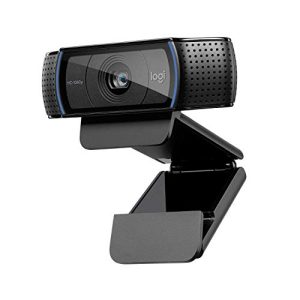
A physical privacy shutter is the most reassuring feature on a creator webcam, because it blocks the lens between sessions and removes any doubt about whether the camera is watching the room. A clear indicator light matters just as much, showing when the camera is active, and a dedicated mute button stops stray household sound from reaching the stream. Built-in microphones have improved, yet they still pick up keyboard clicks, fans and voices from the next room, so check for noise suppression and whether the microphone can be disabled when a separate headset or USB microphone is in use. Good audio keeps a session feeling close and personal, while a humming microphone pushes viewers away faster than a soft picture.
Lighting, Mounting and Your Room Setup
Lighting changes the picture more than any upgrade, and a small ring light behind the screen flatters skin tones more than a jump to 4K. Put the main light in front of the creator, not overhead: a ceiling light casts shadows under the eyes and leaves the face darker than the background. Check the mount: a clip that grips a thin laptop lid may wobble on a thick monitor, while a tripod thread allows a desk stand that keeps the lens at eye level. A short cable forces the computer close to the camera, so check its length, and a room with a door behind the creator needs a plan for interruptions, such as a lock or a sign.
Which One Fits Your Situation
Starting Out in a Small Bedroom
A creator setting up in a small bedroom should favour a compact 1080p camera with a privacy shutter, a narrow field of view and reliable autofocus, because the room itself does the framing work. Add one soft light in front of the desk, keep the background to a plain wall or a tidy shelf, and test the picture at the time of day the sessions will actually happen, so the first session feels calm rather than rushed.
Streaming Live for Long Sessions
Live sessions reward stability over specification, so a camera with steady autofocus, a fixed exposure that does not flicker under household lighting, and a microphone that can be muted quickly is the safer pick. Keep water nearby, plan a short break every hour, and run a five-minute test stream first so a loose cable or a wrong audio input is caught before viewers arrive, and note what worked for next time.
Recording Clips to Upload Later
Creators who record rather than broadcast can aim slightly higher on picture quality, because a recorded file can be checked, trimmed and re-shot without an audience watching. A camera with manual exposure and a clean 1080p or 4K file gives more room to crop in editing, and a separate microphone is easier to justify when every clip can be listened back before it is published, and back up finished clips before deleting the originals.
Working in a Shared Home
A shared home makes privacy and sound control the deciding factors, so look for a shutter, a clear recording light, a narrow frame that shows nothing beyond the desk, and a headset microphone that keeps housemates out of the audio. Agree on session times with the people in the house, keep the door closed, and store recordings on an encrypted drive rather than a shared computer, and keep the setup packed away between sessions.
Common Mistakes
Creators setting up a first amateur stream tend to repeat the same handful of errors, and most of them come from chasing a single specification instead of checking how the camera will behave in the actual room. A camera that looks superb in a bright shop demonstration can disappoint in a dim bedroom, a wide frame can reveal far more than intended, and a microphone that sounded fine in a short test can pick up an entire household once a session runs long. The mistakes below are easy to avoid once the buyer knows what to check, and running through them against a shortlist takes only a few minutes before ordering. Catching a poor fit now is far simpler than rearranging a room, returning a camera or re-recording a session later, so treat this list as a final check rather than an afterthought.
- Buying the highest resolution available without checking the upload speed and the computer that has to encode it, so a 4K camera stutters, drops frames or overheats a modest laptop while a 1080p camera would have run smoothly. Test the real upload speed at the time sessions will run, check the processor load during a trial recording, and remember that a stable 1080p picture beats a juddering 4K feed every time.
- Choosing a camera with no physical privacy shutter and then relying on software alone, which leaves the lens uncovered between sessions and depends on remembering to close an app every time. Pick a camera with a built-in shutter or a clip-on cover, make closing it part of the end-of-session routine, and check the indicator light before leaving the desk so there is never any doubt about whether the camera is live.
- Lighting the room from overhead or from behind and then wondering why the picture looks dark, grainy or washed out, when a single soft light placed in front of the creator would have fixed it. Move the main light to face the creator at eye level, turn off a bright lamp behind the chair, and compare test recordings with the light on and off before deciding the camera itself is at fault.
- Using the widest field of view by default and accidentally showing a doorway, a window, personal photographs, letters or anything else that identifies the creator or their home. Narrow the angle, sit closer to a plain background, and record a full test clip, then watch it back on a large screen and look at everything in the frame, not just the creator, before the first real session.
- Skipping a full test recording and discovering too late that the microphone picked up a fan, a neighbour or a housemate, that the autofocus hunted every time the creator moved, or that the camera shut down when the laptop went to sleep. Record a ten-minute trial at the real session time, watch and listen to the whole thing, and check the file size and the battery and power settings so nothing interrupts a live broadcast halfway through.
Frequently Asked Questions
What resolution do I need for amateur adult streaming?
Full HD at 1080p and 30 frames per second is enough for most amateur adult streams, because it looks sharp on phones and laptops while keeping upload demands and file sizes manageable. Move to 4K only when the lighting, the connection and the computer can all support it, since a stable 1080p picture always looks better than a stuttering higher-resolution feed.
Do I need a separate microphone for creator streams?
A separate microphone is not essential at first, but it is the cheapest way to make a stream feel professional, because a headset or USB microphone removes room echo, fan noise and keyboard clicks that a built-in camera microphone picks up. Start with the camera microphone, listen back to a test recording, and add a dedicated microphone when audio, rather than picture, becomes the weakest part of the stream.
How do I keep my background private on camera?
Choose a narrow field of view, sit in front of a plain wall or a curtain, and remove anything personal from the frame, including photographs, letters, certificates and items that show a name or address. Record a test clip and watch it back on a large screen, checking the edges of the frame as well as the centre, and use a privacy shutter whenever the camera is not in use.
What should I check before my first live session?
Confirm that the platform requires age verification for creators, read its rules on content, privacy and payments, and check whether it offers region blocking and control over who can view or record a stream. Then test the camera, lighting and audio in a private trial, close the door, cover the lens when finished, and keep login details and payout information separate from anything shared on screen.
FAQ
What resolution do I need for amateur adult streaming?
Do I need a separate microphone for creator streams?
How do I keep my background private on camera?
What should I check before my first live session?
More from Amazon
Programs that pair well with the guide above. Offers and eligibility are set by Amazon and may change.
Free shipping on eligible items, Prime Video and more. Eligible new members can start with a free trial.
Start a Prime free trialAd-free music streaming. Eligible new subscribers can start with a free trial.
Try Music Unlimited freeA Prime membership for ages 18-24 with a trial period. Eligibility is set by Amazon.
See Prime for Young AdultsAudiobooks and podcasts to listen to on the go. Eligible new members can start with a free trial.
Try Audible freeAs an Amazon Associate we earn from qualifying purchases.