Key takeaways
- A good 3D rendering workstation balances four things: processor core count for CPU-based renderers, graphics card memory for GPU-based renderers.
A good 3D rendering workstation balances four things: processor core count for CPU-based renderers, graphics card memory for GPU-based renderers, enough system memory to hold your scenes, and cooling that lets all of it run flat out for hours. The first step is to find out which kind of renderer your software uses, because that decides whether money should go toward cores or toward the graphics card.
Rendering is a different load from gaming. A game spikes and relaxes; a render can pin every core or the entire graphics card for an hour or more. That makes sustained performance, stability, and cooling more important than peak numbers on a spec sheet. The sections below explain what to check, in the order that usually matters.
Start With Your Renderer and Workflow
Open the documentation of your modeling and rendering software and note whether the final render engine runs on the processor, on the graphics card, or on both. Many modern engines support graphics cards for speed, while others rely on many processor cores for accuracy and features. Viewport work, such as rotating a model or sculpting, leans on single-core speed and the graphics card, so even a processor-heavy pipeline benefits from strong single-thread performance.
The Components That Decide Render Speed
Processor: Cores, Threads, and Sustained Clocks
For processor-based rendering, more cores usually cut render time, with diminishing returns as scenes get small. Look at the listed core and thread count, the base and boost clocks, and the cooling the processor needs. A high-core-count chip held back by a weak cooler will throttle and deliver less than its rating suggests.
Graphics Card: Memory Comes First
For graphics-based rendering, video memory is the gatekeeper. If a scene does not fit in the card’s memory, the render may slow dramatically or fail. Match the memory size to your largest scenes, with room to grow. Then consider compute capability and software support, since some engines favor particular graphics architectures or driver features.
System Memory: Capacity Before Speed
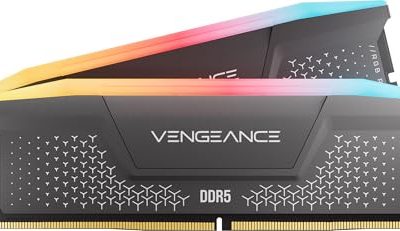
Large scenes, heavy textures, and simulations eat memory quickly. Sixteen gigabytes is a starting point for light work, while complex scenes often call for thirty-two gigabytes or more. Choose capacity first and speed second, and look for a board with free slots so you can expand later.
Storage: Fast Working Space and Roomy Archives
An NVMe solid-state drive for the operating system, software, and active projects keeps loading and caching quick. A second, larger drive can hold finished work and assets. Render caches and simulation files grow quickly, so leave free space instead of filling a drive to the edge.
Comparison: What to Prioritize by Workload
| Workload | Prioritize | Watch out for |
|---|---|---|
| CPU-based final renders | High core count, strong cooling, ample memory | Throttling from a weak cooler |
| GPU-based final renders | Graphics card memory and software support | Scenes that exceed video memory |
| Modeling and sculpting | Strong single-core speed, responsive graphics | Spending on cores you will not use |
| Simulation and caching | System memory capacity, fast storage | Running out of free drive space |
| Animation and video work | Balanced processor, graphics, and storage | Bottlenecks in one component |
Cooling, Power, and Reliability
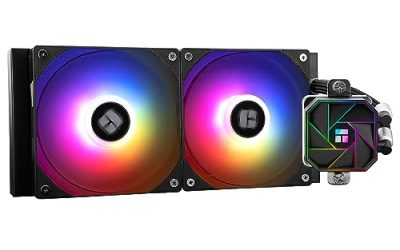
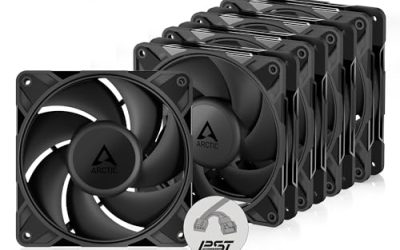
A render that runs for many hours generates constant heat. Look for a case with clear airflow, large fans, and a processor cooler sized for the chip’s rated power. The power supply should have headroom above the combined needs of the processor and graphics card, since running a supply near its limit adds heat and stress. Reputable efficiency ratings and a solid warranty are worth reading about.
Professional workstations sometimes offer error-correcting memory and certified drivers, which help in environments where a crash costs hours. For freelancers and hobbyists, a well-built consumer system often covers the need, but if your work involves long unattended renders, stability features deserve attention. Treat any listed claims as manufacturer information to compare, not a guarantee of results.
Budget Tiers: Where to Spend and Where to Save
At the budget tier, the best use of money is a solid processor and enough memory, since a modest graphics card can still handle light scenes and viewport work. Mid-range builds are the sweet spot for freelancers: a strong multi-core chip or a graphics card with ample video memory, thirty-two gigabytes of system memory, and a fast NVMe drive. Premium systems add many-core processors, graphics cards with large memory pools, sixty-four gigabytes or more of system memory, and robust cooling for continuous production work.
Where do budget models cut corners? Usually on the power supply, the cooler, and the case airflow. Those hidden parts decide whether the system stays stable during a long render, so a slightly less impressive processor with better cooling can beat a bigger chip that throttles.
Laptop or Desktop for Rendering?
A desktop almost always renders faster for the same money, because it has room for larger coolers and full-power parts. A laptop wins if you move between locations or present work to clients, but expect lower sustained performance and limited upgrades. Some artists use a laptop for modeling and send heavy renders to a desktop or a render service, which splits the workload sensibly.
Noise, Placement, and Daily Comfort
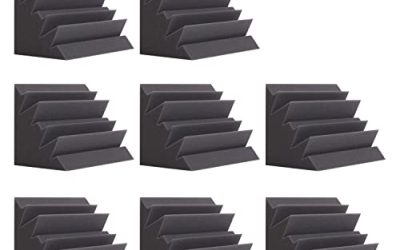
A workstation that runs for hours is also a machine that sits near you for hours. Fan noise from a rendering load can be distracting during a call or while editing audio. Look for larger, slower fans, a case with sound-dampening panels if quiet matters, and fan-curve controls in the BIOS or software. Place the tower where its intake can breathe, not inside a closed cabinet, and keep it off thick carpet where dust collects.
Upgrade Path and Future Scenes
Scenes tend to grow as skills improve: higher-resolution textures, denser geometry, and longer animations. Choose a platform that lets you add memory, swap the graphics card, and install larger drives without replacing the motherboard. A case with spare bays and a power supply with room above current needs gives you a path to double memory or add a second graphics card when projects demand it.
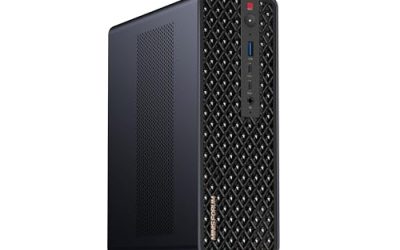
Display, Ports, and Expansion
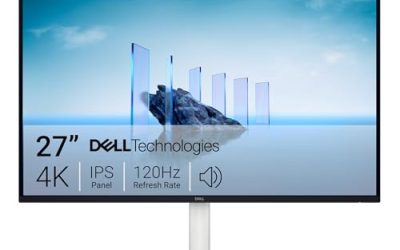
You will be judging color and detail for long stretches, so pair the workstation with a monitor that shows accurate color for your work, ideally with a calibration option. On the computer itself, check for enough video outputs, fast external storage ports, and a network connection that can move large project files. Free expansion slots let you add a second graphics card, capture hardware, or storage later in 2026 and beyond.
Before You Buy Checklist
- Identify whether your renderer uses the processor, the graphics card, or both.
- Estimate your largest scene size to set memory targets for video and system RAM.
- Check that the cooler and case suit the chip’s sustained power draw.
- Confirm free memory slots, drive bays, and expansion slots.
- Read the power supply’s rated capacity and efficiency details.
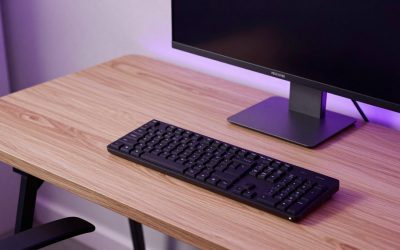
- Plan for a monitor and storage backup, not just the tower.
Common Mistakes
- Buying the highest core count without checking whether the renderer can use it.
- Choosing a graphics card with too little video memory for your largest scenes.
- Treating a laptop-class cooler as sufficient for hours-long renders.
- Filling storage with caches until the drive has no working space.
- Ignoring the power supply and ending up with a system that restarts under load.
Related guides
- Hall Effect Vs Potentiometer Controller Sticks Explained
- Low Profile Cpu Coolers For Small Form Factor Pcs
- How To Transfer Nintendo Switch Data To A New Console
Frequently Asked Questions
Do I need a workstation graphics card for 3D rendering?
Not always. Many users render well on consumer cards, and what matters most is video memory and software support. Professional cards add certified drivers and, on some models, more memory, which can help in studio environments.
How much RAM does a rendering workstation need?
Light projects can start around sixteen gigabytes, while complex scenes, heavy textures, and simulations often benefit from thirty-two gigabytes or more. Check your software’s documentation for guidance and choose a board with room to expand.
Is a processor or graphics card more important?
It depends on your render engine. Processor-based engines reward core count, while graphics-based engines reward video memory and compute power. Identify your engine first, then budget accordingly.
Can I use a gaming computer for rendering?
Often yes, particularly for graphics-based renderers. The main gaps are sustained cooling, memory capacity, and expansion room, so check those against your project size.
FAQ
Laptop or Desktop for Rendering?
Do I need a workstation graphics card for 3D rendering?
How much RAM does a rendering workstation need?
Is a processor or graphics card more important?
Can I use a gaming computer for rendering?
More from Amazon
Programs that pair well with the guide above. Offers and eligibility are set by Amazon and may change.
Free shipping on eligible items, Prime Video and more. Eligible new members can start with a free trial.
Start a Prime free trialAd-free music streaming. Eligible new subscribers can start with a free trial.
Try Music Unlimited freeA Prime membership for ages 18-24 with a trial period. Eligibility is set by Amazon.
See Prime for Young AdultsAudiobooks and podcasts to listen to on the go. Eligible new members can start with a free trial.
Try Audible freeAs an Amazon Associate we earn from qualifying purchases.