Key takeaways
- You can add extra storage to a PS5 in two ways: install an M.2 NVMe solid-state drive in the console's internal expansion slot for games you want to.
You can add extra storage to a PS5 in two ways: install an M.2 NVMe solid-state drive in the console’s internal expansion slot for games you want to play, or plug in a USB external drive for storing games and running PS4 titles. The internal drive is the better choice for PS5 games, since PS5 titles can be played only from the console’s internal storage or a compatible M.2 drive.
This guide walks through both routes, what to check before buying a drive, and how the installation goes in practice. It is written for players whose built-in storage is filling up and who want a clear path without opening the wrong panel or buying an incompatible part. Details of the slot, cover and heatsink fit vary between console revisions, so confirm them against the manufacturer’s current instructions in 2026 before you start.
Choose Your Route
An internal M.2 drive plugs into a slot under a cover on the back of the console, where it runs at high speed and can host PS5 games you play directly. A USB drive plugs into a port on the console, works as extended storage and is the easy option when you want to hold a large library without opening anything.
The key limit to remember is that a USB drive can store PS5 games but cannot run them; you copy them back to internal storage first. It can run PS4 titles directly. Many players use both: an M.2 drive for the games they are playing now, and a USB drive as a parking space for the rest.
If you are unsure which route to take, start from how you play. Players who rotate through a few current titles benefit most from the internal drive, because load times stay short and nothing needs to be shuffled around. Players with a long backlog of older games and little interest in tinkering usually do fine with a USB drive and an occasional copy back to the console.
Installing an Internal M.2 Drive Step by Step
Prepare the Console
Update the system software first, then turn the console fully off, not into rest mode, and unplug the power cable. Place the console on a soft, clean surface and let it cool. Touch a grounded metal object before handling parts to discharge static, and keep screws on a tray so they are not lost.
Open the Cover and Reach the Slot
Slide or lift the side panel as the console’s instructions show, then remove the small cover over the expansion bay. The slot has a screw at the position matching the drive length, and a spacer that moves between positions. Take note of the screw position before you remove it.
Fit the Drive and Heatsink
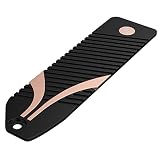
If the drive does not already include a heatsink, fit a compatible one first, following its instructions and keeping within the slot’s height clearance. Insert the drive at an angle, press it flat, and secure it with the screw. Close the bay cover and the side panel, then reconnect power.
Format and Verify the Drive
On startup the console offers to format the new drive. Accept, and wait for the process to finish. Then move or download a game onto it and launch it to make sure it loads properly. If the console does not recognize the drive, power down and reseat it.
What to Check Before Buying a Drive
| Factor | What to look for | Why it matters |
|---|---|---|
| Interface | M.2 NVMe, PCIe Gen 4 | Required for the internal slot |
| Speed | Meets the console’s published minimum read speed | Slow drives may be rejected or stutter |
| Size | Standard length that fits the bay | Wrong length will not seat or screw down |
| Cooling | Heatsink included or fitted | Required to avoid heat build-up |
| Capacity | Within the supported range | Prevents unsupported sizes |
| USB drive type | USB 3.0 or faster | Slow ports make copy times long |
Before You Start Checklist
- Check the manufacturer’s current support page for the supported drive specifications.
- Update the console’s system software.
- Back up saved data to cloud storage or a USB drive.
- Confirm the drive’s height with its heatsink fits under the bay cover.
- Prepare a small screwdriver and a clean, static-free work surface.
- Decide which games will live on the new drive so you can move them straight away.
Using a USB Drive Well
For a USB drive, plug it into a port on the console, open the storage settings and format it as extended storage. After that, installed PS4 games can run from it directly, and PS5 games can be stored there while you are not playing them. Moving a PS5 game back to internal storage takes a copy rather than a fresh download, which saves bandwidth.
Use a drive with a respectable USB 3 rating; a slow one makes moves and PS4 loading frustrating. A drive in a ventilated case or with a small footprint is easier to place behind a television. Always eject through the console’s menu before unplugging, to avoid data errors.
Planning Which Games Go Where
Storage is easier to manage with a plan. Keep the games you play weekly on the internal drive or the M.2 drive, where load times are shortest. Move games you play monthly to a USB drive, and delete anything you can download again without losing progress. Saved data and trophies stay linked to your account, so removing a game rarely erases your progress, but cloud saves are worth checking first.
Large online games that update often are the biggest consumers of space, because patches can add significant size over time. If you play several of them, leave a margin of free space instead of filling the drive to the last gigabyte, since updates need room to unpack.
If Something Goes Wrong
If the console does not detect the new drive, power it down, remove the drive and reseat it, making sure it is pushed fully into the connector before the screw goes in. If the drive is detected but flagged as too slow, check its published read speed against the manufacturer’s minimum and confirm that the heatsink is not pressing the drive out of position.
A USB drive that is not recognized is often a power or format issue. Try a different port, use the console’s own format option and avoid cheap hubs between the drive and the console. If a problem persists, contact the drive maker or the console manufacturer’s support rather than forcing parts into place.
Safety is mostly common sense: work with the console unplugged, avoid touching the exposed circuit board and keep liquids away from the work area. If you are not comfortable opening the console, the USB route needs no tools at all, and it still frees up internal space by moving stored games off the main drive.
Common Mistakes
- Buying a drive without checking the console’s published speed and size requirements.
- Skipping a heatsink, which can lead to throttling or errors during long sessions.
- Forcing a drive into the slot at the wrong angle.
- Expecting PS5 games to run from a USB drive.
- Opening the console without unplugging it and discharging static.
Related guides
- Hall Effect Vs Potentiometer Controller Sticks Explained
- Low Profile Cpu Coolers For Small Form Factor Pcs
- How To Transfer Nintendo Switch Data To A New Console
Frequently Asked Questions
Can I play PS5 games from a USB drive?
No. PS5 games must run from internal storage or a compatible M.2 drive. A USB drive can store them and run PS4 games only.
Will opening the console void my warranty?
Policies differ by region and model, and the manufacturer supports adding a compatible drive to the dedicated bay. Read your warranty terms and the official instructions if you are unsure.
Do I need a heatsink on the M.2 drive?
The manufacturer’s guidance calls for cooling on the drive, either built in or added. Check the current specifications and fit a compatible heatsink that suits the bay height.
How much extra storage should I get?
Think about how many large games you keep installed at once. Many players find a drive that doubles or more than doubles their built-in space makes a noticeable difference.
FAQ
Can I play PS5 games from a USB drive?
Will opening the console void my warranty?
Do I need a heatsink on the M.2 drive?
How much extra storage should I get?
More from Amazon
Programs that pair well with the guide above. Offers and eligibility are set by Amazon and may change.
Free shipping on eligible items, Prime Video and more. Eligible new members can start with a free trial.
Start a Prime free trialAd-free music streaming. Eligible new subscribers can start with a free trial.
Try Music Unlimited freeA Prime membership for ages 18-24 with a trial period. Eligibility is set by Amazon.
See Prime for Young AdultsAudiobooks and podcasts to listen to on the go. Eligible new members can start with a free trial.
Try Audible freeAs an Amazon Associate we earn from qualifying purchases.