Key takeaways
- Restart your PC and press the BIOS key during boot, usually Delete or F2.
- If your BIOS opens in a simplified EZ mode, look for the memory or XMP/EXPO section right on the main screen.
- Switch to advanced mode if you need to, using the on-screen prompt.
What's inside
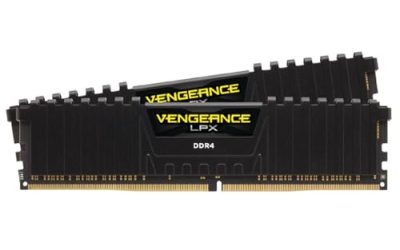
Here is a secret that surprises a lot of new PC builders: out of the box, your expensive high-speed RAM is probably running slow. Buy a DDR5-6000 kit, install it, and your motherboard will default to a safe baseline speed like 4800MT/s until you tell it otherwise. Enabling XMP or EXPO is the one-click fix that unlocks the speed you actually paid for.
This guide shows you how to enable these memory profiles in 2026, explains the difference between XMP and EXPO, and covers what to do if your system does not post afterward. It takes about two minutes and can add real performance to games and everyday tasks, so it is the first thing to do after any build.
As an Amazon Associate we earn from qualifying purchases at no extra cost to you.


⚡ Save on Your Next PC — Amazon Prime
Prime members get fast free shipping on the systems above, plus early access to Prime Day & Black Friday PC deals. New members get a 30-day free trial.
Watch: How to Enable XMP / EXPO for Faster RAM — Video Review
XMP vs EXPO: What’s the Difference
Both are pre-configured memory profiles stored on the RAM itself. XMP (Extreme Memory Profile) is Intel’s standard, while EXPO (Extended Profiles for Overclocking) is AMD’s. Many modern DDR5 kits, like G.SKILL Trident Z5 Neo and CORSAIR Vengeance DDR5-6000, include both, so the right one loads automatically for your platform. The end result is identical: your RAM runs at its rated speed and timings.
Enter Your BIOS
- Restart your PC and press the BIOS key during boot, usually Delete or F2.
- If your BIOS opens in a simplified EZ mode, look for the memory or XMP/EXPO section right on the main screen.
- Switch to advanced mode if you need to, using the on-screen prompt.
Enable the Profile
Find the setting labeled XMP, EXPO, DOCP, or A-XMP depending on your board, and change it from Disabled or Auto to Profile 1. This loads the kit’s rated frequency, timings, and voltage in a single step. If two profiles exist, Profile 1 is the standard rated speed and is the one to choose.
Save and Verify
Press F10 to save and exit, then let the system reboot. Once in Windows, open Task Manager’s Performance tab or a tool like CPU-Z to confirm your memory is running at the advertised speed. If it shows the full 6000MT/s, you are done.
If It Won’t Boot
Occasionally a board struggles with a profile, especially with four sticks. If the PC fails to post, it will usually reset the BIOS after a few tries, or you can clear CMOS manually. Re-enter the BIOS and try again, or update to the latest BIOS for better memory compatibility.
Tips
- Update your BIOS first: A current BIOS greatly improves memory profile stability, particularly on AMD systems.
- Two sticks post more easily: A dual-stick kit is more likely to hit rated speed than four sticks, which strain the memory controller.
- Confirm the speed: Always verify in Windows; enabling the profile in BIOS does not always mean it applied.
- Match the platform: Use EXPO on AMD and XMP on Intel; kits with both will pick the correct one automatically.
Frequently Asked Questions
Is enabling XMP or EXPO safe?
Yes. These are manufacturer-validated profiles, so loading them is safe and does not void your RAM warranty. It is technically a form of overclocking, but a fully supported one.
Why is my RAM slow without XMP?
Motherboards default to a conservative JEDEC speed for guaranteed compatibility. Your kit’s rated speed only activates when you enable its XMP or EXPO profile.
Do I use XMP or EXPO?
Use XMP on Intel platforms and EXPO on AMD. Many DDR5 kits include both, and your board will offer the one that matches your CPU.
Will XMP work with any motherboard?
You need a motherboard that supports memory overclocking, which most gaming boards do. Entry-level chipsets sometimes lock the feature, so check your board’s specs.
Conclusion
Enabling XMP or EXPO is the easiest performance win in PC building. Enter your BIOS, switch the profile from Auto to Profile 1, save, and verify the speed in Windows. If you hit a snag, update your BIOS and try again. In two minutes you will have the fast memory you paid for, ready to boost your games and workloads.