Key takeaways
- Table of Contents 6 sections 7 min read 1 What matters most in a side screen 2 Size, resolution, and portrait vs landscape 3 Panel type: IPS is usually the right call 4 Refresh rate: do you need to match…
What's inside
A side screen is the second monitor you don’t game on. It holds Discord, Spotify, OBS, a wiki, code docs, email, or a timeline while your center monitor does the real work. Get it right and it disappears into your setup. Get it wrong and you get neck strain, mismatched colors, and a wobbly arm that never stays put.
I have run a dual setup for years for both work and testing monitors. The biggest lesson: your side screen does not need to be as good as your main. It needs to be readable at an angle, easy to mount vertically, and bright enough to sit next to a much better display without looking washed out.
What matters most in a side screen
For a secondary display, text clarity beats contrast and HDR. You will be reading small fonts at 24 to 30 inches away, often turned slightly toward you. A sharp 24-inch 1080p or 27-inch 1440p IPS panel with a matte coating is easier to live with than a high-contrast VA that smears text when you scroll.
Stand and mounting matter more than people expect. Most bundled stands are too deep and don’t rotate to portrait. Check for 75×75 or 100×100 VESA holes and a panel under 8 lbs if you plan to use a single-arm or pole mount. Cheap arms sag with 27-inch and 32-inch panels, especially if you turn one vertical. That is the most common failure mode I see: the side monitor slowly tilts overnight.
Connectivity is the other hidden cost. If your GPU only has one DisplayPort free and a couple HDMIs, plan around it. USB-C with DisplayPort Alt Mode is ideal for laptops, but many desktop GPUs don’t output power over USB-C. That means a portable USB-C monitor used as a side screen will still need a separate power brick on desktop.
Size, resolution, and portrait vs landscape
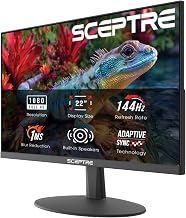
24-inch 1080p in portrait is the classic side screen. Turned vertical it gives you a tall column for chat, code, or a PDF, and it lines up well next to a 27-inch 1440p center monitor. Pixel density is about 92 PPI, which is fine at arm’s length but visibly softer if you drag windows across from a 1440p or 4K main.
27-inch 1440p is better if you keep the side screen in landscape for timelines, spreadsheets, or preview windows. You get much more usable width and text stays sharp. The trade-off is desk space. Two 27s side-by-side need about 48 inches with stands, or a sturdy dual-arm setup. A 27 in portrait is too tall for most people – you end up craning your neck to see the top.
Portable 15.6-inch and 17.3-inch USB-C screens work as a temporary side screen for laptops or cramped desks. They are easy to power from a laptop and store flat. They are not a replacement for a real second monitor at a desktop. They run dimmer, around 250-300 nits, wobble on their kickstands, and the built-in speakers and controls are usually poor. Good for travel and dorms, frustrating as a permanent setup.
| Setup | Best for | Strengths | Weaknesses |
|---|---|---|---|
| 24″ 1080p IPS, portrait | Chat, code, docs next to 27″ main | Cheap, light, easy to mount vertical, low power | Soft text vs 1440p main, narrow in landscape |
| 27″ 1440p IPS, landscape | Editing timelines, sheets, multitasking | Sharp text, lots of width, good color match to 27″ main | Needs large desk, needs solid arm for portrait |
| 15.6″ – 17.3″ portable USB-C | Laptop users, small desks | One-cable with laptop, portable, cheap | Dim, flimsy stand, extra power needed on desktop |
| 34″ ultrawide as main + 24″ side | Streamers, stock / sim setups | Center for game / timeline, side for chat / tools | GPU output and desk depth become issues |
Panel type: IPS is usually the right call
For side use, IPS wins because you view it off-center. Colors and gamma stay stable at 30-45 degrees. That matters when the monitor is angled toward you. Budget IPS panels still have IPS glow in dark rooms and contrast around 1000:1, so blacks look gray next to an OLED main. For Discord and browsers, that does not matter.
VA makes sense only if your side screen doubles as a media screen for movies in a dark room. You get 2500:1 to 3000:1 contrast and deeper blacks, but scrolling text smears on many budget VA panels due to slow dark transitions. If you do buy VA for the side, keep it in landscape and avoid the cheapest 165Hz+ VA office models, which often have the worst smearing.
OLED as a side screen is overkill for most people. It looks great next to an OLED main, but you pay for perfect blacks to display mostly static white windows. Static taskbars and chat windows also raise burn-in risk if you leave them up 8 hours a day. Unless you already own one, skip it. Put the money into matching size and height with your main instead.
Refresh rate: do you need to match your main?
No. Your side screen does not need to be 144Hz or 240Hz because your main is. Desktop use, video playback, and scrolling feel fine at 60Hz or 75Hz. Windows handles mixed refresh rates well now. You can run a 240Hz center and a 75Hz side without stutter on the main in most cases, as long as both use the GPU outputs and not one on integrated graphics with different color settings.
There are two exceptions. If you use the side screen for previewing high-refresh gameplay or for motion testing, get at least 120Hz so motion looks representative. And if you are sensitive to scrolling judder and constantly drag windows back and forth, a 100Hz 24 inch 100Hz IPS monitor is worth the extra 20 dollars over a 60Hz office model. Otherwise the cheaper 75Hz option is fine and often uses less power and produces less heat.
Do not chase 1ms response or HDR400 on a side screen. Most budget HDR400 does almost nothing except raise brightness and wash out colors. Turn HDR off on the secondary and calibrate SDR brightness to about 20-30% lower than your gaming monitor. That reduces the distraction of a bright white browser next to a dark game.
Mounting, color match, and cable checklist
Measure before you buy. A 24-inch portrait screen is about 20.5 inches tall with bezels. That often towers over a 27-inch landscape center. Use a pole mount with independent height adjustment or put the portrait screen slightly behind the main plane. Leave 2-3 inches of gap so heat vents are not blocked.
For color, set both monitors to the same white point, usually 6500K, and match gamma if available. Budget side screens often ship in a vivid mode that is too blue. Switch to sRGB or User mode, lower sharpness to 50-60, and turn off dynamic contrast. Perfect Delta E matching is not needed. You just don’t want one screen cream and the other blue-white.
Buy once: a VESA-compatible IPS panel, an HDMI and DisplayPort input, and a real power brick rather than USB-only power if it will stay on a desk. If you want a clean arm setup, look at a single monitor arm with portrait rotation rated for at least 2 lbs more than your panel. Cheap gas arms rated to 14 lbs often slip with a 9 lb 27-inch panel turned vertical because the center of gravity shifts outward.
FAQ
Should my side monitor be the same resolution as my main?
Not required, but scaling is easier if it is close. A 24-inch 1080p side next to a 27-inch 1440p main works well if you set Windows scaling to 100% on both. Mixing 4K and 1080p causes larger jumps when dragging windows.
Is a vertical side monitor bad for gaming monitors?
No performance penalty. Just connect both to the same GPU when possible, keep drivers current, and turn off hardware acceleration in the browser on the side screen if you notice stutter while gaming and watching video at the same time.
Can I use a TV as a side screen?
You can, but text is usually softer due to chroma subsampling and aggressive sharpening, and many TVs don’t support portrait mounting or wake reliably over HDMI. A cheap 24-inch desktop monitor is usually the better buy.
Why does my second monitor look yellow or blue next to my main?
Different factory white points and color presets. Set both to 6500K / sRGB, disable night light on one side only, and adjust RGB gain manually. If one still looks tinted at an angle, that is normal for VA and TN viewed off-center.