Key takeaways
- Table of Contents 7 sections 7 min read 1 How a Clip-On Rear Display Attaches 1.1 Adhesive or magnetic mounting plates 1.2 Clip or bracket systems 1.3 Sliding and swivel designs 2 Compatibility Checks Before Buying 2.1 Measure the lid,…
What's inside
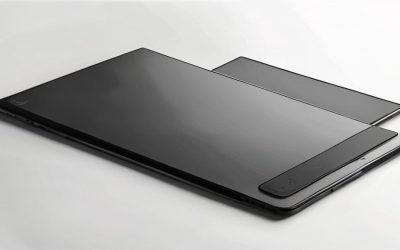
A dual screen laptop attachment clip on back adds a second monitor to the rear of your laptop lid using adhesive rails, magnetic plates, clamps, or a slide-on bracket. Before buying, check your laptop’s lid thickness, flat rear surface, screen size, weight limit, USB-C or USB-A ports, operating-system support, and hinge clearance. Most portable attachments are 12.5–16 inches, weigh roughly 1.5–2.5 lb, draw power through USB, and cost about $200–$500 depending on resolution, panel size, and whether the display can swivel or fold flat.
How a Clip-On Rear Display Attaches
A rear-mounted laptop screen normally sits behind the primary display when closed and slides, swings, or unfolds to the side when you need more workspace. The attachment hardware is usually one of four designs:
Adhesive or magnetic mounting plates
Thin plates attach to the laptop lid with removable adhesive or magnets. The monitor then hangs from a matching rail or magnetic interface. This is common on lightweight portable displays because it keeps the laptop profile slim. The downside is that adhesive strength depends on a clean, smooth lid and may be unreliable on fabric, rubberized, textured, or heavily curved surfaces.
Clip or bracket systems
A mechanical clip grips the top or side of the lid. This avoids permanent adhesive, but the bracket needs enough clearance and must not press against the laptop’s webcam, microphone, antennas, or hinge area. Clip-on systems are generally easier to move between computers, although they can be less secure during travel.
Sliding and swivel designs
Some secondary displays slide horizontally from behind the lid; others swing outward on a pivot. A swivel mechanism is useful when the second screen needs to face another person or rotate into portrait orientation. Sliding rails are usually more compact, but they require space beside the laptop and may not work well on a cramped desk.
Compatibility Checks Before Buying
Measure the lid, not just the screen
Measure the laptop lid’s width, height, thickness, and usable flat area. The advertised monitor size does not tell you whether its mounting rail will fit. A 14-inch laptop may accept a 14-inch attachment, while a narrow-bezel 13-inch model may not provide enough rear surface for the bracket. Check whether the mounting points overlap the manufacturer’s webcam housing or a raised logo.
Also measure the lid when fully open. A rear display can shift the center of gravity and cause the laptop to tilt backward. Convertible laptops, detachable keyboards, and very thin ultrabooks need particular caution because their lids may not be designed to carry an additional panel.
Check supported operating systems
Most USB portable displays use DisplayLink, USB-C DisplayPort Alt Mode, or a proprietary video connection. USB-C video is simplest when the laptop’s port supports DisplayPort Alt Mode; not every USB-C port carries video. A USB-C port used only for data and charging cannot directly drive a USB-C monitor.
DisplayLink models can work through USB-A or USB-C, but they require a driver on Windows or macOS. Linux and ChromeOS support varies by model and driver version. An attachment advertised as “plug and play” may still need software, and corporate laptops may block display drivers. Confirm support for your exact operating system before purchasing.
Confirm the power arrangement
Portable rear screens commonly receive video and power through one USB-C cable, while others require separate HDMI and USB power connections. A laptop with only one USB-C port may need a powered hub, and a hub can introduce bandwidth or charging limitations. If the laptop is battery-powered, expect the extra display to reduce runtime noticeably.
Weight, Stability, and Hinge Safety
Weight is more important than it first appears because the display creates leverage several inches behind the laptop hinge. A 2 lb monitor does not feel like 2 lb when extended sideways. The safest setup uses a stiff lid, a wide mounting rail, and a support foot or cable arrangement that keeps the secondary screen close to the laptop.
| Specification | Typical portable attachment | What to verify |
|---|---|---|
| Screen size | 12.5–16 inches | Panel width must fit the lid and carrying case |
| Resolution | 1,920 × 1,080 or 1,920 × 1,200 | Match scaling with the laptop’s primary screen |
| Refresh rate | 60 Hz, occasionally 75 Hz | Higher refresh rates may require more bandwidth |
| Weight | 1.5–2.5 lb, approximately 0.7–1.1 kg | Compare with the laptop lid and hinge strength |
| Power draw | Usually 5–15 W | Check whether one USB-C port can supply it |
| Connections | USB-C video, USB-A, HDMI, or DisplayLink | Confirm the laptop provides compatible video output |
| Typical price | About $200–$500 | Higher prices often add touch, swivel, or 2K resolution |
Before regular use, open the laptop slowly with the attachment installed. Look for lid flex, screen wobble, adhesive lifting, and pressure on the hinge. The monitor should remain stable when you type, but no clip-on design should be treated as indestructible. Remove the attachment before placing the laptop in a tight sleeve unless the manufacturer specifically supports transport while mounted.
Ports, Resolution, and Everyday Performance
For office work, a 1,920 × 1,080 panel at 60 Hz is usually sufficient and tends to use less power. A 1,920 × 1,200 panel offers extra vertical space, which helps with documents, chat windows, and coding. A 2K display can look sharper, but it may increase power demand and create scaling differences beside a 1080p laptop screen.
Gamers should check response time, variable-refresh support, and connection bandwidth rather than focusing only on resolution. Many attachment displays are designed for productivity, not competitive gaming. A 60 Hz portable panel is suitable for Discord, guides, monitoring software, or a browser window, but it is not equivalent to a 144 Hz gaming monitor.
Touch support can be useful for timelines, drawing, and quick controls, but Windows generally offers the most dependable touch integration. macOS can use a portable touch panel as a display, yet touch input may not operate like a native touchscreen without additional software. Built-in speakers are often small; use the laptop or a headset for gaming audio.
Real Product Types and Setup Advice
Products such as the SideTrak Solo, SideTrak Swivel, and Mobile Pixels Duex series illustrate the main categories: slide-out screens, pivoting displays, and removable panels that mount to the back of a laptop. Exact configurations vary by generation, so compare the current model’s dimensions, connection method, operating-system requirements, and weight rather than relying on the product family name.
For a permanent home-office setup, a sturdy 14- or 15.6-inch attachment with a rigid rail is usually the best balance. For frequent travel, choose the lightest panel that meets your resolution needs and use a separate sleeve with room for the display. If you regularly use multiple laptops, a removable magnetic or clip system is more practical than a heavily customized adhesive mount.
Install the mounting hardware on a clean, dry surface and allow adhesive to cure for the stated time before loading the monitor. Route cables toward the laptop’s hinge side without creating a tight bend. Keep at least one free USB port if you use a mouse, headset, controller, or external drive, and consider a powered USB-C hub for desk use.
FAQ
Will a dual screen laptop attachment fit any laptop?
No. Fit depends on the lid’s width, thickness, flat surface, hinge strength, and available ports. Measure the laptop before buying, and confirm whether the attachment supports your operating system and video connection. Thin, curved, rubberized, or detachable lids are more likely to need a special mounting method.
Does a rear-mounted screen drain the laptop battery quickly?
It can. A typical attachment draws about 5–15 W, with brightness and connection type affecting consumption. A single-cable USB-C model may be efficient, while a DisplayLink screen connected through a hub can add extra overhead. Lower brightness, a 60 Hz setting, and a wall-powered hub help during long sessions.
Bottom line
A dual screen laptop attachment clip on back is a practical way to add chat, documents, streaming controls, or game tools without carrying a separate monitor stand. The best choice is not simply the largest screen: prioritize a secure mounting system, manageable weight, compatible video ports, adequate power, and enough lid clearance. Measure first, verify the exact laptop and operating-system requirements, and test hinge stability before making the attachment part of your everyday gaming setup.