Key takeaways
- Confirm the resolution and refresh combination: Look for an explicit statement that the HDMI port supports 3840×2160 at 120Hz, not merely “HDMI 2.1.”
- Check the number of HDMI 2.1 ports: Two ports are useful if you connect both a PS5 and Xbox Series X.
- Look for 10-bit HDR support: This helps avoid banding in gradients, although the panel’s brightness and local dimming matter more to HDR quality.
- Verify the included cable: Use the console’s Ultra High Speed HDMI cable or another certified Ultra High Speed cable.
- Check audio routing: Many monitors have weak speakers or no speakers. A monitor with an audio output, HDMI eARC, or a compatible headset connection may be more convenient.
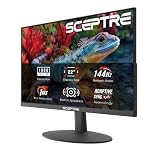
The best gaming monitors for PS5 and Xbox are 4K models with HDMI 2.1, 120Hz-or-higher refresh, and reliable VRR; for most players, a 27-inch or 32-inch 4K HDMI 2.1 monitor is the safest choice.
Quick picks by console and playing style
| Player situation | Best monitor class | Key specifications | Why it fits |
|---|---|---|---|
| PS5 or Xbox Series X in a desk setup | 27–32-inch 4K HDMI 2.1 monitor | 3840×2160, 120–160Hz, HDMI 2.1, VRR | Sharp image at close range and full access to 4K at 120Hz |
| Competitive shooters | 24–27-inch 1080p or 1440p high-refresh monitor | 120Hz or faster, low input lag, HDMI 2.0 or better | Smaller screen and lower resolution can make motion and aiming easier to follow |
| Xbox Series S | 27-inch 1440p monitor | 2560×1440, 120–165Hz, FreeSync or HDMI VRR | Matches the console’s typical output without paying for unused 4K capability |
| Single-player games and HDR | 32-inch 4K OLED or high-quality Mini-LED monitor | 4K, 120Hz or faster, HDMI 2.1, strong HDR | Higher contrast and a larger image make dark scenes and cinematic games more immersive |
| One monitor for console and PC | 4K 144Hz HDMI 2.1 monitor | HDMI 2.1 plus DisplayPort, VRR, USB hub or KVM if needed | Supports console 4K/120 and gives a PC more headroom for high frame rates |
What PS5 and Xbox Series consoles actually need
Both the PlayStation 5 and Xbox Series X can output up to 4K at 120Hz in supported games. Xbox Series S is designed primarily for 1440p gaming, although some games and displays can use other output resolutions. A monitor rated at 240Hz does not make a console run at 240 frames per second: PS5 and Xbox consoles top out at 120Hz.
That makes HDMI 2.1 important when you want 4K at 120Hz. HDMI 2.0 can generally handle 4K at 60Hz, or 1440p at 120Hz, but it does not provide the full 4K/120 combination that many PS5 and Xbox Series X owners want. Check the specification carefully, because some monitors advertise HDMI 2.1 while limiting the port to a lower bandwidth.
How much bandwidth does 4K/120 require?
A useful estimate is:
3840 × 2160 × 120 × 24 bits per pixel = about 23.9 gigabits per second
That figure is the active image data before timing overhead, so an uncompressed 4K/120 signal needs more than 24Gbps in practice. HDMI 2.1’s 48Gbps specification provides comfortable room for 4K/120 with HDR and 10-bit color. Display Stream Compression can also reduce the required link rate, but console compatibility and monitor implementation vary, so native HDMI 2.1 is the least complicated route.
HDMI 2.1: what to check beyond the label
- Confirm the resolution and refresh combination: Look for an explicit statement that the HDMI port supports 3840×2160 at 120Hz, not merely “HDMI 2.1.”
- Check the number of HDMI 2.1 ports: Two ports are useful if you connect both a PS5 and Xbox Series X.
- Look for 10-bit HDR support: This helps avoid banding in gradients, although the panel’s brightness and local dimming matter more to HDR quality.
- Verify the included cable: Use the console’s Ultra High Speed HDMI cable or another certified Ultra High Speed cable.
- Check audio routing: Many monitors have weak speakers or no speakers. A monitor with an audio output, HDMI eARC, or a compatible headset connection may be more convenient.
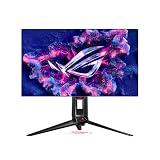
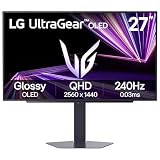
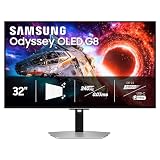
Models such as the LG 27GR93U-B, Gigabyte M32U, Sony INZONE M9 II, Samsung Odyssey OLED G8 G80SD, and ASUS ROG Swift OLED PG32UCDM represent useful examples of the 4K high-refresh category. Their panel types, HDR performance, connectivity, and pricing differ, so compare the exact regional model rather than relying only on the product family name.
Resolution and screen size: choose together
27-inch 4K
A 27-inch 4K monitor has a very dense image, with approximately 163 pixels per inch. Text, interface elements, and fine details look crisp at a desk distance. It is a strong choice for PS5 or Xbox Series X when you sit roughly 60–90 centimetres from the screen. The trade-off is that menus and subtitles may appear small unless the game provides suitable scaling.
32-inch 4K
A 32-inch 4K display is approximately 138 pixels per inch. It remains sharp but makes game worlds, subtitles, and HUD elements easier to see. It is usually the better size for a desk that is deeper than average or for players who sit farther away. A 32-inch OLED can be particularly effective for dark-room gaming, although OLED burn-in precautions and price should be considered.
27-inch 1440p
At about 109 pixels per inch, 1440p is a sensible middle ground. It is sharp enough for a normal desk and easier for a console to drive at 120Hz. It is especially attractive for Xbox Series S or for competitive games where 120Hz matters more than maximum resolution. PS5 supports 1440p output, but you should run the console’s “Test 1440p Output” option after connecting the monitor.
24-inch 1080p
1080p is the budget and esports option. At 24 inches, it looks reasonably sharp from a desk, and monitors in this class are often inexpensive. It is not the best match for a Series X if you want to see its 4K detail, but it can be a practical choice for Fortnite, Call of Duty, Rocket League, and similar games.
Refresh rate and VRR compatibility
For console gaming, 120Hz is the important threshold. It allows supported games to present at 120 frames per second and makes 40-fps quality modes look smoother than they do on a 60Hz display. A 144Hz, 160Hz, or 240Hz monitor is fine, but the extra refresh capacity mainly benefits a connected PC.
Variable refresh rate synchronizes the monitor’s refresh timing with the console’s frame output. This reduces tearing and can make uneven frame rates feel smoother. On PS5, look for HDMI VRR support and a stated compatible range that includes 48–120Hz. On Xbox, look for HDMI VRR or AMD FreeSync support, but do not assume a DisplayPort-only FreeSync feature works through HDMI.
VRR cannot create extra frames. If a game is rendering at 45 frames per second, VRR can make that output cleaner, but it does not turn it into 60 or 120 frames per second. It is most useful when a game fluctuates around a target such as 60 or 120fps.
OLED, IPS, VA, and Mini-LED
- OLED: Near-perfect blacks, very fast pixel response, and excellent motion clarity. It is usually the strongest choice for dark-room gaming, but costs more and requires sensible care with static HUDs.
- IPS: Consistent colors and wide viewing angles. IPS monitors are common in 4K/144Hz HDMI 2.1 models and are a balanced choice for mixed gaming.
- VA: Higher native contrast than IPS and often good value. Check reviews or specifications for dark-level smearing, which can affect fast movement in dark scenes.
- Mini-LED: Uses many dimming zones for brighter, more impactful HDR than ordinary edge-lit LCDs. Blooming around bright objects can still occur, and performance depends heavily on the implementation.
Do not judge HDR from the “HDR” label alone. For convincing HDR, prioritize high sustained brightness, local dimming or OLED-level contrast, a wide color gamut, and accurate HDR behavior. A bright 4K IPS monitor without local dimming may still look less dynamic than a dimmer OLED.
Recommended console setup settings
- Connect the console directly to the monitor’s fastest HDMI port. This avoids an older switch, receiver, or soundbar limiting the signal to 4K/60.
- Use the console’s automatic resolution and 120Hz settings first. On PS5, enable 120Hz Output and VRR where available. On Xbox, open TV and display options and confirm 4K UHD, Allow 120Hz, and VRR.
- Run the console’s signal test. Confirm that 4K, HDR, and 120Hz are reported as supported. If 120Hz disappears, test the included cable and another HDMI port.
- Set the monitor’s response-time mode to its middle or recommended setting. The fastest overdrive mode can create bright inverse ghost trails, especially when frame rates vary.
- Enable the monitor’s gaming or HDMI 2.1 mode. Some models disable full bandwidth, HDR, or VRR until a particular input mode is selected.
- Calibrate HDR from the console. Adjust until the brightest logo or symbol is barely visible rather than pushing every slider to maximum. This preserves highlight detail.
Which monitor should you buy?
Choose a 27-inch 4K HDMI 2.1 monitor if you sit close and want the sharpest desktop image. Choose a 32-inch 4K HDMI 2.1 monitor if you want a more cinematic view or sit farther away. Choose a 27-inch 1440p 120Hz monitor for Xbox Series S, a lower budget, or a competitive setup where smoothness has priority. Choose an OLED or Mini-LED model when HDR contrast and dark-scene quality justify a typical market price of roughly $600–$1,300, while mainstream 4K HDMI 2.1 LCD monitors often fall around $400–$800.
The best all-round specification for a PS5 or Xbox Series X is 4K resolution, 120Hz or higher, HDMI 2.1 with confirmed 4K/120 support, HDMI VRR, and a 27–32-inch screen. Everything beyond that—OLED, Mini-LED, USB-C, KVM, extra refresh rate, and premium HDR—should be chosen according to your room, other devices, and budget.