Key takeaways
- Learn how to pick the best beginner webcams for calls, classes and streaming, with simple setup tips, lighting advice and mistakes to avoid before you buy.
As an Amazon Associate we earn from qualifying purchases.
A first webcam should solve one simple problem: making you look and sound clear on video without turning your desk into a studio. The real decision is not which camera has the longest spec sheet, but which one matches the calls you actually make, the light in your room, and the computer you already own. Spend a little time on those three points first, and the choice becomes much narrower.
This guide is written for remote workers joining daily meetings, students attending online classes, new streamers setting up a first face camera, and anyone replacing a grainy built-in laptop camera. Each section explains how to read the details on a product page, from resolution and frame rate to focus, field of view, and microphone layout, so you can compare cameras on facts rather than packaging promises and pick a webcam that fits your desk, your lighting, and your routine.
How to Choose
A webcam is a small set of trade-offs, and the right balance depends on where you sit, how you move, and what your callers need to see. Work through the four points below in order, and write down what matters most to you before you compare any two cameras side by side, because a feature that looks impressive in a listing may add nothing to a plain video call from a fixed chair.
Resolution and Frame Rate
Resolution decides how much detail your picture holds, and Full HD at 1080p is the sensible baseline for a first webcam, because it looks sharp on the screens most people use for calls, while higher resolutions demand more bandwidth and processing power for a gain your callers may never notice. Frame rate decides how smooth motion looks: 30 frames per second is enough for talking heads, note-taking, and screen sharing, while 60 frames per second earns its place when you gesture often, demonstrate objects with your hands, or record footage you plan to edit. Check the listing carefully, because some cameras reach their top resolution only at a lower frame rate.
Focus, Field of View and Framing
Focus decides whether your face stays sharp when you lean in or sit back. Autofocus suits anyone who moves in their chair, reaches for notes, or holds objects up to the lens, while fixed focus suits a caller who sits at one steady distance and rarely shifts position. Field of view decides how much of the room appears beside you: a narrower angle near 65 degrees keeps the frame on one person and hides a messy shelf, while a wider angle near 90 degrees fits two people sharing a desk or a teacher moving across a whiteboard. Before you buy, picture your seat and choose framing that centres you without pulling the whole room into view.
Low Light and Colour Handling
Most first webcams are used in ordinary rooms, not studios, so low-light handling often matters more than headline resolution: a sensor that copes with a ceiling lamp or a cloudy window keeps your face visible, while a sharper sensor that needs bright light leaves you grainy or washed out. Look for automatic light correction in the listing, and check how the camera handles backlight from a window behind you, since that is the most common reason a face turns into a silhouette. Colour matters too: skin tones should look natural rather than orange or grey. If your room is dark, a desk lamp behind your screen will do more for your picture than any camera upgrade.
Microphone, Mounting and Connection
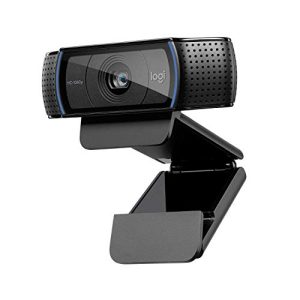
A webcam’s built-in microphone decides whether callers hear you clearly with no headset nearby, so check whether the listing describes one microphone or a pair, and whether it mentions noise reduction. Mounting decides where the camera can sit: a folding clip fits the top of a monitor or laptop lid, a tripod thread opens up desk tripods and arms, and a wide base keeps the camera level on a shelf. Connection is the last check: confirm the cable ends in a port your computer has, whether USB-A or USB-C, and confirm the camera lists your operating system, because a camera that needs an adapter you do not own will frustrate you on the first morning you need it.
Which One Fits Your Situation
No single webcam suits every desk, so match the camera to the way you will use it most often. The four situations below cover the callers this guide is written for, and each one points to a different set of priorities, so start with the situation that sounds most like your week and let the rest of the guide fill in the details.
Daily Video Calls from a Home Desk
If your day is a run of meetings from one chair, put autofocus, a steady 1080p picture, and a clear microphone at the top of your list, because those three things decide how you come across hour after hour. A privacy shutter covers the lens between calls without unplugging anything. Keep the field of view narrow, place a lamp behind your screen, and sit at a steady distance so the focus has no reason to hunt.
Online Classes and Study Groups
If you join lessons, tutorials, or study groups, look for a camera that starts quickly, works with your class software, and keeps your voice clear when you read aloud or answer questions. A wide field of view helps when you show a notebook on your desk, and a flexible mount helps when you switch between a laptop and a monitor. Test the camera with your class app before the first lesson, and keep a headset nearby for noisy days.
A First Streaming or Recording Setup
If you are setting up a first stream or recording videos, smooth motion matters more than on a plain call, so a camera that holds 1080p at 60 frames per second is worth the step up when you gesture or switch between your face and your screen. Pair it with a mount that holds the lens at eye level, because a low angle distracts in every frame. Record a test clip first, and check focus, framing, and sound together.
A Shared Room or a Small Desk
If you share a room or work from a small desk, choose a narrow field of view and a microphone that favours the voice in front of it, so housemates and clutter stay out of the frame and the audio. A compact camera with a folding clip is easy to put away. A privacy shutter helps when people walk through the room. Sit close enough that your face fills much of the frame.
Common Mistakes
First-time buyers usually go wrong in the same few ways, and most of those mistakes are easy to avoid once you know what to watch for. Read through the list below before you settle on a camera, and check each point against your own desk, your own room, and the way you actually spend your time on video.
- Chasing the highest resolution on the listing. A camera that advertises a very high resolution can still look poor in a dim room, because the sensor, the lens, and the light correction do more work than the pixel count alone. A steady 1080p picture with good low-light handling will look better on most calls than a higher-resolution picture that turns grainy the moment the sun goes down, so judge a camera on the whole picture it produces in your room, not on the biggest number printed on the box.
- Ignoring the light in your own room. Many buyers blame the camera when the real problem is a window behind their head or a single bulb above them, and no autofocus or resolution figure can fix a face that is lit from behind. Before you spend anything, sit where you normally sit, join a test call with a friend, and look at how your face appears on screen, because a lamp placed behind your monitor or a curtain drawn across a bright window can transform a picture that seemed beyond saving.
- Forgetting to check the cable and the port. A camera is useless on the morning you need it if its cable ends in a plug your laptop does not have, and adapters bought in a hurry are easy to lose and easy to get wrong. Look at the ports on your own computer, read the listing for the connector type and the cable length, and make sure the camera reaches from its mount to your computer without pulling tight across your desk or hanging in mid-air.
- Sitting too far away or too low. Even a good camera looks bad when it films you from a low shelf or from the far end of a long desk, because the angle stretches your face, the focus has more room to drift, and the microphone picks up more of the room than of you. Mount the camera at eye level, sit about an arm’s length away, and frame yourself from the chest up, so your callers see your face clearly and your voice reaches the microphone without echo.
- Skipping a real test before the first important call. A camera that works in a shop listing can still clash with your meeting software, your operating system, or a headset you already own, and discovering that clash five minutes before a job interview or an exam is a miserable way to learn it. Set the camera up the day it arrives, join a test meeting, record a short clip, play it back, and check the picture, the sound, and the framing together, so any fix is a calm adjustment rather than a panicked scramble.
Frequently Asked Questions
These are the questions first-time buyers ask most often, and the answers below give you a short, practical starting point for each one. If your situation sits between two answers, pick the option that matches the calls you make most often, because the camera you use every day matters more than the one that covers a rare exception.
What resolution should a first webcam have?
Full HD at 1080p is the right starting point for most first-time buyers, because it looks sharp on the screens used for everyday calls and classes without demanding unusual bandwidth or processing power. A higher resolution only earns its place when you record or stream regularly and your computer and connection can carry it, so start at 1080p and spend the difference on lighting or a better mount.
Do I need a webcam with autofocus?
Autofocus is worth having when you move in your chair, lean in to read, or hold objects up to the lens, because it keeps your face sharp through those shifts without action from you. Fixed focus is fine when you sit at one steady distance for every call, so think about how much you move during a meeting before you decide whether autofocus deserves a place on your list.
Is 60 frames per second worth it for a beginner?
Sixty frames per second is worth it when you gesture often, demonstrate things with your hands, or record footage you plan to edit, because smoother motion makes those moments easier to follow. For ordinary talking-head calls, classes, and meetings, 30 frames per second is enough, and a camera that pairs 30 frames per second with good low-light handling will serve most beginners better.
Can I use a webcam with a laptop that has no USB-A port?
Yes, you can, but you need to plan the connection before you buy, because many webcams still ship with a USB-A cable and newer laptops may only have USB-C ports. Check the listing for the connector type, confirm your laptop’s ports, and arrange a suitable adapter or hub in advance, then test the whole chain with your meeting software so the first real call runs without surprises.
FAQ
What resolution should a first webcam have?
Do I need a webcam with autofocus?
Is 60 frames per second worth it for a beginner?
Can I use a webcam with a laptop that has no USB-A port?
More from Amazon
Programs that pair well with the guide above. Offers and eligibility are set by Amazon and may change.
Free shipping on eligible items, Prime Video and more. Eligible new members can start with a free trial.
Start a Prime free trialAd-free music streaming. Eligible new subscribers can start with a free trial.
Try Music Unlimited freeA Prime membership for ages 18-24 with a trial period. Eligibility is set by Amazon.
See Prime for Young AdultsAudiobooks and podcasts to listen to on the go. Eligible new members can start with a free trial.
Try Audible freeAs an Amazon Associate we earn from qualifying purchases.