Key takeaways
- HDMI 2.1 matters for gaming because it carries enough bandwidth for 4K at 120Hz and adds features such as variable refresh rate and auto low latency.
HDMI 2.1 matters for gaming because it carries enough bandwidth for 4K at 120Hz and adds features such as variable refresh rate and auto low latency mode, while HDMI 2.0 tops out at 4K at 60Hz. If you play on a current console or a high-end PC with a TV or monitor that supports those features, 2.1 is worth having; if you play at 1080p or 4K at 60Hz, HDMI 2.0 is still perfectly capable.
The confusion comes from the fact that the version number belongs to a port, not to a cable or a screen, and every part of the chain has to support it. This guide explains what changes between the two standards, which features actually help in games, how to check that your setup is wired for 2.1, and when upgrading is a waste of effort. It reflects the standards as they stand in 2026.
What Actually Changes Between the Versions
HDMI 2.0 provides up to 18 Gbps of bandwidth, which is enough for 4K at 60Hz with HDR. HDMI 2.1 raises that to 48 Gbps, which makes room for 4K at 120Hz, 8K at lower refresh rates and a set of gaming-oriented features. Bandwidth is the headline, but the extra features often matter more day to day.
The most useful gaming additions are variable refresh rate, which reduces tearing when frame rates fluctuate, and auto low latency mode, which tells a compatible display to switch into its low-lag setting automatically. Enhanced audio return channel support also belongs to the 2.1 era and helps when you send lossless sound to a soundbar or receiver.
How Each Standard Behaves in Real Setups
4K at 60Hz and 1080p Gaming
If this is how you play, HDMI 2.0 does the job. Most older consoles, many monitors and plenty of TVs sit here, and a good high-speed cable is enough. There is no reason to replace a working setup only to chase a version number.
4K at 120Hz Gaming
This is where 2.1 earns its place. Current consoles and many PC graphics cards can output 4K at 120Hz in supported games, but only if the console, cable and display all support it. A single 2.0 link in the chain drops you back to 60Hz, even if everything else is capable.
Variable Refresh Rate and Low Latency
These features smooth out uneven frame rates and cut input lag. Some displays offer them through different techniques on lower-bandwidth ports, so look at the display’s own specifications instead of assuming that a 2.0 port lacks them.
Audio Setups With a Receiver or Soundbar
If you route sound through a receiver or soundbar, check that its ports match the version your display uses, because a 2.0 receiver in the middle can limit the video signal passing through it. Connecting the console directly to the display and sending audio back through the audio return channel can avoid the problem.
One more point of confusion is naming. Some displays advertise features from the 2.1 specification without supporting the full bandwidth, and manufacturers can label ports in ways that are easy to misread. For that reason, treat the stated refresh rate and resolution for a specific port as the real answer, not the version number alone. If a listing says 4K at 120Hz on that port, you have what you need.
Quick Comparison
| Feature | HDMI 2.0 | HDMI 2.1 |
|---|---|---|
| Bandwidth | Up to 18 Gbps | Up to 48 Gbps |
| 4K at 60Hz | Supported | Supported |
| 4K at 120Hz | Not supported | Supported |
| Variable refresh rate | Limited, depends on display | Built into the standard |
| Auto low latency mode | Not part of the standard | Included |
| Cable needed | High speed | Ultra high speed, 48 Gbps certified |
| Typical use | Older consoles, standard monitors | Current consoles, newer TVs, high-end PCs |
Before You Upgrade Checklist
- Check the port labels or the manual on your TV or monitor to see which HDMI ports support 2.1.
- Confirm that your console or graphics card outputs 4K at 120Hz in the games you play.
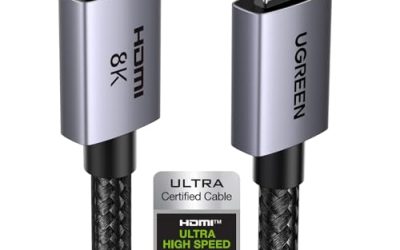
- Use a cable labeled ultra high speed or certified for 48 Gbps when you need 2.1 features.
- Check any receiver or soundbar in the chain for matching HDMI support.
- Enable the relevant settings in the console or display menu, because some features are off by default.
- Try a game that supports 120Hz to confirm that the display reports the expected mode.
Cables, Ports and Common Pitfalls
Many TVs offer only one or two HDMI 2.1 ports and label the rest as 2.0, so plug your console into the right one. Cables are another weak point: an older high-speed cable can carry 4K at 60Hz but may fail at higher bandwidth, which shows up as a black screen, sparkles or a fallback to a lower mode. Look for a certified ultra high speed label rather than relying on a package claim.
Length matters too. Longer cables are harder to build for high bandwidth, so keep runs as short as practical or use a certified option designed for the distance. If you hide cables inside a wall, verify them with a real signal before closing it up.
Features Worth Caring About, and Ones Worth Ignoring
Several features arrive with the 2.1 label, and they are not equally useful. Variable refresh rate, auto low latency mode and 4K at 120Hz are the ones that change how a game feels. Dynamic HDR and quick media switching are pleasant extras for movies and menus, but they rarely change how games play.
Eight-K support gets plenty of attention, yet very few games render at that resolution, and the screens that show it are large and costly. For nearly all players, the practical benefit of 2.1 is smoother 4K play at a high frame rate, not a jump in pixel count. If you cannot name a game you play that runs at 120 frames per second, you can safely skip the upgrade for now.
Console and PC Considerations
Consoles are the simplest case: the console either outputs a 120Hz mode in a given game or it does not, and the settings menu usually reports what your display accepts. PCs add a second layer, because the graphics card, the cable and the display driver all affect which modes appear. If an expected option is missing from the display settings, swap in a certified cable and check the port on the card before blaming the monitor.
It is also worth knowing that a display can offer features such as variable refresh rate through other standards on some ports. When in doubt, the display manual is the authority on which port supports what.
A sensible way to decide is to write down your current chain from console to screen, note the version at each step and then ask what you would gain by changing the weakest link. If the answer is a smoother picture in games you already play, the upgrade is justified. If the answer is a bigger number on a box, it can wait for the next time you replace your display or console.
Common Mistakes
- Assuming any HDMI cable supports 4K at 120Hz.
- Plugging the console into a 2.0 port on a TV that also has 2.1 ports.
- Forgetting to switch on 120Hz or variable refresh rate in the settings menus.
- Buying a new TV for 2.1 while playing only 60Hz games.
- Ignoring a receiver that quietly limits the video signal.
Related guides
- Hall Effect Vs Potentiometer Controller Sticks Explained
- Low Profile Cpu Coolers For Small Form Factor Pcs
- How To Transfer Nintendo Switch Data To A New Console
Frequently Asked Questions
Do I need HDMI 2.1 for 4K gaming?
Not for 4K at 60Hz, which HDMI 2.0 handles. You need 2.1 for 4K at 120Hz and for the full set of gaming-focused features.
Will an HDMI 2.1 cable improve a 2.0 setup?
No. The cable carries what the ports allow, so a 2.1 cable plugged into a 2.0 console and display behaves like a 2.0 link.
Is HDMI 2.1 worth it for a PC monitor?
It helps if your graphics card and monitor both support high refresh rates at 4K. For lower resolutions, DisplayPort often covers the same ground.
How can I tell if my TV has HDMI 2.1?
Look at the port labels, the specification sheet or the manual. If the documentation lists 4K at 120Hz on a specific port, that port supports the 2.1 bandwidth.
FAQ
Do I need HDMI 2.1 for 4K gaming?
Will an HDMI 2.1 cable improve a 2.0 setup?
Is HDMI 2.1 worth it for a PC monitor?
How can I tell if my TV has HDMI 2.1?
More from Amazon
Programs that pair well with the guide above. Offers and eligibility are set by Amazon and may change.
Free shipping on eligible items, Prime Video and more. Eligible new members can start with a free trial.
Start a Prime free trialAd-free music streaming. Eligible new subscribers can start with a free trial.
Try Music Unlimited freeA Prime membership for ages 18-24 with a trial period. Eligibility is set by Amazon.
See Prime for Young AdultsAudiobooks and podcasts to listen to on the go. Eligible new members can start with a free trial.
Try Audible freeAs an Amazon Associate we earn from qualifying purchases.