Key takeaways
- You can connect a PS5 controller to a PC in two ways: plug it in with a USB-C data cable for an instant wired link.
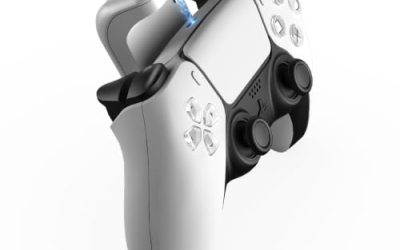
You can connect a PS5 controller to a PC in two ways: plug it in with a USB-C data cable for an instant wired link, or pair it over Bluetooth by holding the Create and PS buttons until the light bar flashes. Either route works on a modern Windows machine in a couple of minutes, and the cable method is the easiest fallback if wireless pairing misbehaves.
The real questions come after the first connection: whether your games recognize the pad, whether the buttons show up as PlayStation prompts or Xbox ones, and how to keep the connection stable. This guide walks through both methods and the settings that usually decide whether a controller feels right on PC.
Before You Start: Quick Checklist
- Confirm your PC runs a current version of Windows with working Bluetooth, or have a USB-C cable that carries data, not only power.
- Charge the controller at least partially so it does not shut off mid-pairing.
- Close other apps that might already grab the controller, such as a streaming tool or a console remote-play app.
- Decide where you will play: a launcher with built-in controller support, a store client, or a non-store game that expects an Xbox-style pad.
- Keep the Bluetooth adapter driver up to date if you use a USB dongle.
Connection Methods at a Glance
| Method | What you need | Strength | Trade-off |
|---|---|---|---|
| USB-C cable | Data-capable cable and a free port | Simple, low latency, charges while playing | Cable length limits seating position |
| Bluetooth | Built-in or dongle Bluetooth adapter | Wireless freedom, no clutter | Pairing can be finicky and drains the battery |
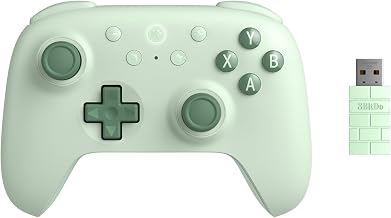
| Wireless adapter from the console maker | Compatible adapter | Dedicated link, good for audio features | Extra hardware to buy and keep track of |
Connecting With a USB Cable
Plug in the controller
Use a cable that supports data transfer. Charge-only cables are common and cause the most “it will not connect” reports. Plug the USB-C end into the controller and the other end into a PC port, preferably one on the rear of a desktop for a stable connection.
Let Windows detect it
Windows normally recognizes the pad as a generic gamepad within a few seconds. Open the game controller settings panel and press buttons to confirm that input registers. If nothing appears, try another port or cable before assuming a software problem.
Launch your game
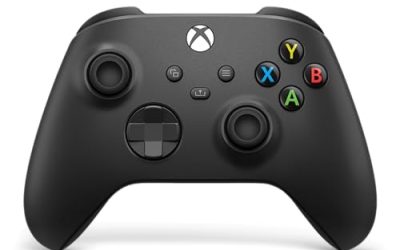
Many games read the pad directly and show PlayStation button glyphs. Others expect an Xbox-style pad, which is where the settings in the next sections come in.
Connecting Over Bluetooth
Put the controller in pairing mode
With the controller powered off, hold the Create button (the small one on the left of the touchpad) and the PS button together. The light bar should begin a rapid double flash, which signals that it is discoverable.
Pair from Windows
Open Bluetooth and devices in Settings, choose to add a device, select Bluetooth, and pick the controller when it appears under the wireless controller name. When the status changes to connected, the light bar turns solid.
Reconnect later
After the first pairing, pressing the PS button usually reconnects it automatically. If it fails, remove the device in Windows and repeat the pairing process; stale pairing data is a frequent cause of dropouts.
Getting Games to Recognize It
PC games fall into three groups: titles with native support for the PlayStation pad, titles built around Xbox-style input, and older titles that only understand keyboard and mouse. Native titles work out of the box. For the rest, a store client with controller configuration can translate the pad into whatever the game expects, and many launchers let you add non-store games so the same translation applies.
Look for the controller options in your launcher’s settings and enable PlayStation controller support. Once enabled, you can adjust button layout, dead zones, and sensitivity per game. If two input tools are active at once, they may fight each other and create double inputs, so run only one translation layer at a time.
If you want extra features such as adaptive triggers or haptic feedback, check each game’s settings. Support depends on the title and the connection type, so treat these as optional bonuses rather than guarantees. In 2026, more PC releases include them, but you should still read the options menu to confirm.
Fixing Common Problems
The controller connects but buttons do nothing
This usually means the game expects an Xbox-style pad. Enable controller support in your launcher or use a translation layer that presents the pad as a generic gamepad.
Bluetooth drops out during play
Move the receiver closer, plug it into a front port with a short extension, and avoid crowded wireless environments. Updating Bluetooth drivers helps, and switching to the cable removes the issue entirely.
The pad vibrates or moves the cursor strangely
Overlapping input tools can send mixed signals. Close background controller utilities, restart the game, and test with one tool at a time.
Pairing keeps failing
Delete the old pairing from Windows, reset the controller using the small reset hole on the back as the manufacturer describes, and try again. If it still fails, test with a different cable or Bluetooth adapter.
Tips for Better Everyday Use
- Keep a short data cable at your desk as a permanent backup.
- Turn off the controller when you finish; it will not sleep as reliably if it stays connected to a sleeping PC.
- Remember that battery life is shorter over Bluetooth with the light bar and haptics enabled.
- Name the controller in your launcher so profiles are easy to find.
Audio, Battery, and Latency Details
Headset and speaker behavior
The controller has a headset jack and a built-in speaker and microphone, but how these work on PC depends on the connection and the game. Wired use tends to expose more features, while some titles ignore the pad’s audio entirely. If sound does not come through the controller, check the Windows sound settings and confirm the default output device has not changed.
Battery management
Bluetooth sessions with the light bar and haptics enabled drain the battery faster than wired play. If you play for hours, keep the cable connected and treat wireless as the casual option. Charging overnight through a powered port keeps the pad ready, and unplugging it from a laptop that sleeps prevents slow discharge.
Input delay
Wired connections generally feel the most responsive. Bluetooth is fine for most single-player games, but fast competitive titles may reveal small delays if the adapter is poor or the environment is crowded with wireless signals. If a game feels sluggish, test the cable first before changing graphics settings.
Firmware and drivers
Keep Windows and your Bluetooth driver current. Firmware updates for the controller itself are typically delivered through console or official update tools, so if the pad behaves oddly after a long time without updates, connecting it to its console or using a maker-provided updater may help. Do not rely on random downloads claiming to update the controller; use official sources only.
Choosing the Right Setup for How You Play
If you sit at a desk, plug in a short cable and forget about batteries. If you play from a couch, use Bluetooth and keep the cable nearby for charging. Players who switch between a console and the PC should expect to re-pair the controller when they move it, so a dedicated pad for the computer saves repeated setup.
Related guides
- Hall Effect Vs Potentiometer Controller Sticks Explained
- How To Fix Stick Drift On Xbox And Ps5 Controllers
- Mirrorless Cameras For Landscape Photography
Frequently Asked Questions
Do I need a special adapter to connect a PS5 controller to a PC?
No. A USB-C data cable works with no extra hardware, and Bluetooth works if your PC has a Bluetooth adapter. A dedicated wireless adapter is optional.
Why does my PC not detect the controller over USB?
The most likely cause is a charge-only cable. Swap in a cable known to carry data, try a different port, and confirm the controller has some charge.
Can I use the controller on games that only support Xbox pads?
Often yes. A launcher’s controller settings or an input-translation tool can make the pad appear as a standard gamepad. Run just one such tool at a time.
Will adaptive triggers and haptics work on PC?
Only in games that support them, and results depend on the connection type. Check the in-game controller options to see what is available for each title.
FAQ
Do I need a special adapter to connect a PS5 controller to a PC?
Why does my PC not detect the controller over USB?
Can I use the controller on games that only support Xbox pads?
Will adaptive triggers and haptics work on PC?
More from Amazon
Programs that pair well with the guide above. Offers and eligibility are set by Amazon and may change.
Free shipping on eligible items, Prime Video and more. Eligible new members can start with a free trial.
Start a Prime free trialAd-free music streaming. Eligible new subscribers can start with a free trial.
Try Music Unlimited freeA Prime membership for ages 18-24 with a trial period. Eligibility is set by Amazon.
See Prime for Young AdultsAudiobooks and podcasts to listen to on the go. Eligible new members can start with a free trial.
Try Audible freeAs an Amazon Associate we earn from qualifying purchases.