Key takeaways
- Works in the dark. The camera supplies its own IR light, so room lighting barely matters.
- Resists photos and screens. A printed photo or phone screen does not reflect IR like skin does.
- Consistent appearance. IR images are less affected by makeup, color casts and lamp temperature.
What's inside
The best webcam for Windows Hello is one with a dedicated infrared (IR) sensor and IR emitters, and the long-running Logitech Brio 4K (the original Brio, including its Stream Edition) is still the most widely available external option, while several monitors with built-in IR cameras cover the same job without a separate device. An ordinary webcam, no matter how sharp, cannot do Windows Hello face sign-in, because Windows requires infrared depth-like imaging to block photo spoofing.
Why Windows Hello Needs an IR Camera
Windows Hello Face does not use the color image you see on a video call. It uses near-infrared light, around 850 nm, which the camera projects onto your face with small LEDs and then reads with an IR-sensitive sensor. That gives Windows three advantages:

Logitech Brio Ultra 4K HD Webcam for Streaming and Meetings - Black
Included for 'Best Webcam for Windows Hello: IR Cameras That Unlock Your PC' because the listing specifies Black, details this guide uses to compare options.
View on Amazon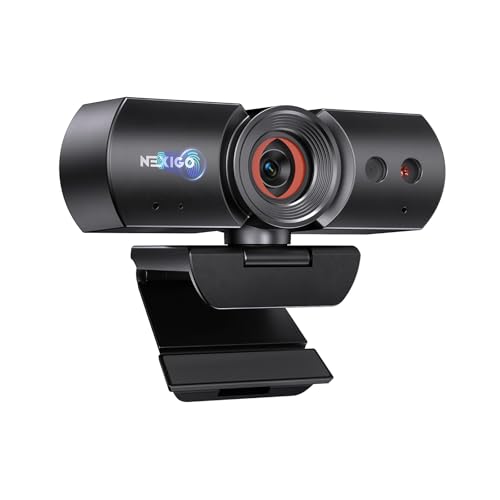
NexiGo HelloCam, 1080P Webcam with Windows Hello, True Privacy, Automatic Electronic Shutter, Computer Camera, Microphone, Facial Enhancement, HD USB Web Cam
Included for 'Best Webcam for Windows Hello: IR Cameras That Unlock Your PC' because the listing specifies 1080P Webcam with Windows Hello and True Privacy, details this guide uses to compare options.
View on Amazon
Lenovo Performance FHD 1080p Webcam USB-C,Log-on with Windows Hello, Dual Microphones, 95 Degree Lens and 4X Digital Zoom, Sliding Privacy Shutter, Black
Included for 'Best Webcam for Windows Hello: IR Cameras That Unlock Your PC' because the listing specifies Log-on with Windows Hello and Dual Microphones, details this guide uses to compare options.
View on Amazon
Lenovo HD 1080p Webcam (510 FHD)- Black w/ 4X Digital Zoom, 95° Wide Angle, 360° Rotation Pan & Tilt, Dual Microphones & Windows Hello
Included for 'Best Webcam for Windows Hello: IR Cameras That Unlock Your PC' because the listing specifies 95° Wide Angle and 360° Rotation Pan & Tilt, details this guide uses to compare options.
View on Amazon- Works in the dark. The camera supplies its own IR light, so room lighting barely matters.
- Resists photos and screens. A printed photo or phone screen does not reflect IR like skin does.
- Consistent appearance. IR images are less affected by makeup, color casts and lamp temperature.
That is why many popular newer webcams, including the Logitech MX Brio, Brio 500 and the Elgato Facecam line, do not support Windows Hello: they have no IR sensor. If a product listing does not explicitly say “Windows Hello” and mention IR, assume it does not work.
Windows Hello Camera Options
| Option | Video (RGB) | IR face sign-in | Connection | Typical price | Notes |
|---|---|---|---|---|---|
| Logitech Brio 4K (original Brio / Stream Edition) | 4K30, 1080p60, 65/78/90° FOV | Yes | USB-C cable to USB-A/C | $130–$200 | Also a strong regular webcam; HDR and autofocus |
| Monitor with built-in IR pop-up camera (e.g., Dell video-conferencing monitors) | Usually 1080p or 5MP | Yes, on models that list it | Upstream USB or USB-C to the PC | Monitor $300–$700 | No extra clutter; camera hides when not in use |
| Dedicated IR “Windows Hello” webcams from smaller brands | Usually 1080p30 | Yes, if certified | USB-A | $40–$90 | Quality and driver support vary; check for Windows Hello compatibility in the spec |
| Fingerprint reader dongle | None | No (fingerprint instead) | USB-A or USB-C | $20–$50 | Cheapest biometric route if you do not need a better webcam |
| Laptop’s own IR camera | 720p–1440p | Yes | Built in | — | Only useful when the laptop lid is open and facing you |
Which Route Makes Sense for You
| Your situation | Best route |
|---|---|
| Desktop PC, want a better webcam anyway | Logitech Brio 4K: one device for calls, streaming and face sign-in |
| Laptop used closed on a dock with an external monitor | External IR webcam, or a monitor with an IR camera |
| Already own a good non-IR webcam | Add a fingerprint reader rather than a second camera |
| Buying a new monitor for a home office | Consider a model with a built-in IR camera |
| Copilot+ or business laptop with Enhanced Sign-in Security | Check whether external cameras are allowed before buying (see below) |
Setting Up Windows Hello Face With an External Camera
- Plug in directly. Connect the camera to a USB port on the PC, not a passive hub, and let Windows Update install the camera and IR components. This can take a minute or two the first time.
- Confirm the IR device exists. In Device Manager, look under Biometric devices for “Windows Hello Face Software Device,” and under Cameras for both the color and IR camera entries.
- Set a PIN first. Windows Hello requires a PIN as fallback. Go to Settings > Accounts > Sign-in options and add one if you have not.
- Enroll your face. In the same page, open Facial recognition (Windows Hello) and select Set up. Sit at your normal working distance and look straight at the camera.
- Improve recognition. If you wear glasses sometimes, run “Improve recognition” once with them on and once without.
- Enable automatic dismissal. Turn on the option to dismiss the lock screen automatically when Windows recognizes your face, so you do not need to press a key first.
Enhanced Sign-in Security and External Cameras
Many newer laptops, especially Copilot+ PCs, ship with Windows Hello Enhanced Sign-in Security (ESS) turned on. ESS isolates face data in a protected environment and, by design, trusts only the built-in camera. On these machines an external IR webcam may be ignored for face sign-in even though it works for video. Depending on your Windows 11 build and device policy, you may need to change the ESS setting in Sign-in options or accept that only the internal camera works. On work-managed PCs this is controlled by IT, so check before buying.
Troubleshooting: “We Couldn’t Find a Camera Compatible With Windows Hello Face”
- Check the IR driver. If only the color camera appears in Device Manager, update the camera through Windows Update’s optional driver updates or the maker’s support page.
- Remove the old enrollment. If you moved from a laptop camera to an external one, remove Facial recognition and set it up again so Windows binds to the new sensor.
- Restart the biometric service. In Services, make sure “Windows Biometric Service” is running and set to Automatic.
- Disable the laptop’s internal camera temporarily. Two IR cameras can confuse enrollment; disable one in Device Manager, enroll, then re-enable.
- Avoid strong IR sources. Direct sunlight on your face or an IR illuminator from a security camera nearby can wash out recognition.
Placement Tips
Mount the camera centered on top of the screen you face when you sit down, at roughly eye level and about arm’s length away. Windows Hello works best when your whole face is visible and front-on; a camera on a side monitor forces you to turn your head to unlock.
FAQ
Does the Logitech MX Brio support Windows Hello?
No. It lacks an IR sensor. The original Logitech Brio 4K does support it.
Is Windows Hello face sign-in safe?
It is designed to be resistant to photo attacks and stores face data locally, not in the cloud. A PIN or password remains available as fallback.