Key takeaways
- You can turn an old hard drive into an external drive by putting it in an enclosure or connecting it with an adapter cable that matches its.
You can turn an old hard drive into an external drive by putting it in an enclosure or connecting it with an adapter cable that matches its interface, then formatting it and checking its health. For internal 3.5-inch drives, you also need external power, while 2.5-inch laptop drives can usually run from the USB cable alone.
This guide is for anyone with a spare drive left from an upgrade who wants extra storage for game installs, backups, or recordings. It explains how to identify the drive, pick the right enclosure or adapter, set it up, and decide whether the drive is still safe to use for anything important.
Step 1: Identify the Drive
Look at the label and the connectors. The size and the interface decide which enclosure or adapter will work.
Physical size
A 3.5-inch drive is the larger desktop type. A 2.5-inch drive is the laptop type, and it may be a spinning hard drive or a solid-state drive. The enclosure must match the size, though some designs hold both 2.5-inch sizes, with different thickness limits.
Interface type
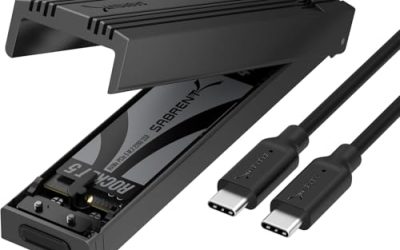
Newer drives use SATA, with a flat L-shaped data connector and a separate power connector on desktop models. Older drives use IDE, also called PATA, with a wide ribbon cable and a row of pins. A few compact laptops use M.2 solid-state drives with their own enclosures. Matching the interface is the key step, because an enclosure for one type will not work for another.
Capacity and condition
Check the stated capacity on the label and note the age of the drive. Hard drives wear out with time and heat, so an old model may already have problems. You can test this before you commit to storing anything important on it.
Step 2: Choose an Enclosure or Adapter
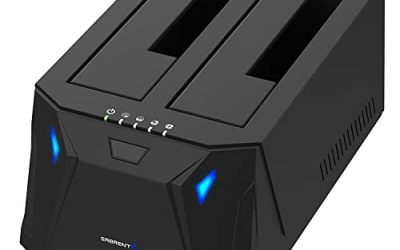
An enclosure is a case that holds the drive and provides a USB connection. An adapter or docking station is an open cable or cradle that connects the bare drive to a computer. Both work, and the choice depends on how you plan to use the drive.
- Enclosures protect the drive, are portable, and look tidy on a desk.
- Adapter cables are cheap and quick for a one-time copy.
- Docking stations suit people who swap several bare drives in and out.
- Tool-free enclosures simplify installation for beginners.
Look at the connection speed. A faster USB standard lets a solid-state drive reach its full speed, while a spinning drive cannot use all the bandwidth of the fastest connections. Match the enclosure to the drive, not to the highest number on the box.
Step 3: Install the Drive
- Power off and unplug the enclosure and any computer if you are working on a PC internal drive.
- Open the enclosure by sliding the case or removing the screws, as the instructions describe.
- Line up the drive connector with the connector inside the enclosure and push it in gently until it seats fully.
- Secure the drive with the supplied screws or tool-free clips, so it does not rattle.
- Close the enclosure and attach the cable.
- For a 3.5-inch drive, connect the external power adapter before you connect the USB cable.
Handle the drive by its edges and avoid touching the circuit board. Use a bit of care to keep it from static discharge. If you are taking the drive out of an old PC, label the cables you remove so you can reassemble the machine later if needed.
Step 4: Connect, Format, and Name the Drive
Plug the enclosure into your computer and wait for the operating system to recognize it. If the drive has old data, it will appear as a normal drive. If it is blank or unrecognized, open the disk management tool in your system settings, where you can see the disk and create a new partition.
Back up anything you need first
Formatting erases all data. Before you format, copy any files you want to keep, and be sure you are selecting the right disk. Mistaking the drive for another one is a common and costly error.
Pick a file system
The file system depends on where you use the drive. NTFS suits Windows. exFAT works well across Windows, macOS, and many game consoles, and it handles large files. FAT32 works on nearly everything, but it limits the size of single files. Choose exFAT if you want flexibility, and check what your console requires if you plan to use the drive with one.
Step 5: Check Drive Health
An old drive can fail without warning, so check its health before trusting it. Free utilities read the drive’s SMART report, which shows signs of wear, such as reallocated sectors or read errors. A drive with warnings should not hold irreplaceable files.
Listen to the drive. Clicking, grinding, or repeated spin-up sounds suggest mechanical trouble. A drive that disconnects repeatedly or runs extremely slowly may be failing, and you should consider replacing it. Use a full format instead of a quick one, if you want the system to scan for bad areas, although this takes longer.
What to Use the Drive For
| Use | Suitability | Reason |
|---|---|---|
| Spare game library storage | Good | Games can be re-downloaded if the drive fails |
| Recording and clip storage | Good | Large sequential files suit hard drives |
| Secondary backup copy | Fair | Fine as one of several copies, not the only one |
| Only copy of important files | Poor | Age and wear raise the chance of failure |
| Running games that need fast loading | Limited | Spinning drives are slower than solid-state drives |
Before You Start Checklist
- Identify the drive size and interface from its label and connectors.
- Choose an enclosure or adapter that matches both.
- Confirm that a 3.5-inch drive will have external power.
- Back up any data you need from the drive before formatting.
- Pick a file system based on the devices you will use.
- Run a health check before storing anything important.
Safety and Long-Term Use
Treat a repurposed hard drive as secondary storage. Keep it on a stable surface, avoid moving it while the platters are spinning, and eject it through the operating system before unplugging it. Do not stack it near heat sources, and give the enclosure some airflow.
If you want to retire the drive instead, wipe it before you dispose of it, because personal files can often be recovered from a simply formatted drive. Use the secure erase option in a disk utility, or follow a recycling program that offers certified data destruction. For a drive used in a work setting or containing sensitive data, check your organization’s policy first. In 2026 most operating systems include simple tools for this.
Troubleshooting Common Problems
Old drives and new enclosures sometimes need a little coaxing. If the drive does not spin up, check that a 3.5-inch model has its external power adapter attached, and try a different USB port, preferably one directly on the computer instead of a hub. A drive that powers on but never appears may need a new partition, or its connector may not be fully seated in the enclosure.
If the drive appears but transfers are slow, test the cable and the port. A worn cable or a slow port can cut speeds sharply, and a drive in poor health can slow down as it retries failed reads. Copy a large file and watch whether the speed stays steady. A steady speed points to the connection, while a speed that keeps dropping to a crawl points to the drive.
Keep a small notes file with the drive’s capacity, the date you set it up, and the file system you chose. When you come back to it months later, you will know what is on it and how old the setup is, and you can decide whether it deserves a spot in your backup plan.
Related guides
- Hall Effect Vs Potentiometer Controller Sticks Explained
- Low Profile Cpu Coolers For Small Form Factor Pcs
- How To Transfer Nintendo Switch Data To A New Console
Frequently Asked Questions
Can I use any old hard drive as an external drive?
Most can, as long as you match the size and interface with the right enclosure or adapter. Very old IDE drives need a specific adapter, and some drives are too worn to be reliable.
Why does my external drive not show up?
Common causes include a missing power connection on a 3.5-inch drive, a faulty cable, or a drive without a partition. Check the power and the cable, and then open the disk management tool to see whether the drive appears there.
Is it safe to store important files on an old drive?
Only as one of several copies. Old drives can fail without warning, so keep a second copy of anything important on another device or in cloud storage.
Will an old hard drive work with my console?
Often yes, if it meets the console’s requirements for connection and size. Check the maker’s support pages, since some consoles limit the supported capacity or format and may require a drive with a minimum speed.
FAQ
Can I use any old hard drive as an external drive?
Why does my external drive not show up?
Is it safe to store important files on an old drive?
Will an old hard drive work with my console?
More from Amazon
Programs that pair well with the guide above. Offers and eligibility are set by Amazon and may change.
Free shipping on eligible items, Prime Video and more. Eligible new members can start with a free trial.
Start a Prime free trialAd-free music streaming. Eligible new subscribers can start with a free trial.
Try Music Unlimited freeA Prime membership for ages 18-24 with a trial period. Eligibility is set by Amazon.
See Prime for Young AdultsAudiobooks and podcasts to listen to on the go. Eligible new members can start with a free trial.
Try Audible freeAs an Amazon Associate we earn from qualifying purchases.