Key takeaways
- Operating system: Windows is the supported platform for the PC app.
- Graphics card: A dedicated graphics card that meets the maker’s supported list. Integrated graphics is usually not enough for demanding VR titles.
- Memory and CPU: The maker lists minimum memory and processor levels; more headroom smooths frame rates in busy games.
- USB: A USB port capable of the data rates the cable needs. Meta’s guidance on ports and cables has varied by headset, so follow the maker’s current list. Plugging into a front-panel hub can cause drops compared with a port on the rear of the motherboard.
The fastest way to use a Quest 2 with a gaming PC is to install Meta’s PC app (the Link software, formerly the Oculus app), sign in with the same account as the headset, then connect either with a USB cable or wirelessly with Air Link and choose PC mode inside the headset. A cable gives the most stable picture, while Air Link removes the wire if your Wi-Fi is solid.
Quick setup steps
- Check that your PC graphics card and USB ports are suitable (see the table below, and the maker’s compatibility page for the exact supported list).
- Install Meta’s PC app on Windows and sign in with the account used on the headset.
- Update the headset and the PC app so both are on current software.
- Pick a connection method: Link cable or Air Link.
- Put on the headset, open the quick settings, and start Link or Air Link, then select your PC.
- Enable the PC app’s option to run apps from unknown sources only if you plan to use non-store content, and understand the risk.
- Launch a PC VR game from the PC app, Steam, or another store.
Cable or Air Link: which to choose
| Method | Best for | Limits |
|---|---|---|
| Link cable (USB) | Competitive or fast-paced VR, stable picture | Needs a good USB port and a long, quality cable; the wire can tangle |
| Air Link (wireless) | Freedom of movement, no cable | Needs a strong, uncongested Wi-Fi network and a PC wired to the router |
| Third-party streaming apps | Users who want extra tuning | More setup, not a Meta-supported route |
Meta’s own help pages describe both Link and Air Link as ways to run PC VR from the Quest. Specific requirements, such as the supported graphics cards and recommended cable types, are listed on Meta’s help center and change over time, so read those pages before buying hardware.

Oculus Rift S PC-Powered VR Gaming Headset
Picked as a relevant option in this category.
View on Amazon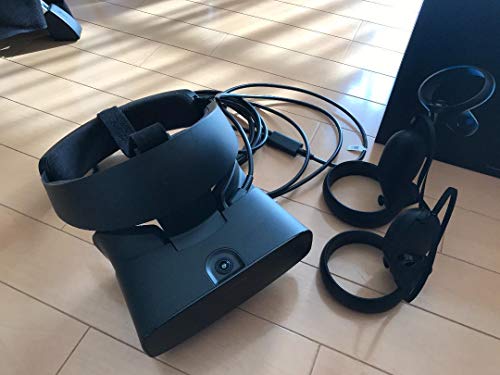
Oculus Rift S PC-Powered VR Gaming Headset
Picked as a relevant option in this category.
View on AmazonPC requirements in plain terms
- Operating system: Windows is the supported platform for the PC app.
- Graphics card: A dedicated graphics card that meets the maker’s supported list. Integrated graphics is usually not enough for demanding VR titles.
- Memory and CPU: The maker lists minimum memory and processor levels; more headroom smooths frame rates in busy games.
- USB: A USB port capable of the data rates the cable needs. Meta’s guidance on ports and cables has varied by headset, so follow the maker’s current list. Plugging into a front-panel hub can cause drops compared with a port on the rear of the motherboard.
Setting up the Link cable
- Install the PC app and sign in.
- Plug the cable into a data-capable USB port on the PC and into the headset.
- Put on the headset and accept the prompt to enable Link, then choose PC.
- Set your play area (Guardian boundary) if you are asked.
- Start a game from the PC side.
A charging-only cable will not work, so use a cable that supports data. If the headset does not detect the PC, try a different port, restart the PC app and re-seat the cable at both ends.
Setting up Air Link
- Make sure the headset and PC are on the same network.
- Connect the PC to the router with Ethernet if possible, since it carries the video stream.
- Use a 5 GHz or newer Wi-Fi band for the headset, ideally with the router in the same room.
- In the PC app’s settings, turn on Air Link (the feature may be labeled as a beta or experimental option, depending on app version).
- In the headset, open quick settings, choose Air Link, select your PC, and launch.
Settings that affect quality
| Setting | What it changes | Tip |
|---|---|---|
| Render resolution | Image sharpness and GPU load | Lower it if frame rate drops, raise it with a strong GPU |
| Refresh rate | Smoothness of motion | Higher rates need more GPU and bandwidth |
| Bitrate (wireless) | Compression artifacts | Raise only if Wi-Fi is strong, lower if you see stutter |
| In-game graphics | GPU load | Reduce shadows and effects before reducing resolution |
Settings names vary by app version, so use the labels in the PC app’s device settings rather than assuming a fixed path.
Pick the right option if…
| Your situation | Best choice |
|---|---|
| You want the most reliable picture and minimal lag | Link cable |
| You have a wired PC and a modern Wi-Fi router in the same room | Air Link |
| Your router is far away or crowded | Link cable, or move the router closer |
| You are sensitive to motion discomfort | Choose the setup with the steadiest frame rate and take breaks |
| You have a weaker graphics card | Lower render resolution and in-game settings first |
Common mistakes
- Using a charging-only cable or a front-panel USB port.
- Running the PC on Wi-Fi as well as the headset, which can cause congestion.
- Skipping software updates on the headset or PC app.
- Expecting standalone Quest settings to match PC performance; PC VR depends on the GPU.
- Leaving a small play area unconfigured, which can cause collisions with furniture. Clear the space first and follow the Guardian prompts.
Safety and comfort
Clear a play area before wearing the headset, keep cables out of your path, and take regular breaks. Meta’s safety documentation covers age guidance and comfort recommendations, and anyone with health concerns, such as seizures or severe motion sickness, should consult a doctor before using VR.
Frequently Asked Questions
Can the Quest 2 play PC VR games without a cable?
Yes, through Air Link or third-party streaming tools. Meta lists Air Link as its wireless route, and results depend heavily on your Wi-Fi quality.
Do I need a special USB cable?
You need a cable that carries data, and a good quality one helps stability. Meta’s help center lists its recommended cable guidance, which has changed over time, so read the current page.
Why does my PC not detect the headset?
Common causes are a charging-only cable, a poor USB port, an outdated PC app or headset software, or the app not running. Try a rear USB port, update both devices and restart the PC app.
Is the Quest 2 still supported for PC VR?
Meta’s PC app has supported multiple headsets, but support lists change. Read the maker’s current compatibility page, since this article cannot cover every update.
Which is better for gaming, cable or Air Link?
A cable is typically more stable, whereas Air Link is more convenient. Fast-moving games tend to favor the cable, while casual play suits wireless.
Can I use SteamVR games?
Yes, SteamVR titles can be launched through the PC connection once SteamVR is installed and set as the runtime, per common setup guides.
FAQ
Can the Quest 2 play PC VR games without a cable?
Do I need a special USB cable?
Why does my PC not detect the headset?
Is the Quest 2 still supported for PC VR?
Which is better for gaming, cable or Air Link?
Can I use SteamVR games?
More from Amazon
Programs that pair well with the guide above. Offers and eligibility are set by Amazon and may change.
Free shipping on eligible items, Prime Video and more. Eligible new members can start with a free trial.
Start a Prime free trialAd-free music streaming. Eligible new subscribers can start with a free trial.
Try Music Unlimited freeA Prime membership for ages 18-24 with a trial period. Eligibility is set by Amazon.
See Prime for Young AdultsAudiobooks and podcasts to listen to on the go. Eligible new members can start with a free trial.
Try Audible freeAs an Amazon Associate we earn from qualifying purchases.