Installing Linux for gaming in 2026 is a far gentler process than its reputation suggests, but a little structure makes the difference between a smooth afternoon and a frustrating false start. The core idea is simple: back up your data, create reliable installation media, install a gaming-friendly distribution, and then layer Steam and Proton on top. Once that foundation is in place, most of your existing library becomes playable with surprisingly little effort.
This guide walks through the whole journey in plain language, aimed squarely at people leaving Windows for the first time. Alongside the steps, we highlight a few beginner-focused handbooks and reference titles that turn intimidating moments into quick lookups, so you always have a friendly explanation within arm’s reach.
Our top picks


As an Amazon Associate we earn from qualifying purchases at no extra cost to you.
⚡ Save on Your Next PC — Amazon Prime
Prime members get fast free shipping on the systems above, plus early access to Prime Day & Black Friday PC deals. New members get a 30-day free trial.
Watch: How To Install Linux For Gaming — Video Review
Step 1: Prepare and Back Up Before You Begin
Before touching partitions, copy your important files to an external drive or cloud storage. Installing an operating system is low-risk when done carefully, but backups remove any anxiety. If you are nervous about leaving Windows entirely, a book like Goodbye Windows 10, Welcome Linux Mint reframes the switch as an upgrade rather than a leap, and helps you decide what to keep.
Step 2: Choose a Beginner-Friendly Distribution
- Linux Mint Cinnamon is the safest first choice thanks to its Windows-like desktop.
- Bazzite suits handheld and console-style gaming rigs with its immutable design.
- Nobara appeals to those who want Fedora’s speed with gaming tweaks preapplied.
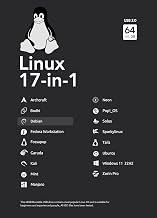
A step-by-step Mint handbook or a dedicated Bazzite guide keeps you oriented as you evaluate which desktop feels right for your hardware and habits.
Step 3: Create Installation Media and Install
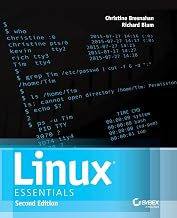
Write your chosen distribution to a USB drive, boot from it, and follow the graphical installer. Most installers now handle partitioning automatically, so you rarely need to touch the command line. If you want to understand what the installer is doing behind the scenes, How Linux Works explains the concepts clearly without drowning you in jargon, which builds confidence for later maintenance.
Step 4: Install Steam and Enable Proton
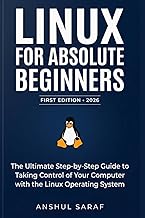
Open your software center, install Steam, then enable Steam Play (Proton) in the settings so Windows games become playable. Add Lutris or Heroic for non-Steam libraries. When something misbehaves, a beginner’s survival guide to commands and the terminal turns a scary error message into a two-minute fix rather than a dead end.
Step 5: Tune, Update and Maintain
Keep drivers and Proton current through regular updates, and learn a small set of maintenance commands so upkeep stays painless. A Cinnamon-focused guide covering apps, updates, backups and troubleshooting is invaluable for the first month, giving you a reliable playbook until the routines become second nature.
Frequently Asked Questions
Will my Windows games work on Linux?
A large majority run through Proton, though some competitive titles with strict anti-cheat remain blocked. Checking compatibility for your must-play games before installing avoids disappointment down the line.
Do I need to know the command line to install Linux?
No. Modern installers are fully graphical, and a beginner-friendly handbook covers the rare terminal moment. Learning a few commands later simply makes maintenance faster and more comfortable.
Can I dual-boot Linux alongside Windows?
Yes, most installers offer a dual-boot option that lets you keep Windows on the side. This is a reassuring way to test Linux gaming without fully committing to a single operating system.
How long does the whole process take?
Creating media and installing typically takes under an hour, with another hour for Steam, Proton and updates. Having a reference guide nearby keeps you from stalling on unfamiliar prompts.
Conclusion
Installing Linux for gaming in 2026 comes down to five calm steps: back up, choose a friendly distro, create media and install, enable Steam and Proton, then maintain. None of it requires deep technical skill, especially with a beginner handbook or two guiding you through the unfamiliar moments. Follow this sequence and you will go from Windows-bound to happily gaming on Linux in a single relaxed afternoon.